
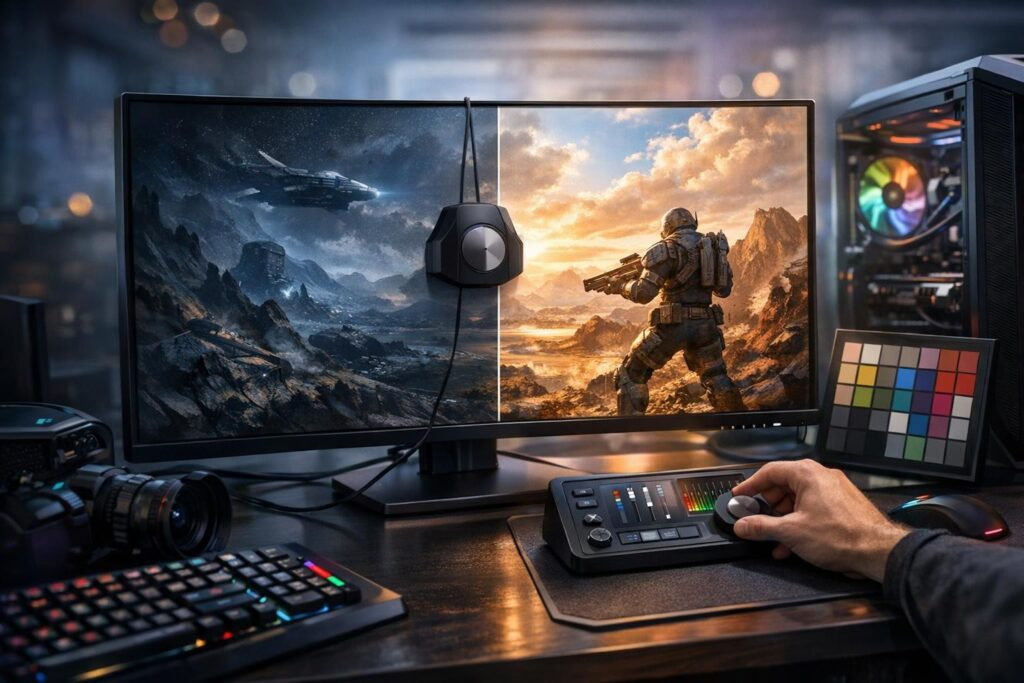
Listen up, fellow gamer! If you’re serious about dominating in competitive shooters, flight sims, or any visually demanding game, you need to stop relying on your monitor’s factory settings. Most displays ship with configurations that look flashy in stores but absolutely murder your in-game visibility. We’re talking about washed-out shadows, blown-out highlights, and missing crucial details that could mean the difference between spotting that enemy first or respawning at base camp.
The secret weapon? Proper calibration of brightness, contrast, and gamma settings. These three pillars of display configuration directly impact how well you can distinguish objects in dark corners, spot movement against complex backgrounds, and maintain visual clarity during intense gaming sessions. Let’s dive deep into transforming your monitor from a liability into your competitive advantage.
Understanding the Holy Trinity of Display Settings
Before we start tweaking values, you need to understand what each setting actually does to your display. This isn’t just technical mumbo-jumbo—knowing these fundamentals helps you make informed decisions rather than randomly adjusting sliders.
Brightness: Your Shadow Detail Controller
Despite its name, brightness doesn’t actually make your screen brighter in the way you’d think. What it really controls is the black level—essentially, how dark your darkest darks appear. Set it too low, and everything becomes a murky mess where black areas blend together. Crank it too high, and your blacks turn into grays, destroying contrast and making the image look washed out.
For gaming purposes, you want brightness set so you can barely distinguish details in shadow areas without turning blacks into muddy grays. This sweet spot gives you maximum visibility in dark game environments while maintaining proper contrast.
Contrast: The White Point Master
Contrast controls your white point and the overall range between your darkest and brightest pixels. Think of it as the stretch between black and white. Higher contrast creates more dramatic differences between light and dark areas, while lower settings produce a flatter, more uniform image.
The danger zone here is clipping—when you push contrast so high that bright details merge into pure white blobs. You want maximum separation without losing highlight detail, especially important for spotting muzzle flashes, explosions, or reflections that signal enemy positions.
Gamma: The Visibility Curve Game Changer
Gamma is the most misunderstood yet powerful setting for gaming. It controls the curve of luminance between black and white—essentially redistributing brightness across the tonal range without touching your backlight intensity. Lower gamma values brighten midtones and shadows, making dark areas more visible. Higher gamma deepens shadows for more dramatic contrast.
Standard gamma sits at 2.2 for most PC displays, but this isn’t gospel. Adjusting gamma based on your room lighting and game type can dramatically improve your ability to spot targets. This is where you’ll find your competitive edge.
Step-by-Step Calibration Process for Maximum Gaming Performance
Now that you understand what you’re adjusting, let’s get your monitor dialed in properly. Grab a calibration pattern—websites like Lagom LCD or Eizo Monitor Test offer free tools that work perfectly for this purpose.
Step One: Reset to Neutral Territory
Start by setting both brightness and contrast to 50 percent. This gives you a neutral baseline. Most factory settings sit way higher, which causes eye strain and actually reduces your ability to perceive detail over long gaming sessions.
Step Two: Dial In Your Brightness
Pull up a brightness test pattern showing numbered bars from black to dark gray. Adjust your brightness slider until the outer bar barely disappears into the background while inner bars remain faintly visible. You should be able to distinguish between bars without the blacks turning gray.
- Too low: Multiple bars merge into solid black
- Too high: Black bars look distinctly gray
- Just right: Subtle distinction between darkest bars
Step Three: Optimize Your Contrast
Switch to a contrast test pattern with white to light gray bars. Increase contrast until you can clearly see all bars, then back off slightly when the brightest bars start merging. Most gaming monitors perform best between 40 and 70 percent contrast, though this varies by panel technology.
Step Four: Fine-Tune Gamma for Your Environment
Here’s where personal preference meets environmental factors. Start with gamma 2.2 and evaluate based on your room lighting and game type.
| Environment | Recommended Gamma | Best For |
|---|---|---|
| Bright room / Daylight | 1.8 – 2.0 | Shadow visibility in competitive games |
| Dim lighting | 2.2 – 2.4 | Balanced detail across tonal range |
| Dark room | 2.4 – 2.6 | Cinematic depth and immersion |
| Flight sims (DCS, IL-2) | 2.0 – 2.2 | Spotting distant aircraft |
Step Five: Test in Real Gaming Scenarios
Load up your main game and visit areas with challenging lighting—dark corridors, heavy shadows, bright outdoor scenes. Can you distinguish details in shadows without highlights blowing out? Can you spot movement in darker areas? Adjust incrementally until you achieve optimal visibility across all lighting conditions.
Game-Specific Optimization Strategies
Different game genres benefit from different approaches. A horror game demands different settings than a competitive shooter or flight simulator.
Competitive Shooters and Battle Royales
For games where spotting enemies quickly matters most, bias toward lower gamma values around 1.8 to 2.0. This lifts shadows and makes it harder for opponents to hide in dark corners. Pair this with moderate contrast around 50-60 percent to maintain highlight detail for muzzle flashes and UI elements.
Flight Simulators and Vehicle Combat
Games like DCS World and IL-2 Sturmovik require spotting small objects at distance against complex backgrounds. Gamma around 2.0 with slightly elevated contrast helps distinguish aircraft silhouettes. Brightness should be set conservatively to prevent cockpit instruments from washing out while maintaining visibility outside.
MMORPGs and Open World Games
These games feature diverse lighting scenarios from deep dungeons to bright outdoor zones. Standard gamma 2.2 with balanced brightness and contrast provides versatility. You want settings that don’t require constant adjustment as you move between environments.
Advanced Tips for Elite Visibility
Once you’ve nailed the basics, these refinements can push your display performance even further.
Disable Image Enhancement Features
Turn off dynamic contrast, adaptive brightness, sharpening filters, and color vibrance boosters. These might look impressive initially but introduce inconsistency and can actually reduce your ability to track fast movement or spot subtle details.
Consider Your Display Technology
OLED panels can run lower gamma values since they produce true blacks without backlight bleed. IPS panels might need slightly higher gamma to compensate for their naturally lower contrast ratios. TN panels often benefit from boosted contrast to overcome their limited viewing angles.
Account for Room Lighting Changes
Your ideal settings will shift between daytime and nighttime gaming sessions. Many monitors allow saving multiple presets—create separate profiles for different lighting conditions and switch between them as needed rather than constantly readjusting.
Pro tip: After calibration, take screenshots of your monitor’s OSD settings. This lets you quickly restore your perfect configuration if settings get reset or someone else uses your PC.
Common Calibration Mistakes to Avoid
Even experienced gamers fall into these traps when adjusting display settings.
- Cranking everything to maximum thinking more equals better
- Calibrating in lighting conditions different from your actual gaming environment
- Forgetting that in-game brightness sliders interact with monitor settings
- Comparing your display to someone else’s without accounting for panel differences
- Making multiple adjustments simultaneously instead of changing one variable at a time
- Trusting factory “gaming mode” presets without verification
Maintaining Your Calibration Over Time
Display characteristics drift over time as backlights age and panel properties shift. Check your calibration every few months, especially if you notice colors looking different or details becoming harder to distinguish. A quick five-minute verification with test patterns ensures you’re maintaining optimal performance.
Your display is your window into the game world. Proper calibration transforms it from a simple output device into a competitive tool that gives you tangible advantages. The difference between factory settings and properly calibrated display can literally be the difference between seeing that enemy sniper first or becoming their next victim.
Spend thirty minutes getting these settings right, and you’ll benefit from improved visibility for thousands of gaming hours ahead. Your eyes will thank you, your K/D ratio will improve, and you’ll wonder how you ever tolerated those awful factory defaults.
Frequently Asked Questions
Should I use different settings for different games?
While one well-balanced configuration works for most games, competitive shooters might benefit from slightly lower gamma for shadow visibility, while cinematic single-player games look better with higher gamma for dramatic contrast. Most gamers find success with one optimized profile and minor in-game brightness adjustments.
How does HDR affect these calibration recommendations?
HDR-enabled games bypass most monitor brightness and contrast controls, using their own tone mapping. For HDR content, focus on your monitor’s HDR-specific settings and in-game HDR calibration tools. Keep separate SDR profiles for non-HDR games.
Will lowering brightness damage my monitor or reduce its lifespan?
Actually the opposite—running at lower brightness extends backlight lifespan significantly. Factory settings often run displays at 80-100 percent brightness, which accelerates aging. Properly calibrated brightness around 50-70 percent both improves image quality and prolongs your monitor’s usable life.
Do I need expensive calibration hardware for gaming?
Professional colorimeters help achieve perfect color accuracy for creative work, but for gaming visibility, visual calibration using test patterns produces excellent results. Save your money for a better monitor rather than calibration hardware unless you also do color-critical work.
My monitor doesn’t have gamma controls—what should I do?
Many monitors lack direct gamma adjustment in their OSD. You can adjust gamma through your graphics card control panel (NVIDIA Control Panel or AMD Radeon Settings) or Windows color management settings. This achieves similar results to monitor-level gamma adjustment.
Can incorrect calibration cause eye strain or headaches?
Absolutely. Excessively high brightness is a major cause of digital eye strain. Improper contrast and gamma can force your eyes to work harder to distinguish details. Proper calibration not only improves visibility but significantly reduces fatigue during extended gaming sessions.