
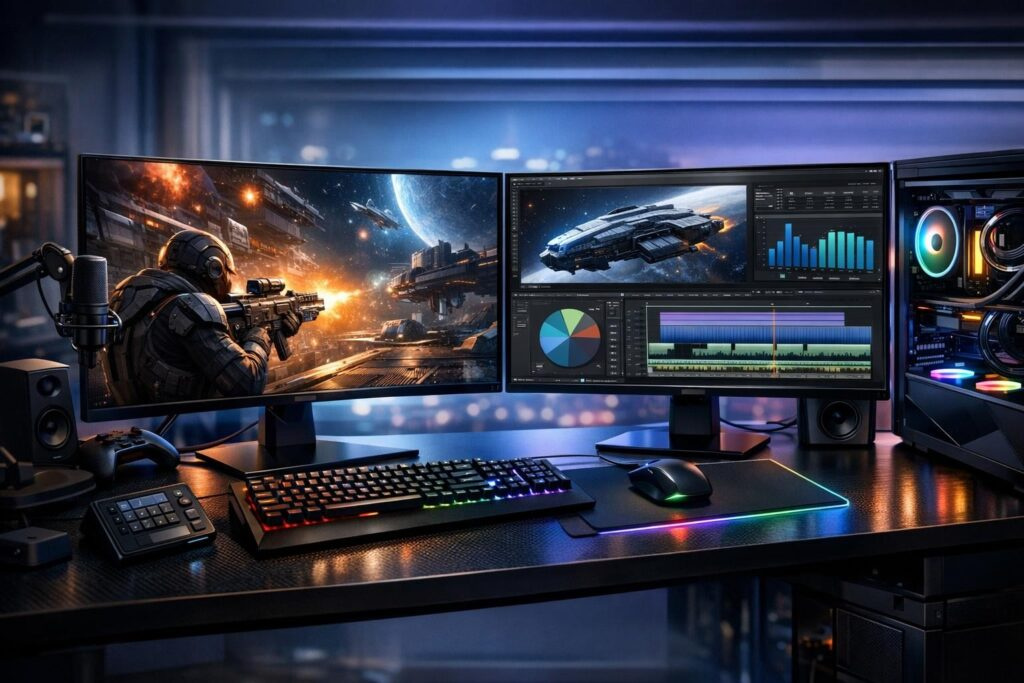
Picture this: you’re deep into an intense raid in Final Fantasy XIV, but you need to check your rotation guide without tabbing out. Or maybe you’re editing a video project while keeping an eye on your render progress and answering client emails. This isn’t some futuristic dream—it’s the everyday reality of a dual monitor setup, and it’s quickly becoming the standard for gamers and professionals alike.
Why Two Screens Beat One Every Single Time
Let’s talk numbers that actually matter. Studies consistently show that dual monitor configurations boost productivity by 20-50%, with some professionals saving up to 2.5 hours daily. For gamers, this translates to seamless multitasking without the annoying alt-tab dance that breaks your flow and potentially gets you killed in competitive matches.
The core idea is beautifully simple: designate one display for your primary activity—whether that’s fragging enemies, designing graphics, or coding—while the second screen handles everything else like chat applications, system monitoring tools, reference materials, or streaming software. Research indicates that content creators and creative professionals experience a 42% productivity increase with this setup.
Selecting Your Perfect Monitor Pair: What Actually Matters
Choosing the right displays makes or breaks your entire experience. There’s no one-size-fits-all answer here because gaming priorities and productivity needs often pull in different directions.
Gaming-Focused Monitor Selection
If gaming is your primary concern, prioritize a 27-32 inch display with high refresh rates. Competitive shooter players should target 144Hz minimum, though 240Hz options like the Alienware AW2723DF deliver buttery-smooth gameplay with 1ms response times and support for both NVIDIA G-Sync and AMD FreeSync technologies.
Here’s what matters for different gaming styles:
- Competitive FPS players need speed over resolution—240Hz at 1080p trumps 60Hz at 4K
- RPG and simulation fans benefit from larger screens with 1440p or 4K resolution for immersive detail
- Fast response times (1-2ms) prevent ghosting during rapid movements
- Adaptive sync technology eliminates screen tearing without performance hits
Productivity and Creative Work Displays
When work takes priority, shift your focus toward color accuracy and screen real estate. The Dell UltraSharp U2720Q exemplifies this category with its 4K resolution, 27-inch size, and IPS panel technology that delivers precise color reproduction crucial for designers, photographers, and video editors.
Professional work demands:
- IPS or VA panels for superior color accuracy and viewing angles
- Resolution of 1440p minimum, 4K ideal for detailed work
- Factory color calibration or easy calibration options
- Flicker-free technology and blue light filters for extended work sessions
Best of Both Worlds: Hybrid Setups
Many users split time between gaming and productivity. The sweet spot? Pair a high-refresh gaming display as your primary with a color-accurate IPS screen as secondary. Think 144Hz 1440p for gaming alongside a 4K IPS for work tasks.
Display Size and Resolution: Finding Your Goldilocks Zone
| Use Case | Ideal Size | Best Resolution | Why This Works |
|---|---|---|---|
| Competitive Gaming | 24-27 inches | 1080p-1440p | Maximum framerates, easier enemy spotting |
| Immersive Gaming | 27-32 inches | 1440p-4K | Enhanced detail, deeper immersion |
| General Productivity | 24-27 inches | 1440p or 4K | Perfect balance of space and text clarity |
| Creative Work | 27-32 inches | 4K | Maximum detail for precise editing |
Hardware Requirements: Making Sure Your System Can Handle It
Before you start shopping, verify your graphics card can power dual displays. The good news? Modern NVIDIA and AMD GPUs handle two monitors effortlessly, but remember that resolution and refresh rate directly impact gaming performance.
Essential Cable Knowledge
Not all cables deliver equal performance. Understanding the differences prevents frustrating bottlenecks:
- DisplayPort: The gamer’s choice—supports highest refresh rates and resolutions with better bandwidth
- HDMI: Universal compatibility, works great for secondary displays or 60Hz monitors
- USB-C: Increasingly common on modern laptops and monitors, can deliver power and video simultaneously
Pro tip: Connect your primary gaming display via DisplayPort for optimal performance, while HDMI handles your secondary screen perfectly fine.
Physical Setup: Ergonomics That Won’t Wreck Your Neck
Mounting two monitors incorrectly causes eye strain, neck pain, and headaches. Smart positioning protects your health while maximizing usability.
Essential Positioning Guidelines
- Position both displays at eye level or slightly below—approximately 15-20 degrees down from horizontal eye line
- Align the bezels (screen borders) so your cursor flows smoothly between displays
- Maintain 50-70 centimeters distance from your eyes, adjusting based on screen size
- Invest in adjustable monitor arms for flexible height and angle adjustments
- Angle monitors slightly inward to reduce head turning
Landscape vs Portrait Orientation
Horizontal (landscape) orientation suits gaming and general use best. However, vertical (portrait) orientation excels for specific workflows—programmers viewing long code files, writers working with documents, or day traders monitoring stock tickers. Many professionals run one landscape primary with a portrait secondary for maximum versatility.
Windows Configuration: Getting Your OS On Board
Hardware connected? Great! Now configure Windows properly for seamless dual monitor operation.
Step-by-Step Display Setup
- Open Settings → System → Display and confirm both monitors appear
- Click “Identify” to see which physical monitor corresponds to each number
- Designate your primary display where apps will launch by default
- Set optimal resolution for each screen individually
- Configure refresh rates—crucial for gaming monitors
- Adjust orientation (landscape or portrait) as needed
- Drag the display icons to match their physical arrangement on your desk
That last point deserves emphasis: virtual layout must mirror physical reality. If your second monitor sits to the right, position it right in Windows settings. Otherwise, your cursor movements will feel backwards and frustrating.
Color Calibration for Professionals
Designers and photographers need consistent colors across both displays. Use Windows built-in calibration tool or professional hardware like Datacolor SpyderX for accurate color matching between monitors.
Performance Impact: The Truth About FPS Loss
Every gamer asks this question: will dual monitors tank my framerates? The answer depends on your usage scenario.
Scenario One: Gaming on Primary, Static Content on Secondary
Running your game fullscreen on one monitor while the other displays Discord, browser tabs, or monitoring software typically causes 5-10% FPS reduction. For most systems, this impact remains negligible and acceptable.
Scenario Two: Gaming Across Both Displays
Extending games across both monitors (common in racing sims or flight simulators) demands significantly more GPU power, potentially dropping framerates 15-25% in demanding titles. The expanded field of view often justifies this tradeoff for immersive experiences.
Performance Optimization Tricks
- Close unnecessary background applications on your secondary display
- Use exclusive fullscreen mode instead of borderless windowed when possible
- Monitor VRAM usage through Task Manager—insufficient memory causes stuttering
- Enable G-Sync or FreeSync to smooth out variable framerates
- Disable hardware acceleration in browsers and apps on secondary monitor
Modern gaming systems with AI-powered optimization automatically balance GPU loads, helping maintain smooth performance across both screens.
Gaming Configurations: Setups for Different Player Types
Competitive Shooter Setup
Counter-Strike, Valorant, and Apex Legends players need lightning-fast response times above all else.
Primary monitor: 24-27 inches, 240Hz+, 1080p-1440p, 1ms response time
Secondary monitor: 24 inches, 60Hz, any resolution—handles Discord, Spotify, and performance monitoring
Key tip: Keep game interface on primary screen only. Secondary handles communication without cluttering your competitive view.
Simulation and Strategy Setup
Microsoft Flight Simulator, Star Citizen, and grand strategy titles benefit from maximum screen real estate and detail.
Primary monitor: 27-32 inches, 1440p-4K, 60-144Hz
Secondary monitor: Consider portrait orientation for maps, guides, and reference materials
Key tip: Spread game interface elements strategically—main view on primary, maps and secondary info on second screen.
Streaming Setup
Content creators need to manage games, streaming software, chat interaction, and technical monitoring simultaneously.
Primary monitor: 27 inches, 144Hz+, for gameplay
Secondary monitor: Larger preferred (27-32 inches) for OBS control, chat management, and stream monitoring
Key tip: Dedicate secondary screen exclusively to streaming tools—never let viewers see your behind-the-scenes setup.
Productivity Workflows: Working Smarter, Not Harder
Professional users experience transformative workflow improvements with properly configured dual monitors.
Profession-Specific Configurations
Programmers and developers: IDE on primary screen, documentation and Stack Overflow on portrait secondary. This arrangement mirrors natural reading patterns while keeping code front and center.
Graphic designers: Main project canvas on primary, tool palettes, asset libraries, and color references on secondary. Eliminates constant panel rearrangement.
Video editors: Timeline and preview on primary display, effects panels and file browsers on secondary. Maximizes workspace efficiency.
Data analysts: Spreadsheets and dashboards on primary, detailed datasets and documentation on secondary. Reduces context switching.
Remote Work Game Changer
Keep video calls on one monitor while actively working on the other. This eliminates awkward “sorry, I was on mute” moments and maintains engagement without sacrificing productivity.
Expert Tips for Dual Monitor Excellence
Cable Management Matters
Messy cables aren’t just ugly—they create electromagnetic interference and collect dust. Use cable management sleeves, velcro ties, or under-desk trays. Your future self will thank you.
Invest in Quality Mounting
VESA-compatible monitor arms provide adjustment freedom that static stands can’t match. Gas spring arms allow effortless repositioning throughout your workday, accommodating different tasks and preventing neck strain.
Mismatched Monitors Work Fine
Don’t stress about having identical displays. Windows handles different sizes, resolutions, and brands without issues. Just adjust scaling individually in display settings.
Taskbar Optimization
Configure Windows taskbar behavior for dual monitors. Choose whether it appears on both screens or primary only. Many users prefer taskbar on both displays with open windows showing only on their respective screens.
Test and Iterate
Your first configuration probably won’t be perfect. After a few days of use, reassess monitor angles, heights, and positions. Small adjustments create major comfort improvements.
The Bottom Line on Dual Monitor Setups
Dual monitor systems aren’t luxury indulgences—they’re practical investments in comfort and efficiency. Whether you’re fragging opponents, editing videos, designing graphics, or analyzing data, the benefits become apparent within days.
The golden rule? Choose equipment matching your actual needs, not marketing hype. Competitive gamers need high refresh rates, not 4K resolution. Designers need color accuracy, not 240Hz refresh. Identify your priorities first, then select hardware accordingly.
A properly configured dual monitor setup fundamentally changes how you work and play. This investment pays dividends in productivity gains, reduced frustration, and genuine enjoyment of your digital activities. The question isn’t whether dual monitors improve your experience—it’s why you haven’t made the switch yet.
Frequently Asked Questions
Do I need the same monitor model for both screens?
No, you don’t need identical monitors. Windows handles different sizes, brands, and resolutions without problems. Many users successfully pair a high-refresh gaming monitor with a color-accurate work display. Just adjust each screen’s settings individually for best results.
Will dual monitors work with my laptop?
Most modern laptops support at least one external monitor, and many support two. Check your laptop’s specifications for display output options. You might need a USB-C hub or docking station to connect multiple monitors depending on available ports.
How much extra electricity do dual monitors consume?
Two monitors typically consume 40-120 watts combined depending on size and brightness settings. This adds roughly 5-15 dollars monthly to electricity bills for average usage. Energy-efficient LED panels minimize power consumption while maintaining excellent image quality.
Can I use a TV as my second monitor?
Yes, but with caveats. TVs work as secondary displays for media consumption and casual use, but higher input lag and lower pixel density make them poor choices for primary gaming or professional work. They excel as secondary screens for videos, streams, or monitoring tools.
What graphics card do I need for dual 1440p monitors?
For general desktop use and productivity, any modern GPU handles dual 1440p displays easily. For gaming on both screens simultaneously, consider NVIDIA RTX 3060 Ti or AMD RX 6700 XT minimum. Gaming on one while using the other for static content requires less power—even mid-range cards like GTX 1660 Super work fine.
Should my secondary monitor be portrait or landscape orientation?
This depends entirely on your workflow. Landscape suits gaming and general use. Portrait orientation benefits programmers, writers, and anyone working with long documents or code. Many professionals use landscape primary with portrait secondary for maximum flexibility.