
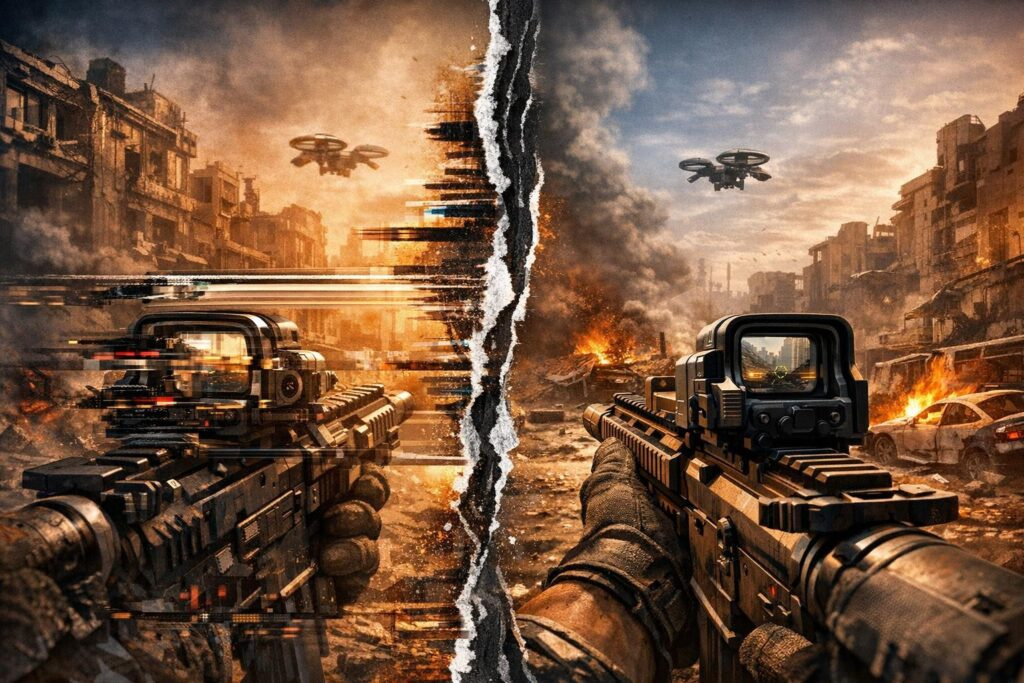
Screen tearing ranks among the most frustrating visual issues gamers encounter during gameplay. Those annoying horizontal lines splitting your screen in half don’t just ruin immersion—they can cost you crucial moments in competitive matches. The traditional fix, VSync, introduces its own headache: noticeable input lag that makes your controls feel sluggish. Fortunately, modern gaming technology offers multiple solutions that eliminate screen tearing while keeping your inputs responsive and snappy.
Understanding What Causes Screen Tearing
Screen tearing happens when your graphics card and monitor fall out of rhythm with each other. Picture this scenario: your GPU cranks out frames at wildly different speeds than your display refreshes. When your graphics card pushes 100 frames per second while your monitor only refreshes 60 times per second, the display ends up showing pieces from multiple frames simultaneously. This mismatch creates those characteristic horizontal tears that slice across your screen at random intervals.
The physics behind it makes sense when you break it down. Your monitor draws images from top to bottom in a continuous scan. If a new frame arrives from your GPU mid-scan, the monitor displays part of the old frame on top and part of the new frame on bottom. This split-second timing issue creates the jarring visual artifact we call screen tearing.
Why Traditional VSync Creates More Problems Than It Solves
Vertical synchronization seemed like the perfect answer when it first arrived. The concept sounds straightforward: force your graphics card to wait until your monitor finishes refreshing before delivering the next frame. While this approach eliminates screen tearing completely, it introduces a different beast—input lag.
The Input Lag Problem
When VSync activates on a standard 60Hz display, your system caps performance at 60 frames per second regardless of your GPU’s capabilities. Even if your graphics card could deliver 144 FPS, you’re stuck at 60. This artificial limitation creates a noticeable delay between pressing a button and seeing the action on screen. In fast-paced competitive games like first-person shooters or fighting games, this delay translates to missed shots and lost matches.
The Stuttering Nightmare
Adaptive VSync makes matters worse in certain situations. When your frame rate dips below your monitor’s refresh rate—say, 58 FPS on a 60Hz display—the system halves your frame rate to 30 FPS to maintain synchronization. This sudden drop creates severe stuttering that makes gameplay feel like you’re watching a slideshow rather than playing a smooth game.
Fast Sync and Enhanced Sync: Modern Solutions Without Compromise
NVIDIA’s Fast Sync and AMD’s Enhanced Sync represent a paradigm shift in how we handle screen tearing. Instead of forcing your GPU to wait or capping frame rates artificially, these technologies take a smarter approach.
Here’s the clever part: your graphics card continues rendering frames at maximum speed, storing them in a buffer. When your monitor refreshes, the system displays the most recently completed frame and discards the rest. This method eliminates screen tearing without introducing the input lag associated with traditional VSync.
Hardware Requirements and Setup
Getting started with these technologies requires relatively modern hardware:
- NVIDIA Fast Sync: GeForce GTX 900 series or newer
- AMD Enhanced Sync: Graphics cards based on GCN architecture or newer
- Up-to-date graphics drivers from your GPU manufacturer
- No special monitor requirements needed
Activation takes just minutes through your graphics control panel. Navigate to your 3D settings, find the vertical sync option, and select Fast Sync or Enhanced Sync instead of the standard VSync setting.
Variable Refresh Rate Technology: The Premium Solution
G-SYNC and FreeSync represent the gold standard for eliminating screen tearing. These variable refresh rate technologies flip the traditional approach on its head: instead of forcing your GPU to match your monitor, they make your monitor adapt to your GPU’s output.
How Variable Refresh Rate Works
When you’re gaming with VRR enabled, your monitor constantly adjusts its refresh rate to match your current frame rate. Playing at 73 FPS on a 144Hz display? Your monitor temporarily operates at 73Hz. Frame rate jumps to 118 FPS? The display immediately shifts to 118Hz. This dynamic synchronization creates buttery-smooth gameplay without tearing or stuttering.
Choosing Between G-SYNC and FreeSync
Understanding the differences helps you make the right choice:
| Feature | G-SYNC | FreeSync |
| GPU Compatibility | NVIDIA only (GTX 10-series and newer for Compatible mode) | AMD and NVIDIA (GTX 10-series and newer) |
| Monitor Cost | Generally more expensive | More affordable options available |
| Performance Range | Typically 30-240Hz | Varies by monitor (often 48-144Hz) |
| Additional Hardware | Proprietary module in monitor | Uses standard DisplayPort Adaptive-Sync |
The experience with either technology feels remarkably similar. Both deliver tear-free, smooth gameplay with minimal input lag. Your choice often comes down to your GPU manufacturer and budget rather than performance differences.
Frame Rate Limiting: The Simplest Effective Method
Sometimes the best solutions come from basic principles. Capping your frame rate slightly below your monitor’s refresh rate provides surprisingly effective results without requiring special hardware or software.
Setting the Right Frame Cap
The sweet spot depends on your display’s refresh rate:
- 60Hz monitors: Cap at 57-59 FPS
- 144Hz monitors: Cap at 140-142 FPS
- 240Hz monitors: Cap at 237-238 FPS
This small reduction remains virtually imperceptible to human eyes. Most players cannot distinguish between 60 FPS and 58 FPS in actual gameplay. However, this subtle adjustment prevents your GPU from overwhelming your monitor with excess frames, dramatically reducing screen tearing occurrence.
Many modern games include built-in frame rate limiters in their graphics settings. Alternatively, your graphics driver control panel offers system-wide frame rate limiting options. This method introduces zero additional input lag while significantly improving visual smoothness.
Advanced Techniques: RTSS and Scanline Sync
Rivatuner Statistics Server offers power users precise control over frame delivery timing. This free utility works with both NVIDIA and AMD graphics cards, providing granular frame rate limiting alongside additional features.
Precision Frame Rate Control
RTSS allows you to set exact frame rate targets down to decimal points. Instead of rough caps, you can specify 59.94 FPS or 141.67 FPS for perfect synchronization with your display. This precision eliminates micro-stuttering that sometimes occurs with less accurate frame limiters.
Scanline Sync Technology
Scanline Sync takes a unique approach to screen tearing. Rather than eliminating tears completely, it pushes them outside your visible viewing area—typically into the top or bottom bezels of your monitor where you won’t notice them.
The setup requires experimentation. Start with a scanline value around your vertical resolution divided by two (540 for 1080p displays, 720 for 1440p). Adjust this value while observing where the tear line appears on screen. The goal is positioning it where your monitor’s bezel hides it from view.
Scanline Sync demands patience during initial configuration, but once dialed in properly, it delivers tear-free visuals without frame rate caps or added latency.
Choosing Your Optimal Solution
Selecting the right anti-tearing method depends on your specific hardware configuration and gaming priorities. Here’s a practical decision framework:
For Competitive Gamers
Input lag matters more than anything else in competitive scenarios. Professional esports players typically prioritize responsiveness over visual perfection. Consider these options in order of preference:
- Variable refresh rate (G-SYNC or FreeSync) if your monitor supports it
- Fast Sync or Enhanced Sync for modern GPU owners
- Simple frame rate capping as a universal fallback
For Single-Player Enthusiasts
Story-driven games and single-player experiences benefit from maximum visual smoothness. Input lag tolerance runs slightly higher when you’re not competing against other players. Try these approaches:
- Variable refresh rate for the smoothest possible experience
- Enhanced Sync or Fast Sync for excellent results without special monitors
- Standard VSync if input lag doesn’t bother you
For Budget-Conscious Players
Not everyone can afford premium gaming monitors with VRR support. Fortunately, effective solutions exist without spending money:
- Frame rate limiting costs nothing and works universally
- Fast Sync and Enhanced Sync require no additional hardware purchases
- RTSS provides free advanced control for tinkerers
Testing and Fine-Tuning Your Setup
Finding your perfect configuration requires hands-on testing. Different games behave differently, and personal sensitivity to visual artifacts varies between individuals. Spend time experimenting with various methods to discover what feels best for your specific situation.
Load up your favorite games and test each anti-tearing method systematically. Pay attention to both visual smoothness and control responsiveness. Some players notice input lag immediately, while others remain completely unbothered by minor delays. Your subjective experience matters more than technical specifications.
Monitor your frame times using software overlays. Consistent frame delivery matters more than raw FPS numbers. A steady 60 FPS feels smoother than wildly fluctuating 80-120 FPS. Variable refresh rate technology particularly shines when frame rates bounce around unpredictably.
Common Mistakes to Avoid
Even experienced gamers sometimes make configuration errors that undermine their anti-tearing efforts. Watch out for these frequent pitfalls:
- Running multiple sync technologies simultaneously—pick one method and disable others
- Setting frame caps too close to your refresh rate—leave a 2-3 FPS buffer
- Forgetting to enable VRR in both your driver settings AND monitor’s on-screen display
- Using outdated graphics drivers that lack modern sync technologies
- Expecting VRR to work perfectly when frame rates fall outside your monitor’s supported range
Screen tearing no longer requires sacrificing input responsiveness or investing in expensive hardware. Modern gaming technology offers multiple paths to smooth, tear-free visuals regardless of your budget or equipment. Whether you choose variable refresh rate displays, driver-level sync technologies, simple frame capping, or advanced tools like RTSS, you can enjoy crystal-clear gaming without the annoying horizontal tears that plagued earlier generations. Experiment with different approaches, find what works for your specific setup, and get back to what matters most—enjoying your games without distracting visual artifacts.
Frequently Asked Questions
Does screen tearing damage my monitor or graphics card?
No, screen tearing is purely a visual artifact that doesn’t cause any physical damage to your hardware. It results from timing mismatches between your GPU and display, not from any malfunction or stress on components. Your equipment remains perfectly safe whether tearing occurs or not.
Can I use Fast Sync and FreeSync together?
Generally, you should avoid running multiple sync technologies simultaneously. Pick one method and disable the others to prevent conflicts. If you have a FreeSync monitor, use FreeSync as your primary solution. Fast Sync works best when variable refresh rate technologies aren’t available or when your frame rate exceeds your VRR range.
Why does my game still tear with VSync enabled?
Some games override driver-level VSync settings with their own in-game options. Check both your graphics control panel and the game’s video settings menu to ensure VSync activates properly. Additionally, certain full-screen optimization features in Windows can interfere with VSync—try running games in exclusive fullscreen mode.
Is higher refresh rate the only solution to screen tearing?
Absolutely not. While higher refresh rate monitors reduce tearing visibility by displaying more frames per second, they don’t eliminate the problem entirely. A 60Hz display with proper sync technology delivers smoother, tear-free visuals than a 240Hz monitor running without any synchronization method.
Does limiting frame rate reduce GPU performance and lifespan?
Frame rate limiting actually benefits your graphics card by reducing unnecessary work. When your GPU isn’t maxing out trying to render 200+ FPS, it runs cooler, quieter, and more efficiently. This reduced stress can potentially extend your hardware’s lifespan while saving electricity. Performance remains excellent since you’re only limiting excess frames that your monitor couldn’t display anyway.