
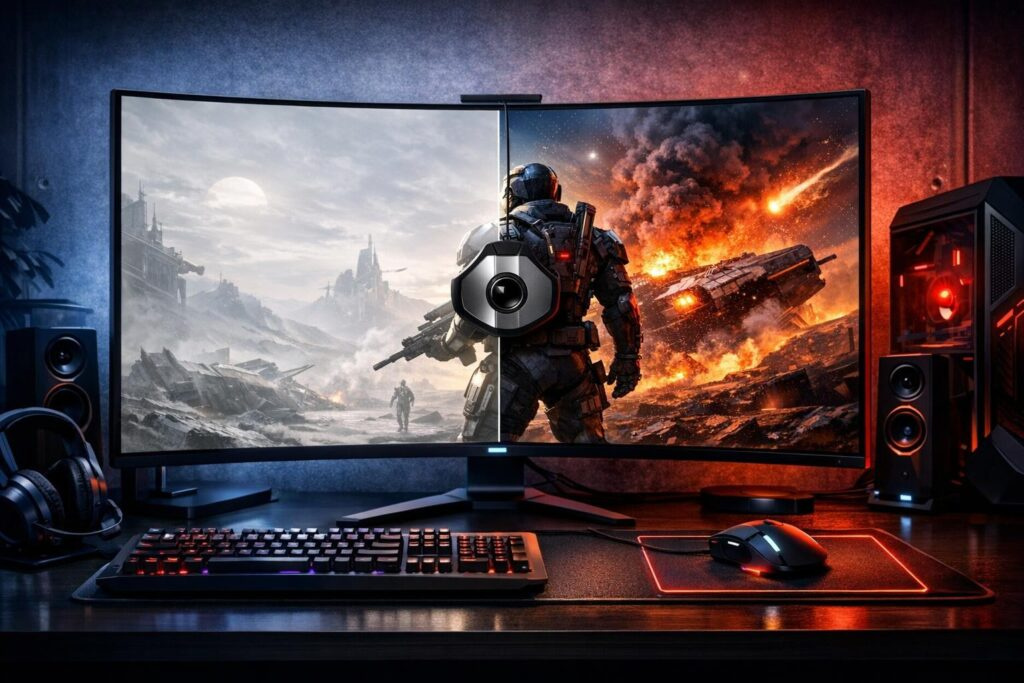
Picture this: you’re deep into an intense Valorant match or exploring the neon-lit streets of Night City, but something feels off. Colors look washed out, enemies blend into shadows, and you’re squinting to spot targets in dark corners. If this sounds familiar, your gaming monitor probably needs proper calibration. Getting your gaming monitor calibration dialed in correctly can transform your visual experience, giving you sharper images, accurate colors, and that competitive edge you’ve been missing.
The good news? You don’t need expensive equipment or a degree in color science to achieve outstanding results. With just 20-30 minutes and the right approach, you can unlock your monitor’s true potential using simple techniques that deliver professional-grade results. Let’s dive into this straightforward guide that’ll have you seeing games the way developers intended.
Getting Your Setup Ready: The Foundation Matters
Before touching any settings, proper preparation makes all the difference. Think of this as warming up before a competitive match – skipping it means you’re already at a disadvantage.
Essential Preparation Steps
- Warm up your display: Turn on your monitor and let it run for at least 20-30 minutes before starting calibration. LCD panels need time to reach optimal operating temperature for consistent performance
- Update graphics drivers: Download the latest drivers from NVIDIA, AMD, or Intel. Outdated drivers can cause color accuracy issues and performance glitches that no calibration can fix
- Set native resolution: Always use your monitor’s native resolution (like 1920×1080, 2560×1440, or 3840×2160) through your graphics control panel. Non-native resolutions create scaling artifacts that muddy image quality
- Control your lighting: Create moderate, consistent ambient lighting in your gaming space. Avoid direct sunlight or bright lights reflecting off your screen, as these interfere with accurate color perception
- Position yourself correctly: Sit directly in front of your monitor at eye level, about an arm’s length away. Viewing angle dramatically affects color accuracy, especially on TN panels
These preliminary steps create a stable baseline for monitor calibration for gaming, ensuring your adjustments actually improve what you see rather than compensating for environmental factors.
Quick Calibration Using Built-In System Tools
Both Windows and macOS include surprisingly effective calibration wizards that guide you through basic adjustments. These tools won’t match professional colorimeter results, but they’ll get you 80% of the way there in just five minutes.
Windows Calibration Process
Open the Start menu and search for “Calibrate display color” or navigate through Settings > Display > Advanced display settings > Color calibration. The wizard walks you through three key adjustments:
- Gamma correction: Adjust until the center dots in each circle nearly disappear against the background. This ensures smooth grayscale transitions without banding
- Brightness adjustment: Set brightness so you can distinguish the shirt from the suit in the sample image while keeping the X barely visible
- Contrast tuning: Increase contrast until you can see buttons and wrinkles on the white shirt without the background losing detail
macOS Color Calibration
Mac users can access calibration through System Preferences > Displays > Color tab > Calibrate button. The Display Calibrator Assistant provides similar guidance with Apple’s typical user-friendly approach, adjusting white point, color response, and gamma values.
After completing the system calibration, head to your graphics card control panel. For NVIDIA users, right-click your desktop and select NVIDIA Control Panel, then navigate to “Adjust desktop color settings.” Here you can fine-tune digital vibrance, contrast, and apply ICC color profiles if your monitor manufacturer provides them.
Advanced Adjustments Through Your Monitor’s OSD Menu
Now comes the real magic. Your monitor’s On-Screen Display menu contains powerful settings that dramatically impact gaming performance and visual quality. Grab your monitor’s manual (or find it online) and let’s optimize these critical parameters.
Core Picture Settings
Brightness Configuration
Target 250-350 nits for comfortable gaming sessions. Too bright causes eye strain during extended play, while too dim makes spotting enemies in shadows nearly impossible. Most monitors measure brightness as a percentage – start at 60-70% and adjust based on your room lighting.
Contrast Settings
Set contrast between 70-80% for balanced highlight and shadow detail. Maximum contrast crushes shadow detail (bad for spotting campers), while low contrast makes everything look flat and washed out. You want deep blacks without losing dark texture detail.
Color Temperature Selection
Choose 6500K for accurate, neutral colors. This “D65” standard matches natural daylight and prevents the yellow-tinted or blue-tinted appearance that comes from incorrect temperature settings. Some monitors label this as “Normal” or “Standard” mode.
Gaming-Specific Options
Modern gaming monitors pack features specifically designed to enhance competitive performance. Understanding these settings gives you tangible advantages:
- Response time/Overdrive: Set to 1ms if available, with Overdrive on “Normal” or “Fast” setting. This reduces motion blur and ghosting. Avoid “Extreme” settings that cause inverse ghosting (trailing artifacts)
- Black equalizer/Shadow boost: Moderate settings brighten dark areas without washing out the entire image. Perfect for spotting enemies hiding in shadows during FPS matches
- Game mode presets: Many monitors offer FPS, Racing, RTS, or RPG modes. FPS mode typically prioritizes response time and visibility, while RPG mode emphasizes color vibrancy
- Adaptive sync technology: Enable G-Sync (NVIDIA) or FreeSync (AMD) to eliminate screen tearing and stuttering. This synchronizes your monitor’s refresh rate with your GPU’s frame output
- Refresh rate: Max out your refresh rate setting (144Hz, 165Hz, 240Hz, etc.) through both your monitor OSD and Windows display settings for buttery-smooth motion
Pro tip: Take screenshots or photos of your settings before making changes. If something looks worse after tweaking, you can easily revert to your starting point.
Testing and Validating Your Calibration
Adjusting numbers means nothing without verification. Testing ensures your gaming display calibration actually improves visual quality rather than just looking different.
Using Online Test Patterns
Several websites offer free test images designed to reveal calibration issues. Look for patterns that check black level, white saturation, color gradients, and pixel response. These patterns show whether your adjustments improved uniformity, eliminated banding, and maintained detail across the brightness spectrum.
Pay special attention to grayscale gradients. You should see smooth transitions from pure black to pure white without distinct bands or steps. If you notice obvious banding, your gamma or bit depth settings need adjustment.
Real-World Gaming Tests
Fire up your favorite games and evaluate the results in actual gameplay scenarios:
| Game Genre | What to Check | Optimal Settings Focus |
|---|---|---|
| First-Person Shooters | Enemy visibility in shadows, muzzle flash clarity, motion smoothness | High refresh rate, low response time, shadow boost |
| RPGs and Adventure | Color vibrancy, texture detail, atmospheric lighting | Accurate color temperature, balanced contrast |
| Racing Games | Motion clarity at high speeds, track detail visibility | Maximum refresh rate, minimal motion blur |
| Strategy Games | Unit differentiation, UI readability, prolonged viewing comfort | Moderate brightness, accurate colors |
Spend at least 15-20 minutes gaming after calibration. Your eyes need time to adjust to the new settings, and initial impressions can be misleading. What seems too bright or too saturated at first often looks perfect after a short adaptation period.
Advanced Techniques for Serious Gamers
Once you’ve mastered basic calibration, these advanced strategies take your setup to professional levels.
Multi-Monitor Matching
Running multiple displays creates matching challenges since no two panels are identical. Choose your best monitor as the reference, then adjust secondary displays to match its appearance. Focus on matching brightness and color temperature first, then fine-tune contrast and saturation. Accept that perfect matching between different monitor models remains nearly impossible, but getting them close enough prevents jarring transitions when moving between screens.
Software Calibration Tools
Free programs offer more granular control than built-in system tools. These applications provide detailed adjustment of color curves, gamma values, and white point settings through software-based calibration. While not matching hardware colorimeter accuracy, they bridge the gap between basic system wizards and professional equipment.
HDR Gaming Considerations
High Dynamic Range gaming requires special calibration approaches. Enable HDR through Windows display settings only when playing HDR-supported games, as desktop usage with HDR often looks washed out. Within HDR games, use the built-in calibration tools that most titles provide. These in-game adjustments matter more than monitor settings since HDR bypasses standard display calibration.
For best monitor settings for gaming with HDR, ensure your monitor meets DisplayHDR 400 certification minimum, though DisplayHDR 600 or higher delivers noticeably better results. Set peak brightness to maximum when gaming in HDR mode since the format relies on brightness peaks for impact.
Investment in Hardware Calibration Tools
Manual calibration delivers impressive results, but colorimeters provide absolute accuracy. Devices like the Datacolor SpyderX or X-Rite i1Display Pro measure your monitor’s actual light output and create custom calibration profiles. These tools cost between $100-300 but guarantee professional-grade accuracy.
Consider hardware calibration if you do color-critical work beyond gaming, own high-end displays worth $500+, or simply want perfection. For pure gaming purposes, manual calibration achieves 90% of the benefits at zero cost.
Maintaining Your Calibration Over Time
Monitor panels drift over time as backlights age and components degrade. Recalibrate every 3-6 months to maintain optimal performance. LED backlights dim gradually over thousands of hours, requiring brightness increases to compensate.
Keep notes on your settings so you can quickly restore them after driver updates, system resets, or accidental changes. Many monitors let you save custom profiles, protecting your carefully crafted settings from being lost.
Common Calibration Mistakes to Avoid
- Cranking brightness to maximum: This causes eye strain and washes out colors. Comfortable viewing in your actual lighting conditions matters more than impressive showroom brightness
- Maxing out color saturation: Oversaturated colors look punchy initially but become fatiguing and inaccurate. Natural color reproduction serves gaming better long-term
- Ignoring room lighting changes: Settings perfect for nighttime gaming may look dim during daytime. Some gamers maintain separate day and night profiles
- Expecting instant adaptation: Give your eyes 2-3 days to adjust before judging new settings. Initial impressions often mislead as your brain recalibrates to the new appearance
- Copying someone else’s settings exactly: Panel variance means identical monitor models require different calibration values. Use others’ settings as starting points, not final destinations
The Competitive Advantage of Proper Calibration
Beyond aesthetics, correct calibrate monitor for gaming settings provide measurable competitive benefits. Spotting enemies in shadows becomes easier with proper black levels. Reduced eye strain during marathon gaming sessions maintains focus and reaction times. Accurate color representation helps distinguish team colors, environmental cues, and UI elements instantly.
Professional esports players obsess over display calibration for good reason. When milliseconds determine victory or defeat, every advantage counts. While calibration won’t make you a pro overnight, it removes one variable holding back your potential performance.
The difference between factory settings and properly calibrated displays often shocks first-time calibrators. Games look sharper, more vibrant, and simply more enjoyable. Details you’ve missed for years suddenly become visible. It’s like upgrading your monitor without spending a penny.
Take the time to dial in your settings properly. Experiment with different configurations, test thoroughly in various games, and don’t be afraid to adjust based on personal preference. Your eyes and gaming experience are unique – calibration should reflect that individuality while maintaining technical accuracy.
Now get out there and experience your games as they were meant to be seen. Happy gaming, and may your frags be plentiful and your visuals crystal clear!
Frequently Asked Questions
How often should I recalibrate my gaming monitor?
Recalibrate every 3-6 months for optimal results. Monitor panels gradually change as backlights age and components drift. If you notice colors looking different than usual or brightness seeming dimmer, perform an earlier recalibration. After major graphics driver updates or system changes, quick verification of your settings ensures nothing changed unexpectedly.
Do I need expensive equipment to calibrate my monitor properly?
No, manual calibration using built-in tools and test patterns delivers excellent results for gaming purposes. Hardware colorimeters provide greater accuracy but cost $100-300. For casual and competitive gaming, the free manual approach achieves 85-90% of professional calibration quality. Invest in hardware tools only if you do color-critical work or want absolute perfection.
Why do my games look washed out after calibration?
Your eyes need 2-3 days to adapt to accurate colors after viewing oversaturated factory settings for extended periods. What seems washed out initially is actually correct color reproduction. Give your visual system time to recalibrate. If games still look wrong after a week, your contrast or saturation settings might be too low. Slightly increase digital vibrance in your graphics control panel for a middle ground between accuracy and punch.
Should I use different settings for different game genres?
Some gamers maintain multiple profiles for different gaming situations. FPS games benefit from higher refresh rates, faster response times, and shadow boost. RPGs and single-player games look better with accurate colors and balanced contrast. Many monitors allow saving custom presets you can switch between quickly. However, starting with one well-calibrated general profile works perfectly fine for most players.
Can monitor calibration improve my gaming performance?
Yes, proper calibration provides tangible competitive advantages. Better shadow detail helps spot enemies hiding in dark areas. Reduced eye strain maintains focus during long sessions. Accurate colors make distinguishing team markers and UI elements faster. Higher refresh rates with proper settings reduce motion blur. While calibration won’t replace skill development, it removes technical limitations holding back your natural abilities.
What’s the difference between gamma 2.2 and 2.4 for gaming?
Gamma 2.2 is the standard for Windows systems and most gaming content, providing balanced shadow and highlight detail. Gamma 2.4 creates darker shadows and slightly deeper blacks, preferred by some for cinematic single-player games. For competitive gaming, stick with 2.2 as it maintains maximum visibility in dark areas. Try 2.4 if you play mostly atmospheric, story-driven games in dark rooms.