
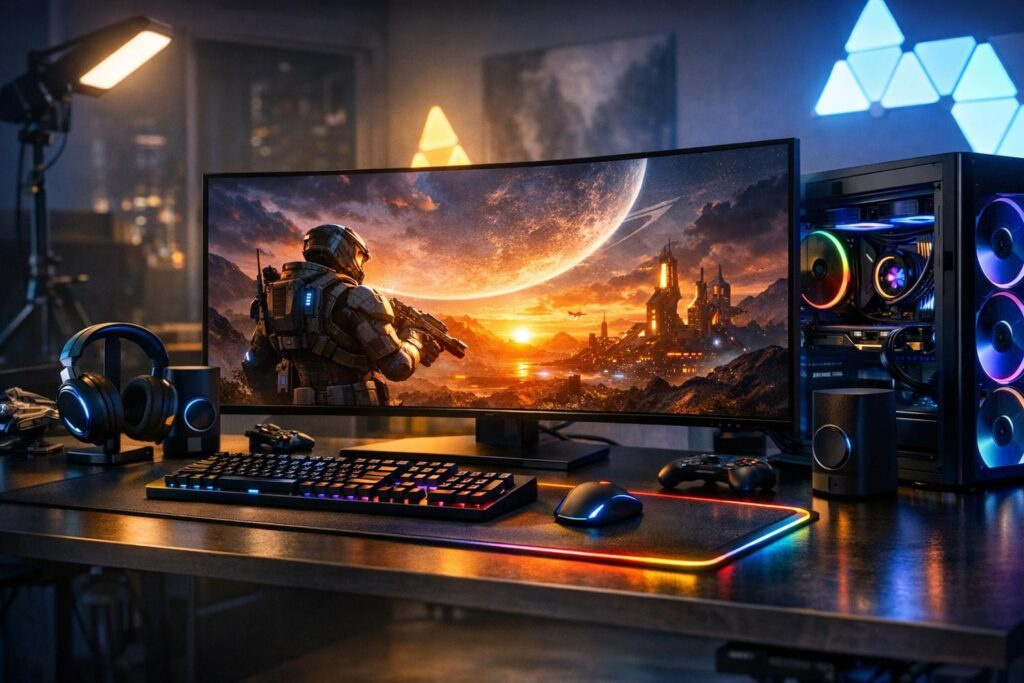
Gaming has evolved dramatically over the past few years, and one technology stands at the forefront of this visual revolution: HDR. If you’ve been wondering whether HDR gaming is worth the hype or how to squeeze every ounce of visual brilliance from your setup, you’re in the right place. Let’s break down everything you need to know about HDR in games, from what makes it special to getting it configured perfectly on your rig.
What Exactly Is HDR Gaming and Why Should You Care?
High Dynamic Range gaming transforms your visual experience from flat and predictable to absolutely breathtaking. Unlike traditional SDR content that caps brightness and color range, HDR in games delivers an expanded spectrum of luminance and color depth that mirrors real-world lighting conditions. When you’re playing HDR games like Cyberpunk 2077 or Forza Horizon, explosions genuinely dazzle your eyes, shadows contain actual detail instead of murky blackness, and colors pop with intensity you never knew your display could produce.
The technical magic behind HDR gaming involves rendering brightness values that extend beyond the traditional 0-1 range, allowing sunlight to genuinely blind you while preserving detail in both highlights and shadows simultaneously. Modern HDR displays can achieve contrast ratios exceeding 65,000:1 and cover up to 90% of the DCI-P3 color gamut, creating visual experiences that standard dynamic range simply cannot match.
The Real Benefits of HDR in Gaming
Before diving into setup procedures, let’s establish what HDR gaming actually brings to your sessions. Understanding these advantages helps you appreciate why proper configuration matters so much.
Visual Improvements You’ll Actually Notice
- Explosive contrast: True blacks that don’t look washed out, even in bright scenes, combined with highlights that can reach 400 nits or higher on quality displays
- Color vibrancy: Extended color gamuts reveal shades and gradations invisible in SDR gaming, making environments feel alive and dimensional
- Shadow detail preservation: No more guessing what’s lurking in dark corners—HDR reveals texture and depth in low-light areas without compromising bright regions
- Realistic lighting behavior: Fire actually glows, metal reflects convincingly, and sunsets create genuine visual drama
Immersion That Changes How You Play
Beyond pure eye candy, HDR gaming enhances competitive and immersive experiences. In shooters, proper HDR implementation means enemies hiding in shadows remain visible without sacrificing atmospheric tension. Racing games benefit enormously from realistic reflections and dynamic lighting that helps you read track conditions. Role-playing games gain depth and believability when lighting behaves naturally, drawing you deeper into fantastical worlds.
The Honest Downsides
Nothing’s perfect, and HDR gaming comes with legitimate challenges. Windows HDR implementation makes SDR content look washed out and dim when HDR mode stays active outside games. You’ll find yourself toggling HDR on and off unless you dedicate your display exclusively to gaming. Additionally, poorly implemented HDR in certain games can actually look worse than SDR, with crushed blacks or blown-out highlights that ruin the experience.
Quality HDR gaming requires quality hardware—trying to run HDR on a budget display with 250-nit peak brightness and limited contrast will disappoint rather than impress.
Hardware Requirements for Proper HDR Gaming
Before attempting any configuration, verify your equipment meets minimum standards for genuine HDR gaming experiences.
Display Specifications
Your monitor or television makes or breaks HDR gaming quality. Look for these specifications:
- Peak brightness minimum of 400 nits (600+ nits ideal for stunning highlights)
- 10-bit color depth support for smooth gradations without banding
- HDR10 compatibility at minimum (Dolby Vision support is bonus for console gamers)
- Local dimming zones for OLED-like contrast on LED displays
- Black levels below 0.40 nits for true shadow detail
PC Gaming Requirements
Windows 10 and 11 both support HDR gaming, but your graphics card matters significantly. NVIDIA RTX 20-series and newer, along with AMD RX 5000-series and above, handle HDR gaming smoothly. Older cards may technically support HDR but struggle with performance when rendering high-dynamic-range content. Verify your chosen games feature native HDR support rather than automated tone-mapping conversions that rarely satisfy.
Console Gaming Setup
PlayStation 5 and Xbox Series X/S handle HDR more elegantly than PC, with system-level calibration that simplifies configuration. Both consoles automatically detect HDR-capable displays and enable appropriate settings, though manual calibration still improves results considerably.
Complete HDR Gaming Configuration Guide
Now for the practical steps that transform potential into stunning reality. Follow these procedures carefully for optimal HDR gaming experiences.
Windows HDR Configuration for PC Gamers
Windows HDR requires specific activation steps that many gamers skip, resulting in subpar experiences. Right-click your desktop and select Display Settings, then scroll to HDR options. You’ll find “Use HDR” toggle—enable this specifically for gaming sessions only, as keeping it active during regular desktop use creates the washed-out appearance everyone complains about.
Download the HDR Calibration application from Microsoft Store for proper display adjustment. This free tool walks you through brightness, contrast, and color calibration specific to your display’s capabilities. Spend ten minutes here rather than guessing—your eyes will thank you during every gaming session afterward.
Critical Windows HDR Settings
- Always game in exclusive fullscreen mode—windowed or borderless modes frequently break HDR handshake protocols
- Disable any monitor “gaming modes” that attempt HDR emulation without proper signal
- Update GPU drivers regularly as HDR implementation improves constantly
- Enable “Play HDR games and apps” rather than system-wide HDR for better desktop usability
In-Game HDR Calibration
Every game implements HDR differently, requiring individual calibration within title-specific settings. Launch your HDR-capable game and navigate to video or display options. Look for HDR brightness settings, typically presenting two adjustment sliders: maximum brightness and minimum brightness.
The maximum brightness slider should match your display’s actual peak brightness capability—if your monitor hits 600 nits, set the slider there. The minimum brightness slider adjusts shadow detail preservation. Follow on-screen instructions showing test patterns, adjusting until you can barely distinguish the darkest visible element from pure black while maintaining detail visibility.
Monitor-Side Configuration
Access your display’s on-screen menu and locate HDR settings. Many monitors feature multiple HDR modes—Gaming, Cinema, Standard—each applying different tone curves. Gaming modes typically prioritize shadow visibility for competitive advantage, while Cinema modes emphasize dramatic contrast. Experiment to find what suits your preferences, but remember these modes only activate when receiving proper HDR signal from your PC or console.
Console-Specific Configuration
PlayStation 5 users should navigate to Settings, then Screen and Video, where HDR calibration options await. The system displays test patterns while you adjust brightness ranges until visual targets disappear or appear as instructed. Xbox Series X/S follows similar logic under Settings, then General, then TV & Display Options, where you’ll find HDR calibration and gaming-specific adjustments.
Both consoles offer automatic HDR tone-mapping for older SDR games, though results vary wildly between titles. Test this feature game-by-game rather than enabling it universally.
Pro Tips for Maximum HDR Gaming Impact
Beyond basic configuration, these advanced techniques extract every bit of visual quality from your HDR gaming setup.
Environmental Optimization
HDR gaming reveals its full potential in controlled lighting environments. Bright room lighting crushes perceived contrast and makes peak brightness less impactful. Game in dimmed or dark rooms when possible, especially for atmospheric titles where lighting creates mood. However, complete darkness can cause eye strain during extended sessions—subtle ambient lighting behind your display reduces fatigue while preserving HDR impact.
Game Selection Matters
Not all HDR implementations equal quality. Research specific game HDR reviews before diving in—some developers treat HDR as checkbox feature rather than carefully crafted experience. Titles with excellent HDR implementation include Red Dead Redemption 2, Microsoft Flight Simulator, Resident Evil Village, and Horizon Forbidden West. These games feature proper HDR mastering that showcases technology’s capabilities.
Regular Recalibration
Display characteristics change over time, and driver updates occasionally reset HDR parameters. Recalibrate quarterly or whenever visual quality seems degraded compared to memory. This quick maintenance ensures consistent experiences across gaming sessions and compensates for natural display aging.
Troubleshooting Common HDR Gaming Issues
Even proper configuration sometimes produces unexpected results. Here’s how to address frequent HDR gaming problems.
Washed Out or Dim Appearance
If HDR gaming looks worse than SDR, your display likely lacks sufficient peak brightness or your calibration missed the mark. Revisit both Windows calibration and in-game settings, ensuring maximum brightness values match your display specifications. Additionally, verify you’re gaming in true fullscreen mode rather than windowed variations that compromise HDR signal.
Crushed Blacks or Lost Shadow Detail
Overly aggressive minimum brightness settings cause shadow detail loss. Return to calibration screens and raise minimum brightness slightly until shadow textures become distinguishable. Some displays struggle with near-black performance regardless of settings—this represents hardware limitation rather than configuration error.
Blown Out Highlights
Excessive maximum brightness settings create clipping where bright elements lose detail and become white blobs. Lower your in-game maximum brightness setting incrementally until highlight detail returns without sacrificing overall image pop.
Is HDR Gaming Worth the Effort?
After proper configuration on capable hardware, HDR gaming absolutely delivers transformative visual experiences that make returning to SDR feel like downgrading from color to grayscale. The initial setup investment pays dividends across every compatible title, enhancing immersion and visual enjoyment in ways screenshots cannot capture.
However, HDR gaming demands quality equipment and patience during configuration. Budget displays with HDR badges but insufficient brightness or contrast disappoint rather than impress. If your current display lacks proper specifications, enjoying SDR gaming while saving toward quality HDR equipment beats settling for mediocre HDR experiences that taint your perception of the technology.
For gamers with capable displays, HDR represents one of the most impactful visual upgrades available, surpassing resolution increases or framerate improvements in sheer “wow factor” when implemented correctly. Take time to configure properly, choose games with quality HDR implementation, and prepare for gaming visuals that genuinely astound.
Frequently Asked Questions About HDR Gaming
Does HDR gaming reduce performance or framerate?
HDR itself adds minimal performance overhead since modern GPUs handle the color space natively. However, games with HDR support often feature demanding graphics overall, which can impact framerate regardless of HDR specifically. The HDR processing itself typically costs only 1-3 frames per second on modern hardware.
Can I use HDR gaming on a regular monitor without HDR certification?
Technically yes, but results will disappoint. Monitors without proper HDR certification lack the brightness range, contrast capability, and color gamut necessary for genuine HDR experiences. You’ll see tone-mapped content that often looks worse than properly configured SDR. Save your money and wait for proper HDR hardware rather than forcing HDR on incapable displays.
Why does my desktop look terrible with Windows HDR enabled?
Windows applies HDR tone-mapping to SDR desktop content, which wasn’t designed for high dynamic range display. This creates the washed-out, dim appearance everyone complains about. Enable HDR only when gaming, or use Windows 11’s Auto HDR feature that activates HDR specifically for games while keeping desktop in SDR mode.
How bright should my gaming room be for HDR gaming?
Dimmed or dark environments showcase HDR gaming best, allowing your eyes to perceive the full contrast range and peak brightness without ambient light interference. However, complete darkness can cause eye strain during extended sessions. Subtle bias lighting behind your display provides the best compromise—enough ambient light to reduce strain while preserving HDR impact.
Is HDR10 or Dolby Vision better for gaming?
HDR10 dominates PC gaming due to widespread support and open standards. Dolby Vision offers theoretical advantages with dynamic metadata that adjusts tone-mapping scene-by-scene, but gaming support remains limited primarily to Xbox consoles and select titles. For most gamers, properly configured HDR10 delivers excellent experiences without worrying about Dolby Vision compatibility.
Should I enable Auto HDR in Windows 11 for older games?
Auto HDR produces mixed results depending on the specific game. Some older titles gain impressive visual enhancement through automatic tone-mapping, while others look unnatural or oversaturated. Test Auto HDR game-by-game rather than enabling universally—what works beautifully in one title might ruin artistic intent in another. Games with native HDR support always outperform Auto HDR conversions.