

 ZEFICK
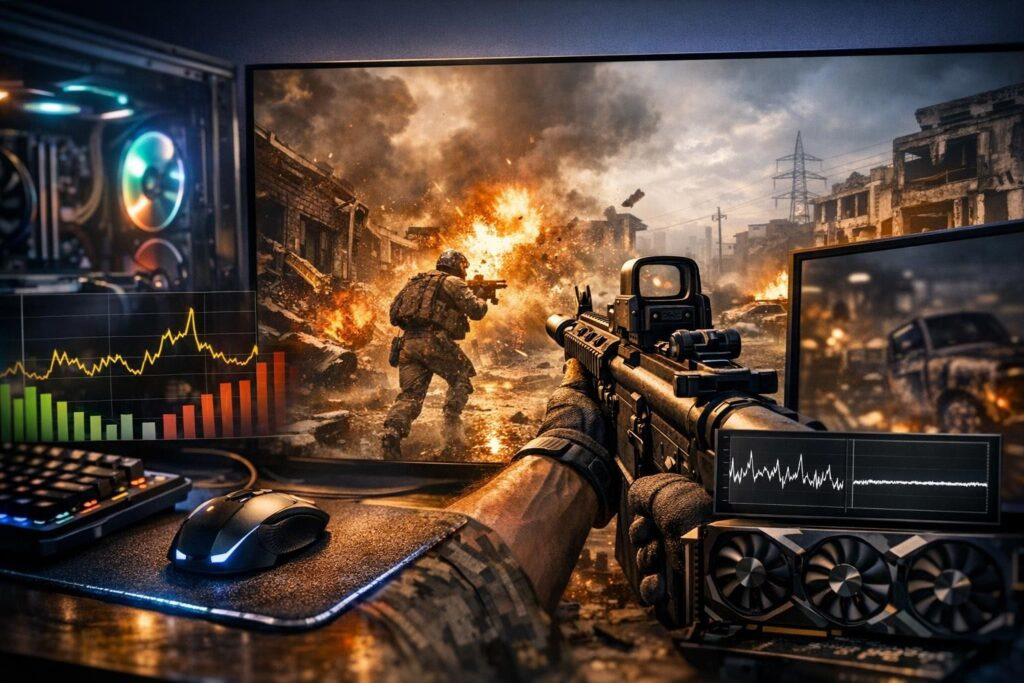
Gaming at high frame rates should feel smooth and responsive, but sometimes even with impressive FPS numbers, your gameplay feels choppy and inconsistent. This frustrating phenomenon is called microstutter, and it can completely ruin your gaming experience regardless of how powerful your hardware is.
Understanding Microstutter in Gaming
Microstutter represents one of the most annoying performance issues gamers face today. Unlike traditional frame rate drops where your FPS visibly plummets, microstutter occurs when frames are delivered unevenly to your display. You might be running at a solid 120 FPS, but if those frames arrive in irregular intervals with tiny delays between them, the visual experience becomes jerky and unpleasant.
The issue manifests as brief, almost imperceptible hitches or stutters during gameplay. Your character movement feels less responsive, aiming becomes unpredictable, and the overall fluidity you expect from high frame rates simply disappears. This problem becomes especially noticeable in fast-paced competitive shooters, racing games, and action titles where precise timing matters.
Why Frame Time Matters More Than FPS
Many gamers focus exclusively on their frames per second counter, but this metric only tells half the story. Frame time measures how long it takes to render each individual frame, and consistency in frame times is what creates smooth gameplay. When frame times vary wildly, even with high average FPS, you experience microstutter.
Think of it like cars arriving at a destination. If ten cars arrive evenly spaced over ten seconds, traffic flows smoothly. But if those same ten cars arrive in random bursts with gaps between them, you get congestion despite the same average arrival rate. Your monitor experiences the same problem when receiving frames irregularly.
Common Causes of Microstutter
Identifying the root cause of microstutter requires understanding the various factors that can disrupt frame delivery. Here are the most frequent culprits:
Graphics Driver Issues
Outdated or buggy graphics drivers rank among the top causes of stuttering problems. Sometimes a fresh driver update introduces new issues, while other times running ancient drivers prevents your GPU from performing optimally. Both NVIDIA and AMD regularly release updates that can either fix or create frame pacing problems.
Hardware Resource Bottlenecks
When your CPU, RAM, or VRAM reaches maximum capacity, frame delivery becomes inconsistent. Your graphics card might cruise along comfortably, but if your processor cannot keep up with game logic or your memory fills up, frame times will spike unpredictably. This creates the classic symptoms of microstutter even when your GPU usage looks healthy.
Background Applications and Overlays
Modern gaming setups often run numerous background processes that compete for system resources. Web browsers with multiple tabs, communication apps like Discord, streaming software, and even performance monitoring overlays can introduce frame time variance. Each application stealing CPU cycles or memory bandwidth can disrupt the steady flow of frames to your display.
Synchronization Problems
When your game renders frames at rates that do not align with your monitor refresh rate, you encounter pacing issues. Traditional VSync attempts to solve this but can introduce input lag and stuttering if your frame rate drops below the refresh rate. Without proper synchronization technology, frames arrive at the wrong moments, creating visible stuttering.
Diagnostic Tools and Techniques
Properly diagnosing microstutter requires moving beyond simple FPS counters and examining frame delivery patterns. Here are proven methods to identify and analyze stuttering issues:
Frame Time Monitoring
Install monitoring software that displays frame time graphs rather than just FPS numbers. MSI Afterburner paired with RivaTuner Statistics Server provides excellent real-time frame time visualization. A smooth gaming experience shows consistent frame times with minimal variance, typically a flat line on the graph. Spikes and irregular patterns indicate stuttering problems.
For a 60Hz display, ideal frame times hover around 16.7 milliseconds per frame. Higher refresh rate monitors require proportionally lower frame times. Any significant deviations from your target frame time signal potential issues.
Visual Testing Methods
Several websites offer interactive demonstrations that help you identify stuttering. These tools display moving objects with and without artificial stuttering, allowing you to compare and recognize the symptoms on your own system. Run these tests at your monitor native refresh rate to see how microstutter appears visually.
Systematic Elimination Testing
Create a clean testing environment by closing all unnecessary applications. Disable overlays, close your browser, temporarily exit antivirus software, and shut down background services. Launch your game and observe whether stuttering persists. This process helps identify whether software conflicts cause your issues.
Test with different graphics settings combinations. Sometimes specific options like ambient occlusion or particle effects trigger stuttering on certain hardware configurations. Methodically adjust settings while monitoring frame times to isolate problematic features.
Effective Solutions for Microstutter
Once you have identified stuttering in your games, several proven solutions can restore smooth gameplay:
Frame Rate Limiting
Capping your frame rate slightly below your monitor refresh rate often eliminates stuttering. Use RivaTuner or in-game limiters to set a maximum FPS about three to five frames below your display refresh rate. For a 144Hz monitor, limit frames to 139-141 FPS. This prevents the GPU from racing ahead and creating uneven frame delivery.
Graphics Driver Management
Perform a clean driver installation using Display Driver Uninstaller in Windows Safe Mode. This utility completely removes old driver remnants that sometimes cause conflicts. After cleaning, install the latest stable drivers from your GPU manufacturer. Avoid beta drivers unless you need specific features or fixes.
Adaptive Sync Technology
Enable your monitor adaptive sync feature if available. NVIDIA G-Sync and AMD FreeSync dynamically match your display refresh rate to your GPU output, eliminating tearing and reducing stutter. Combine this with disabled VSync in games for optimal results. This configuration provides smooth gameplay across varying frame rates.
System Optimization
- Update your motherboard BIOS to the latest stable version
- Install current chipset drivers for your platform
- Enable XMP or DOCP profiles in BIOS for proper RAM speeds
- Disable unnecessary startup programs
- Configure Windows power plan to High Performance mode
- Ensure adequate cooling to prevent thermal throttling
Advanced Troubleshooting Steps
Memory and Storage Diagnostics
Run memory diagnostic tools to check for RAM issues. Faulty memory can cause intermittent stuttering that appears random. Additionally, ensure your game installs on a fast SSD rather than a mechanical hard drive. Slow storage can cause asset streaming stutters in open-world games.
Windows Settings Optimization
Verify your display settings in Windows match your monitor specifications. Check that refresh rate is set correctly and not defaulting to 60Hz when your monitor supports higher rates. Disable fullscreen optimizations for game executables by adjusting compatibility settings. Turn off Windows Game DVR and Game Bar features that can interfere with frame delivery.
Game-Specific Configurations
Some games require specific tweaks to eliminate stuttering. Research your particular title in gaming communities and forums to find recommended settings. Configuration file edits, launch parameters, or specific graphics options might resolve stuttering in individual games.
Monitoring Your Results
After implementing fixes, continue monitoring frame times during gameplay to verify improvements. Create benchmark runs in demanding game sections and compare frame time graphs before and after changes. Consistent, stable frame times with minimal variance indicate successful troubleshooting.
| Tool | Primary Function | Best Used For |
|---|---|---|
| MSI Afterburner | Real-time frame time graphs | Active gameplay monitoring |
| CapFrameX | Detailed performance statistics | In-depth analysis and comparisons |
| RivaTuner | Frame rate limiting and overlays | Precise FPS capping |
| HWiNFO | Hardware sensors and logging | Identifying thermal or power issues |
When Hardware Upgrades Become Necessary
Sometimes microstutter stems from hardware limitations that software solutions cannot overcome. If your CPU consistently maxes out during gameplay, upgrading to a faster processor with more cores might be necessary. Insufficient RAM causes stuttering in modern games, with 16GB representing the current minimum for smooth performance in demanding titles.
VRAM limitations create stuttering when textures and assets cannot fit in graphics memory. Monitor VRAM usage during gaming, and if you consistently exceed available memory, consider a GPU upgrade or reduce texture quality settings.
Community Resources and Support
Gaming communities often identify and solve microstutter issues faster than official support channels. Visit dedicated forums for your specific games or hardware to find solutions others have discovered. Popular gaming subreddits, Steam community discussions, and hardware enthusiast forums contain wealth of troubleshooting information.
Remember that microstutter sensitivity varies between individuals. What bothers some gamers might go unnoticed by others. Trust your own perception and focus on solutions that improve your personal gaming experience.
Document your system specifications, game settings, and any changes you make during troubleshooting. This information proves invaluable when seeking help from communities or when similar issues arise in the future.
Preventive Measures
Maintaining a stutter-free gaming experience requires ongoing attention. Keep your drivers updated but avoid rushing to install brand new releases before stability is confirmed. Regularly clean your system of unnecessary software and perform maintenance tasks like disk cleanup and defragmentation for mechanical drives.
Monitor your system temperatures and ensure adequate cooling. Thermal throttling causes performance fluctuations that manifest as stuttering. Clean dust from your PC regularly and verify that all fans operate correctly.
Before major Windows updates, research known gaming issues that might arise. Sometimes waiting a few weeks before updating allows Microsoft to address initial problems discovered by early adopters.
Frequently Asked Questions
What is the difference between stuttering and low FPS?
Low FPS means your system renders fewer frames per second overall, creating a universally slow experience. Stuttering occurs when frames arrive at irregular intervals despite potentially high average FPS, causing brief hitches and jerky motion. You can have 100 FPS with terrible stuttering or 60 FPS with perfectly smooth delivery.
Can microstutter damage my hardware?
No, microstutter is a performance symptom, not a cause of hardware damage. However, the underlying causes like overheating or unstable overclocks that contribute to stuttering might indicate conditions that could eventually harm components if left unaddressed. Focus on identifying and fixing the root causes.
Why does my game stutter only in certain areas?
Location-specific stuttering usually indicates asset streaming issues or areas with higher computational demands. Open-world games often stutter when loading new zones or streaming textures from storage. This can be caused by slow storage drives, insufficient VRAM, or optimization problems in the game itself.
Should I always disable VSync to fix stuttering?
Not necessarily. Traditional VSync can cause stuttering when frame rates drop below your refresh rate, but when combined with triple buffering or when you maintain consistent frame rates above refresh, it can provide smooth gameplay. Adaptive sync technologies like G-Sync or FreeSync generally offer better results than VSync alone.
How do I know if my stuttering is a game bug or system issue?
Test multiple games on your system. If stuttering appears across different titles, the problem likely stems from your hardware or software configuration. If only one game stutters while others run smoothly, check that game specific forums and patch notes for known issues. Community reports help distinguish between widespread game problems and individual system issues.
Will upgrading to a faster monitor eliminate microstutter?
A higher refresh rate monitor does not fix the underlying causes of microstutter, but it can make frame time inconsistencies less noticeable due to shorter frame persistence. Additionally, monitors with adaptive sync technology help smooth out frame delivery. However, you must still address the root causes of uneven frame times for truly smooth gameplay.
Comments (0)
Sign In / Sign Up
Sign in with your Google account to leave a comment. It's fast, easy, and secure.
No comments yet
Be the first one to share your thoughts!