

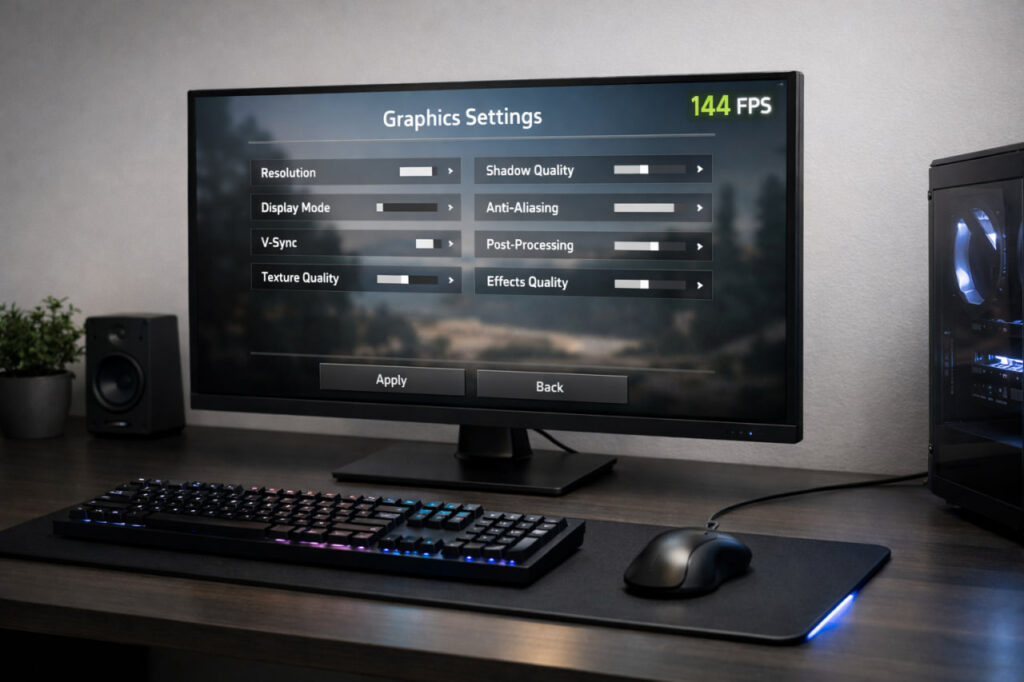

Graphics optimization balances visual quality against framerate by adjusting settings that control rendering workload. Resolution, shadow quality, and anti-aliasing have the largest performance impact—reducing these settings provides the most significant framerate gains.
| Optimization Goal | Target Framerate | Priority Settings to Adjust |
|---|---|---|
| Competitive gaming | 120+ fps | Resolution, shadows low, effects low, disable motion blur |
| Smooth gameplay | 60 fps minimum | Resolution native or 90% scale, shadows medium, TAA or FXAA |
| Visual quality | 45-60 fps | Resolution native, shadows medium, ambient occlusion high, textures high |
| Struggling hardware | 30+ fps stable | Resolution 720p-900p, all settings low except anisotropic filtering |
Which Graphics Settings Impact Performance Most?
Resolution, shadow quality, and anti-aliasing method determine framerate more than any other settings. Resolution controls total pixel count rendered per frame. Shadow quality adds expensive lighting calculations. Anti-aliasing methods vary from minimal performance cost (FXAA) to severe framerate loss (MSAA).
Resolution Impact:
- 1920×1080 renders 2,073,600 pixels per frame
- 2560×1440 renders 3,686,400 pixels per frame (78% more work)
- 1280×720 renders 921,600 pixels per frame (56% less work than 1080p)
Reducing resolution from 1080p to 720p typically gains 20-40 fps depending on GPU bottleneck severity.
Shadow Quality Impact: Shadow settings control shadow map resolution and rendering distance. High to ultra shadow quality costs 20-30 fps. Medium to low shadow quality difference is barely visible during active gameplay.
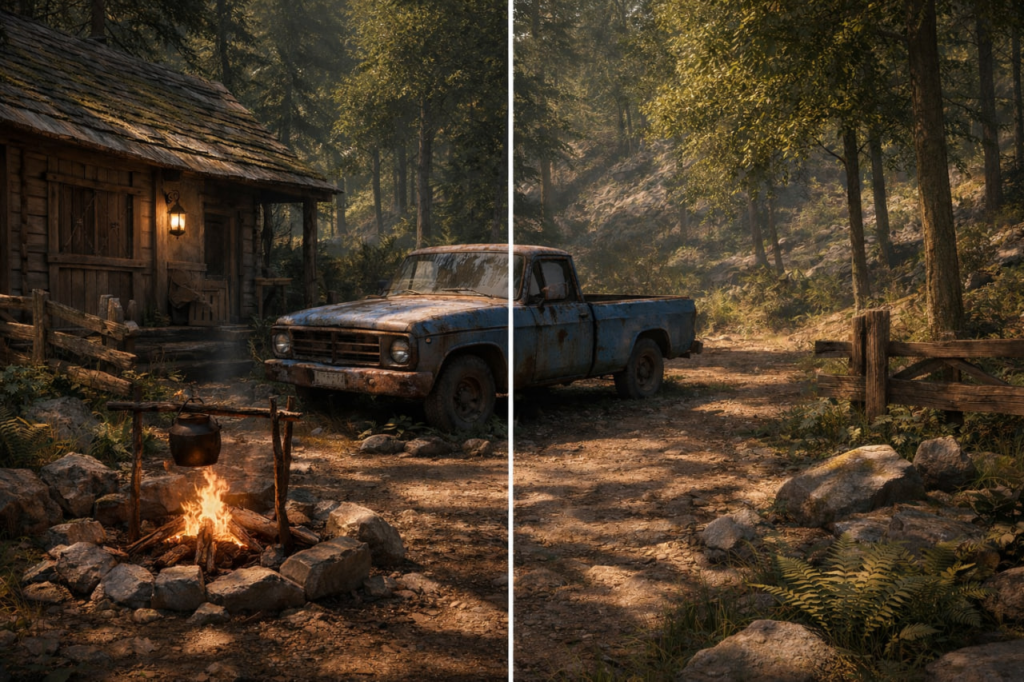
| Shadow Setting | Framerate Impact | Visual Difference During Gameplay |
|---|---|---|
| Ultra | -30 fps from medium | Minimal—slightly softer edges |
| High | -20 fps from medium | Barely noticeable |
| Medium | Baseline | Acceptable quality for most games |
| Low | +15 fps from medium | Sharper edges, still functional |
| Off | +25 fps from medium | Flat lighting, avoid unless desperate |
Set shadows to medium or low for best performance-to-quality ratio.
Anti-Aliasing Methods:
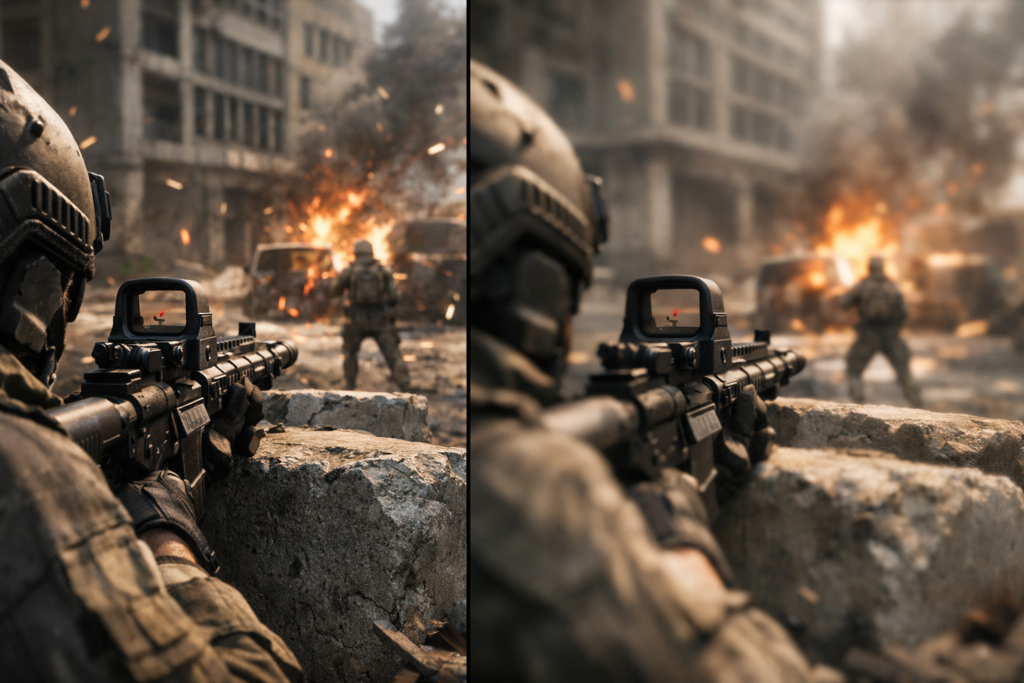
| AA Method | Framerate Cost | Visual Quality | Best Use Case |
|---|---|---|---|
| MSAA | -15 to -25 fps | Excellent—sharp, no blur | High-end hardware only |
| TAA | -8 to -12 fps | Good—slight blur in motion | Balanced option for most systems |
| FXAA | -2 to -5 fps | Acceptable—slight overall blur | Low-end hardware |
| SMAA | -5 to -10 fps | Good—minimal blur | Nvidia cards |
| Off | No cost | Jagged edges visible | Not recommended |
Use FXAA or TAA for optimal framerate. MSAA quality improvement does not justify 15-20 fps loss.
Which Settings Have Medium Performance Impact?
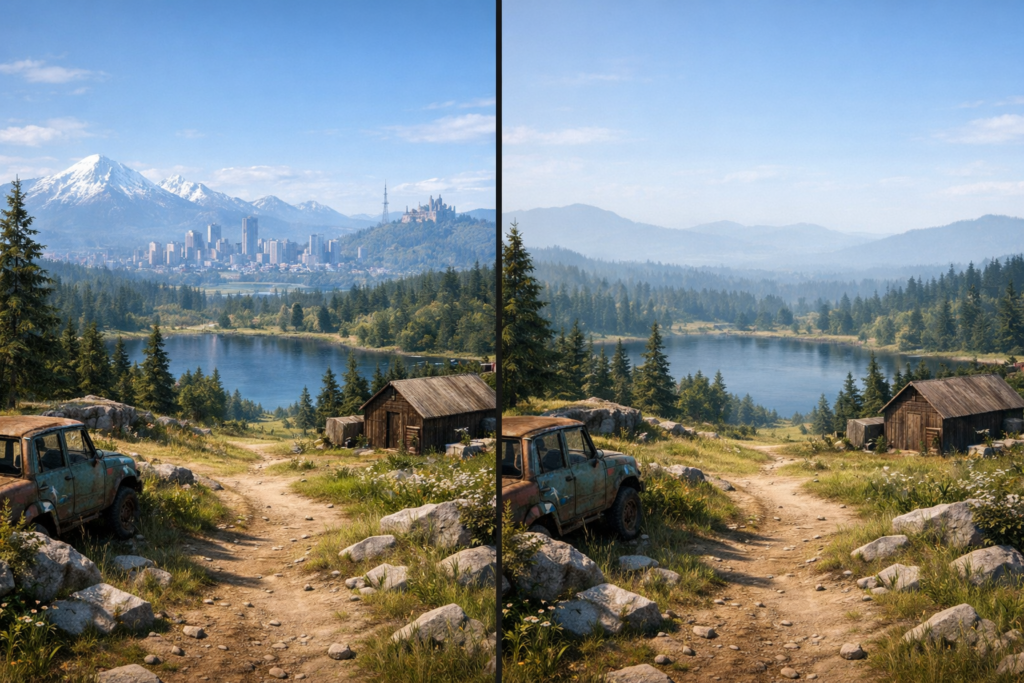
Texture quality, view distance, and effects quality affect framerate noticeably but cost less than resolution or shadows. These settings provide good optimization targets after adjusting the major performance killers.
Texture Quality: Texture quality uses VRAM (video memory) more than GPU processing power. Systems with 4GB+ VRAM can run high textures without major framerate loss. Systems with 2GB or less VRAM must use low or medium textures to avoid stuttering.
| VRAM Available | Maximum Texture Setting | Expected Framerate Impact |
|---|---|---|
| 8GB+ | Ultra | -2 to -5 fps |
| 4GB-6GB | High | -5 to -8 fps |
| 2GB-3GB | Medium | -8 to -12 fps, possible stuttering on high |
| Below 2GB | Low | Stuttering on medium or higher |
Running out of VRAM causes severe stuttering worse than low framerate. Monitor VRAM usage and reduce texture quality if usage exceeds 90% of available memory.
View Distance and Draw Distance: View distance controls rendering range for distant objects, terrain, and foliage. Competitive multiplayer games tolerate lower view distance better than open-world exploration games.
| View Distance Setting | Framerate Impact | Gameplay Effect |
|---|---|---|
| Ultra | -15 fps from medium | Render objects 500+ meters away |
| High | -10 fps from medium | Render objects 300-500 meters |
| Medium | Baseline | Render objects 150-300 meters |
| Low | +12 fps from medium | Render objects 100-150 meters, noticeable pop-in |
Set view distance to medium for balanced performance. Low view distance causes visible object pop-in during exploration.
Effects Quality: Effects quality controls particle systems, explosions, smoke, fire, and spell effects. Effects-heavy scenes during combat can cause framerate drops if effects quality is too high.
Medium effects quality maintains visual impact without destroying performance during intense combat. Low effects quality removes visual feedback for explosions and abilities but keeps framerate stable.
Which Settings Can Be Increased Without Performance Loss?
Anisotropic filtering and ambient occlusion provide significant visual improvement with minimal framerate cost on modern graphics cards. These settings should be increased after optimizing high-impact settings.
Anisotropic Filtering: Anisotropic filtering sharpens textures viewed at angles or distances. Performance cost is 1-3 fps on graphics cards from 2016 or newer.
| AF Setting | Visual Quality | Framerate Cost |
|---|---|---|
| 16x | Maximum sharpness | -1 to -3 fps |
| 8x | Near-maximum sharpness | -1 to -2 fps |
| 4x | Noticeable improvement | -0 to -1 fps |
| Off | Blurry textures at angles | No cost |
Set anisotropic filtering to 16x unless using hardware older than 2016.
Ambient Occlusion: Ambient occlusion adds realistic shadows in corners and contact points between objects. Visual improvement is substantial for 3-5 fps cost.
| AO Method | Framerate Cost | Visual Quality |
|---|---|---|
| HBAO+ | -8 to -10 fps | Excellent |
| SSAO | -3 to -5 fps | Good |
| Off | No cost | Flat lighting |
Enable ambient occlusion at medium or SSAO quality for best quality-to-performance ratio.
What Is the Correct Optimization Process?
Optimization requires systematic testing rather than random setting changes. Establish baseline performance, test minimum settings capability, then increase settings individually while monitoring framerate.
- Run the game at current settings for 10-15 minutes.
- Note average framerate, minimum framerate during combat, and any stuttering.
- Write down baseline numbers for comparison.
- Set all graphics settings to minimum/low/off.
- Run the game and record new framerate.
- Calculate maximum possible framerate for the system.
- Raise settings one at a time in this order:
- Texture quality (if sufficient VRAM available)
- Anisotropic filtering to 16x
- Anti-aliasing to FXAA or TAA
- Ambient occlusion to medium or SSAO
- Effects quality to medium
- Shadow quality to medium (last due to high cost)
- After each change, play for 3-5 minutes and check framerate.
- If one setting costs 15+ fps, reduce that setting and continue.
- Stop when minimum framerate stays above target (usually 55-60 fps).
| Baseline Result | Interpretation | Action Required |
|---|---|---|
| 90+ fps on low settings | GPU has headroom | Raise settings until 60 fps minimum |
| 60-90 fps on low settings | GPU nearly maxed | Carefully select medium settings |
| 45-60 fps on low settings | GPU struggling | Keep most settings low, raise only AF and textures |
| Below 45 fps on low settings | GPU insufficient | Reduce resolution to 900p or 720p |
How Should Settings Differ by Game Genre?
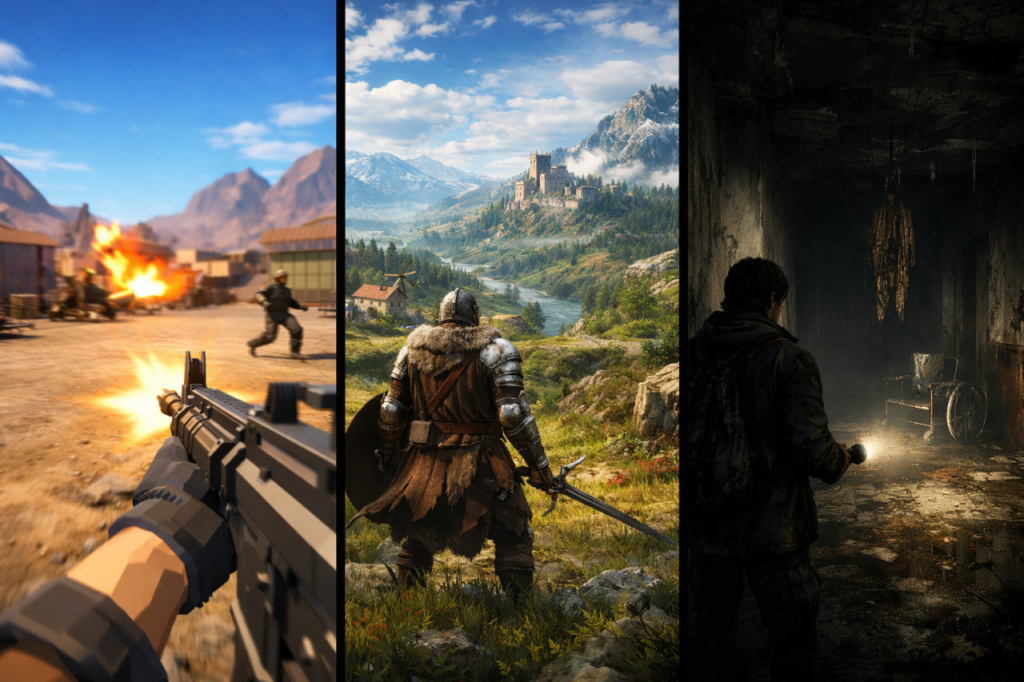
First-person shooters prioritize framerate over visual quality for responsive aiming. Open-world RPGs benefit from better graphics due to slower-paced exploration. Competitive MOBAs and strategy games are less demanding and can run higher settings.
First-Person Shooter Optimization:
| Setting | Recommended Value | Reason |
|---|---|---|
| Target framerate | 120+ fps | Smoother aiming, faster reaction time |
| Shadows | Low or medium maximum | High cost, minimal competitive advantage |
| Motion blur | Off | Reduces visual clarity during fast movement |
| Depth of field | Off | Blurs distant enemies |
| Effects quality | Low to medium | Maintains visibility during explosions |
| Anti-aliasing | FXAA or off | Minimize performance cost |
Competitive players use low settings even with powerful hardware to maximize framerate advantage.
Open-World RPG Optimization:
| Setting | Recommended Value | Reason |
|---|---|---|
| Target framerate | 45-60 fps | Slower pace allows lower framerate |
| Shadows | Medium | Balance atmosphere and performance |
| Ambient occlusion | High | Improves environmental depth |
| Anisotropic filtering | 16x | Minimal cost, large visual improvement |
| View distance | High | Reduces pop-in during exploration |
| Anti-aliasing | TAA | Cleaner image quality |
RPGs trade framerate for visual quality to enhance immersion and atmosphere.
Competitive MOBA and Strategy Game Optimization: These games are not graphically demanding. Most systems achieve 60+ fps on high or ultra settings. Enable vertical sync if screen tearing occurs. Top-down camera perspective makes detailed graphics less noticeable.
Horror and Story-Driven Game Optimization: Atmosphere takes priority over framerate. Better shadows and lighting increase tension. Target 45-50 fps with higher shadow and lighting settings rather than 60 fps with reduced visual quality.
How Do GPU Driver Settings Improve Performance?
Graphics drivers provide settings that override or supplement in-game options. Nvidia Control Panel and AMD Radeon Software offer performance optimizations independent of game settings.
Nvidia Control Panel Optimizations:
- Open Nvidia Control Panel.
- Navigate to “Manage 3D Settings.”
- Select “Program Settings” tab.
- Choose the game executable.
- Adjust these settings:
| Setting Name | Recommended Value | Effect |
|---|---|---|
| Power management mode | Prefer maximum performance | Prevents GPU downclocking |
| Vertical sync | Off (for high fps) or Fast | Reduces input lag |
| Texture filtering – Quality | Performance | Slight quality reduction, better framerate |
| Low Latency Mode | Ultra (competitive games) | Reduces input lag |
| Max Frame Rate | Monitor refresh rate + 20 fps | Reduces heat and power consumption |
AMD Radeon Software Optimizations:
- Open AMD Radeon Software.
- Select the game from the list.
- Enable these features:
| Feature | Effect | Best Use |
|---|---|---|
| Radeon Anti-Lag | Reduces input latency | Competitive gaming |
| Radeon Boost | Dynamic resolution during fast motion | Action games |
| FidelityFX Super Resolution | Upscales lower resolution | Demanding games |
| Tessellation Override | Limits tessellation level | Games with excessive tessellation |
What Are Resolution Scaling and Upscaling Technologies?
Resolution scaling renders the game at lower resolution then upscales to native monitor resolution. DLSS (Nvidia) and FSR (AMD) use advanced algorithms to maintain visual quality while improving performance.
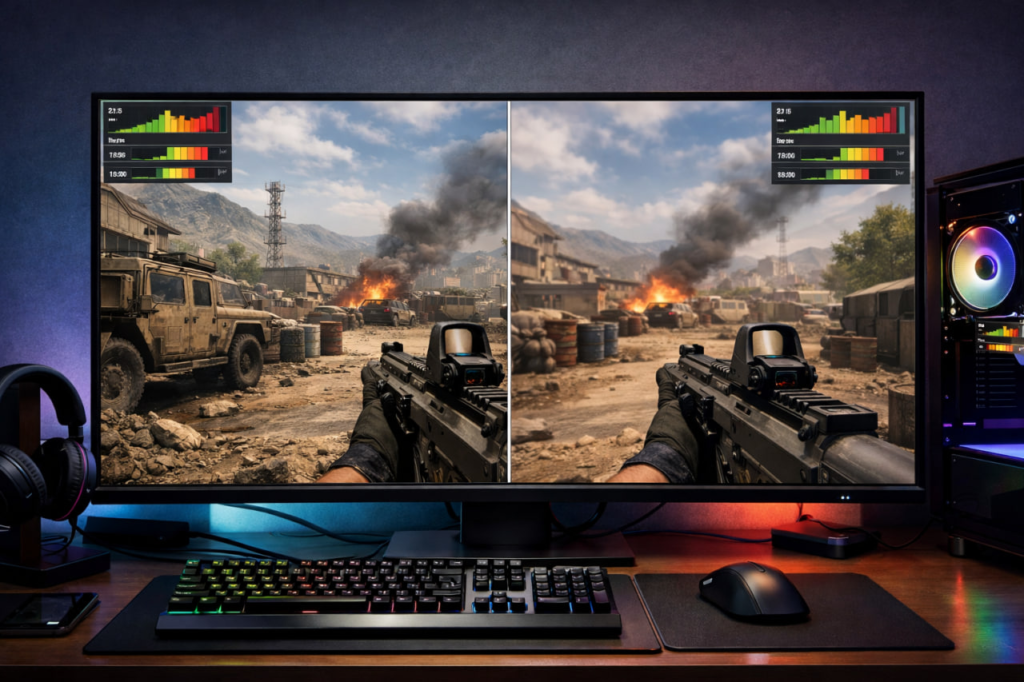
Resolution Scaling: Games render at a percentage of native resolution. 80% scaling at 1920×1080 renders at 1536×864, then upscales to 1080p. This provides 10-15 fps gain with minimal visual degradation.
| Resolution Scale | Visual Quality Loss | Framerate Gain |
|---|---|---|
| 100% (native) | None | Baseline |
| 90% | Barely noticeable | +5 to +10 fps |
| 80% | Slight blur, acceptable | +10 to +15 fps |
| 70% | Noticeable blur | +15 to +25 fps |
| 50% | Significant blur, avoid | +30 to +50 fps |
Use 80-90% resolution scale for best balance between quality and performance.
DLSS (Deep Learning Super Sampling): Nvidia’s AI-powered upscaling available on RTX 20-series and newer cards. DLSS renders at lower resolution and uses machine learning to reconstruct image quality approaching native resolution.
| DLSS Mode | Internal Resolution at 1080p | Framerate Gain | Image Quality |
|---|---|---|---|
| Quality | ~720p | +30-40% | Near-native, slight softness |
| Balanced | ~630p | +40-50% | Good, minor blur in motion |
| Performance | ~540p | +50-70% | Acceptable, noticeable blur |
| Ultra Performance | ~360p | +80-100% | Poor, use only for 4K displays |
Enable DLSS Quality mode when available. Image quality approaches native resolution while providing 30-40% framerate increase.
FSR (FidelityFX Super Resolution): AMD’s spatial upscaling works on both AMD and Nvidia graphics cards. FSR does not use machine learning and produces slightly lower image quality than DLSS but still provides significant performance gains.
| FSR Mode | Internal Resolution at 1080p | Framerate Gain | Image Quality |
|---|---|---|---|
| Ultra Quality | ~960p | +15-25% | Minimal difference from native |
| Quality | ~720p | +30-40% | Good, slight softness |
| Balanced | ~630p | +40-50% | Acceptable quality |
| Performance | ~540p | +50-70% | Noticeable blur, avoid at 1080p |
FSR works on older graphics cards lacking DLSS support. Use Quality or Ultra Quality modes for best results.
When Should Framerate Be Capped?
Framerate caps prevent wasted GPU usage when framerate exceeds monitor refresh rate. Capping framerate reduces power consumption, heat generation, and screen tearing.
Framerate Cap Guidelines:
| Monitor Refresh Rate | Recommended FPS Cap | Reason |
|---|---|---|
| 60Hz | 60-65 fps | Match refresh rate, reduce tearing |
| 75Hz | 75-80 fps | Match refresh rate |
| 120Hz | 120-140 fps | Match refresh rate |
| 144Hz | 144-165 fps | Match refresh rate |
| 240Hz | 240-260 fps | Match refresh rate for competitive play |
| Variable (G-Sync/FreeSync) | No cap needed | Adaptive sync handles synchronization |
Set framerate cap to monitor refresh rate plus 10-20 fps buffer. Framerates significantly exceeding monitor refresh rate waste GPU power and increase component temperatures.
VSync Problems and Solutions: VSync synchronizes framerate to monitor refresh rate to eliminate screen tearing but adds 1-2 frames of input lag. Competitive players disable VSync to reduce input latency. Casual players may prefer VSync for tear-free experience.
Adaptive sync technologies (G-Sync for Nvidia, FreeSync for AMD) eliminate screen tearing without VSync input lag. Enable G-Sync or FreeSync if monitor supports it and disable in-game VSync.
How to Identify System Bottlenecks?
Bottlenecks occur when one component limits overall performance. GPU bottlenecks respond to graphics settings changes. CPU bottlenecks do not improve with lower graphics settings. RAM or VRAM bottlenecks cause stuttering.
GPU Bottleneck Indicators:
| Symptom | Meaning |
|---|---|
| GPU usage 95-100% during gameplay | GPU is limiting framerate |
| Lowering graphics settings increases framerate significantly | GPU cannot handle current workload |
| Changing resolution from 1080p to 720p adds 20+ fps | GPU pixel processing is bottleneck |
| CPU usage below 70% on all cores | CPU is not limiting performance |
GPU bottlenecks are normal and expected. Lower graphics settings or upgrade GPU to improve performance.
CPU Bottleneck Indicators:
| Symptom | Meaning |
|---|---|
| CPU usage 90-100% on one or more cores | CPU cannot process game logic fast enough |
| Lowering graphics settings barely changes framerate | GPU is waiting for CPU |
| GPU usage below 90% during gameplay | GPU is idle waiting for CPU instructions |
| Framerate drops during large battles or NPC-heavy areas | CPU cannot handle AI calculations |
CPU bottlenecks require processor upgrades. Graphics settings changes provide minimal benefit.
RAM and VRAM Bottleneck Indicators:
| Symptom | Component | Solution |
|---|---|---|
| Stuttering when loading new areas | Insufficient system RAM | Upgrade to 16GB RAM minimum |
| Texture pop-in and blurry textures | Insufficient VRAM | Lower texture quality |
| VRAM usage exceeds 90% of available memory | VRAM bottleneck | Reduce texture quality and effects |
| RAM usage exceeds 85% of available memory | RAM bottleneck | Close background programs or add RAM |
Monitor VRAM and RAM usage during gameplay. Usage exceeding 90% of available memory causes performance degradation.
What Performance Monitoring Tools Should Be Used?
MSI Afterburner with RivaTuner Statistics Server provides real-time performance overlays showing framerate, component usage, and temperatures. Steam’s built-in FPS counter offers basic framerate monitoring without additional software.
MSI Afterburner Setup:
- Download and install MSI Afterburner.
- Install RivaTuner Statistics Server during Afterburner installation.
- Open MSI Afterburner settings.
- Enable “On-screen display” in settings.
- Select metrics to display:
- Framerate (current and average)
- GPU usage percentage
- GPU temperature
- CPU usage (total and per-core)
- CPU temperature
- VRAM usage
- RAM usage
- Frame time graph
Performance Data Interpretation:
| Reading | Interpretation | Action |
|---|---|---|
| GPU usage 99%, CPU usage 60% | GPU bottleneck (normal) | Lower graphics settings |
| CPU usage 100%, GPU usage 70% | CPU bottleneck | Upgrade CPU or reduce NPC density |
| VRAM usage equals card maximum | VRAM bottleneck | Lower texture quality immediately |
| Frame time spikes visible on graph | Stuttering occurring | Check for VRAM/RAM bottleneck |
| GPU temperature above 85°C | Thermal throttling risk | Improve cooling or lower settings |
| CPU temperature above 90°C | Thermal throttling occurring | Improve cooling immediately |
GPU usage at 95-100% indicates proper graphics settings—the GPU is fully utilized without CPU waiting. CPU usage maxing out while GPU sits idle indicates CPU bottleneck requiring hardware upgrade.
Which Settings Should Always Be Disabled?
Motion blur, depth of field, chromatic aberration, film grain, and lens flare add no gameplay value while reducing visual clarity and costing performance. Disable these settings in every game.
| Setting | Visual Effect | Performance Cost | Recommendation |
|---|---|---|---|
| Motion blur | Smears image during camera movement | -3 to -5 fps | Always disable—reduces clarity |
| Depth of field | Blurs background/foreground | -5 to -8 fps | Always disable—hides enemies |
| Chromatic aberration | Colored fringing at edges | -2 to -3 fps | Always disable—no benefit |
| Film grain | Adds noise overlay | -1 to -2 fps | Always disable—reduces image quality |
| Lens flare | Bright light artifacts | -3 to -5 fps | Always disable—obscures vision |
| Vignette | Darkens screen edges | -1 fps | Disable—reduces visibility |
These “cinematic” effects reduce gameplay performance and visual clarity. No competitive advantage exists for enabling them.
Screen Space Reflections: SSR creates realistic reflections on water and shiny surfaces but costs 10-15 fps. Set to low or medium. High and ultra SSR settings provide minimal visual improvement for severe performance cost.
How to Optimize Laptop Performance?
Laptops require power management adjustments, thermal management, and may benefit from resolution reductions due to thermal throttling and power limitations.
Power Management:
- Open Windows Power Options.
- Select “High Performance” power plan.
- Ensure laptop is plugged into AC power during gaming.
- Check manufacturer’s software for additional performance modes.
Balanced power mode limits CPU and GPU performance to conserve battery. Battery-powered gaming runs at approximately 50% performance compared to AC power even on high performance mode.
Thermal Management: Laptops throttle performance when components exceed temperature limits. Prevent throttling through active cooling and airflow improvements.
| Solution | Temperature Reduction | Cost |
|---|---|---|
| Laptop cooling pad with fans | -8 to -12°C | $15-$30 |
| Elevate rear of laptop 2-3 inches | -3 to -5°C | Free (use books or stand) |
| Clean dust from vents and fans | -5 to -10°C | Free (compressed air) |
| Repaste CPU/GPU thermal compound | -10 to -15°C | $10-$20 (advanced users only) |
Clean laptop vents every 3-6 months. Dust accumulation reduces cooling efficiency and causes thermal throttling.
Resolution Optimization for Laptops: Laptop screens are smaller than desktop monitors. Resolution reduction from 1080p to 900p or 720p is less visually noticeable on 15.6-inch screens compared to 27-inch desktop monitors.
| Laptop Screen Size | Native Resolution | Optimal Gaming Resolution | Visual Quality Loss |
|---|---|---|---|
| 13-14 inches | 1920×1080 | 1280×720 | Minimal—text slightly less sharp |
| 15-16 inches | 1920×1080 | 1600×900 or 1280×720 | Acceptable—noticeable but playable |
| 17 inches | 1920×1080 | 1600×900 | Slight—some blur visible |
Reduce resolution on laptops before lowering other settings. Smaller screens mask resolution reduction better than large displays.
How to Test and Validate Optimized Settings?
Test settings across multiple gameplay scenarios including calm exploration, intense combat, graphically demanding areas, and worst-case scenarios. Monitor for stuttering and framerate consistency.
Comprehensive Testing Checklist:
- Play through low-action exploration area for 10 minutes.
- Record minimum, average, and maximum framerate.
- Engage in intense combat with multiple enemies and effects.
- Check for framerate drops below target.
- Visit graphically demanding locations (dense cities, detailed environments).
- Verify framerate remains stable.
- Watch cutscenes and transitions.
- Confirm no stuttering during scene changes.
- Play for 30+ minutes continuously.
- Monitor for thermal throttling or degrading performance.
| Test Scenario | Target Result | Failure Indicator | Fix |
|---|---|---|---|
| Exploration | Stable at target fps | Stuttering or drops | Reduce texture quality (VRAM issue) |
| Intense combat | Above 55 fps minimum | Drops below 50 fps | Lower effects quality or shadows |
| Demanding areas | Above 55 fps minimum | Drops below 45 fps | Reduce view distance or resolution |
| Extended play | Consistent performance | Framerate degrades over time | Thermal throttling—improve cooling |
Consistent 50 fps with no stuttering feels better than 70 fps average with constant drops to 30 fps. Prioritize framerate stability over high average framerate.
How to Maintain Performance Over Time?
Graphics drivers require periodic updates. Hardware accumulates dust reducing cooling efficiency. Game patches change performance characteristics requiring setting adjustments.
Regular Maintenance Schedule:
| Task | Frequency | Purpose |
|---|---|---|
| Update graphics drivers | Every 2-3 months | Performance improvements for new games |
| Clean PC/laptop dust | Every 3-6 months | Prevent thermal throttling |
| Reoptimize after major game patches | After version updates | Account for performance changes |
| Monitor temperatures during summer | Monthly in hot weather | Detect cooling degradation |
| Check VRAM/RAM usage in new games | Each new game | Verify hardware still adequate |
New graphics drivers provide optimizations for recently released games. Older games may not benefit from driver updates. Wait one week after driver release before updating to avoid unstable early versions.
Driver Update Process:
- Visit Nvidia or AMD driver download page.
- Download latest driver for graphics card model.
- Run installer and select “Custom Installation.”
- Choose “Clean Install” option to remove old drivers.
- Restart computer after installation.
- Test games to verify performance improvement.
Clean installation prevents conflicts from old driver remnants.

Comments (0)
Sign In / Sign Up
Sign in to leave a comment.
No comments yet
Be the first one to share your thoughts!