

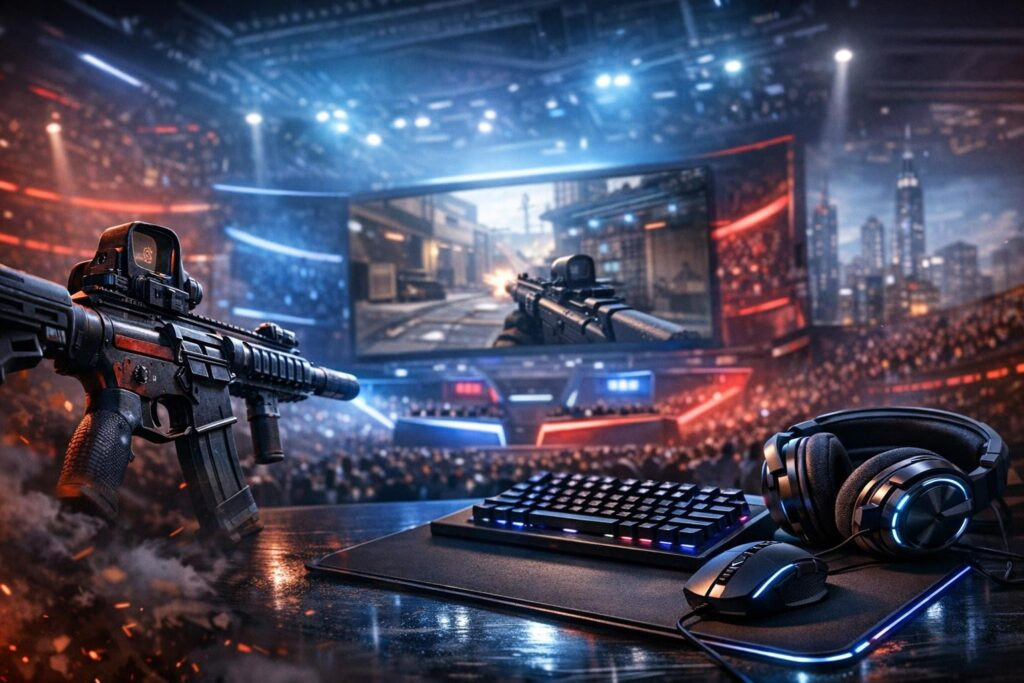

Listen up, competitive gamers! Want to dominate every match by spotting enemies before they even know you’re there? Then it’s time to ditch those fancy graphics that slow you down and focus on what really matters: crystal-clear visibility, buttery-smooth frame rates, and lightning-fast response times. This comprehensive guide will transform your gaming setup from casual to pro-level, giving you the competitive edge you’ve been searching for.
Whether you’re grinding ranked in CS2, clutching rounds in Valorant, or building your way to victory in Fortnite, the right graphics settings can mean the difference between seeing your opponent first or respawning at base. Let’s dive deep into the essential tweaks that will maximize your performance and give you that unfair advantage every competitive player craves.
Your Monitor: The Foundation of Competitive Visibility
Your display is literally your window into the game world, so getting these settings dialed in is absolutely crucial for competitive success. A poorly configured monitor can hide enemies in shadows, create motion blur, and add precious milliseconds of input lag that cost you kills.
Essential Monitor Configuration for Maximum Performance
- Refresh Rate: Push this to the absolute maximum your monitor supports (144Hz, 240Hz, or even 360Hz). Higher refresh rates deliver smoother motion, reduced blur, and let you track fast-moving targets with surgical precision.
- Native Resolution: Stick with your monitor’s native resolution (typically 1920×1080 for competitive players) to avoid image scaling artifacts that reduce clarity and sharpness.
- Brightness Levels: Set between 250-350 nits depending on your room lighting. Too bright and you’ll fatigue your eyes; too dark and you’ll miss enemies lurking in shadowy corners.
- Contrast Ratio: Aim for 70-80% to ensure deep blacks without crushing shadow detail where enemies love to hide.
- Response Time: Enable the fastest response time setting (usually 1ms) with Overdrive set to Normal or Fast to eliminate ghosting trails behind moving objects.
- Black Equalizer Technology: This game-changing feature brightens dark areas without overexposing bright zones, revealing campers in shadows instantly.
Pro players swear by enabling Game Mode or Low Latency Mode in their monitor’s on-screen display menu. These modes bypass unnecessary image processing that adds delay between your actions and what appears on screen.
Graphics Driver Optimization: Cutting System Latency
Your graphics drivers act as the translator between your game and your GPU, and outdated drivers can sabotage even the best hardware. Always install the latest game-ready drivers from NVIDIA or AMD before jumping into ranked matches.
NVIDIA Control Panel Settings for Competitive Gaming
Navigate to the 3D Settings section and configure these critical options:
- Maximum Pre-Rendered Frames: Set to 1 for minimal input lag
- Power Management Mode: Maximum Performance ensures your GPU never downclocks during intense firefights
- Vertical Sync: OFF (we’ll handle screen tearing differently)
- Low Latency Mode: Ultra setting provides the fastest possible response
- Texture Filtering Quality: Performance mode reduces GPU overhead
- NVIDIA Reflex: Enable this for supported titles to dramatically reduce system latency
AMD Radeon Settings for Peak Performance
- Anti-Aliasing Mode: Override application settings for consistent performance
- Radeon Anti-Lag: Activated to reduce input-to-display latency
- Radeon Boost: Dynamic resolution scaling maintains high frame rates
- Vertical Refresh: Always OFF unless you cannot tolerate screen tearing
Windows System Tweaks That Matter
Windows includes several hidden settings that impact gaming performance. Disable Enhanced Pointer Precision in mouse settings for raw input accuracy. Enable Hardware-Accelerated GPU Scheduling in Graphics Settings to reduce latency. Switch to Ultimate Performance power plan using Command Prompt with administrator privileges to prevent CPU throttling during crucial moments.
In-Game Graphics Settings: Performance Over Prettiness
This is where competitive players separate themselves from casual gamers. Every visual effect you enable costs frame rate, and lower frame rates mean slower reaction times and lost gunfights.
Universal Competitive Graphics Configuration
These settings apply across virtually every competitive shooter and should be your starting baseline:
- Display Resolution: Native resolution maintains clarity, but dropping to 1600×900 or 1280×720 can provide massive frame rate boosts on lower-end systems
- Texture Quality: Medium or Low prevents VRAM saturation while maintaining readability of surfaces and enemy character models
- Shadow Quality: Low or completely disabled – shadows consume enormous GPU resources while providing minimal competitive benefit
- Anti-Aliasing: Use TAA, FXAA, or DLSS Performance mode for smooth edges without crushing performance
- Effects Quality: Low setting reduces visual clutter from explosions, muzzle flashes, and particle effects
- Post-Processing: Minimum or OFF – disable Motion Blur, Depth of Field, Chromatic Aberration, and Film Grain entirely
- View Distance: Medium provides adequate visibility without overloading your CPU
- Reflections: Low or Medium – realistic reflections in puddles look great but tank frame rates
- Global Illumination: Low or disabled – another VRAM-hungry feature that competitive players avoid
Game-Specific Optimization Strategies
Tactical Shooters (CS2, Valorant)
These precision-focused games demand absolute maximum frame rates. Set literally everything to Low or OFF, targeting 300+ FPS for the smoothest possible experience. Higher frame rates reduce input lag even on 144Hz monitors through frame time consistency.
Battle Royale Games (Fortnite, Warzone)
These titles require balancing performance with sufficient view distance to spot distant enemies. Keep View Distance at Medium or High, but aggressively reduce Shadows, Effects, and Post-Processing. Enable performance-focused upscaling technologies like DLSS or FSR for free frame rate gains.
Advanced Performance Monitoring and Optimization
Install MSI Afterburner or similar monitoring software to track your frame rate, GPU usage, VRAM consumption, and CPU usage in real-time. Your goal is maintaining consistently high frame rates (minimum 144 FPS, ideally 200+) with GPU utilization between 80-90%.
If you’re experiencing stuttering or frame drops, check your VRAM usage first. Maxed-out VRAM causes massive performance problems. Reduce Texture Quality or Resolution to free up video memory. Similarly, if your CPU usage hits 100% while GPU usage stays low, you’re CPU-bottlenecked – reduce View Distance and Effects settings.
Hardware Considerations for Competitive Gaming
Software optimization only takes you so far. Competitive gaming demands certain hardware minimums for optimal performance:
- Storage: Install games on an SSD (preferably NVMe) to eliminate texture streaming stutters and reduce load times
- Memory: 16GB RAM minimum prevents background processes from causing frame drops during clutch moments
- Monitor: 144Hz refresh rate is the bare minimum for competitive play; 240Hz provides noticeable improvement for fast-paced shooters
- Mouse: High polling rate (1000Hz minimum) gaming mouse with quality sensor ensures accurate aim tracking
Testing and Fine-Tuning Your Configuration
After applying these settings, spend time in aim trainers or practice modes testing different configurations. What works perfectly for one player might not suit your personal preferences or hardware. Some players prefer slightly higher visual quality and accept marginally lower frame rates, while others demand absolute maximum performance regardless of visual compromises.
Keep uncapped frame rates whenever possible, as frame rate caps introduce additional input lag. If you experience screen tearing that becomes distracting, enable NVIDIA Reflex or AMD Anti-Lag rather than traditional V-Sync, which adds significant latency.
Remember that competitive gaming prioritizes function over form. Those beautiful lighting effects and realistic shadows might impress viewers, but they actively hurt your performance by reducing frame rates and visibility. Professional esports players universally choose ugly-but-smooth over pretty-but-laggy, and you should too if you’re serious about climbing ranked ladders.
With these optimized graphics settings for competitive gaming implemented, you’ll spot enemies faster, react quicker, and perform more consistently. Your opponents won’t know what hit them when you’re fragging with pro-level visibility and buttery-smooth frame rates. Now get out there and dominate!
Frequently Asked Questions
Should I use V-Sync for competitive gaming?
No, avoid V-Sync in competitive games as it adds significant input lag. Instead, use NVIDIA Reflex or AMD Anti-Lag to reduce latency while managing screen tearing. Most competitive players prefer accepting minor tearing over the delay V-Sync introduces.
What frame rate should I target for competitive gaming?
Aim for at least 144 FPS minimum, but ideally 200+ FPS for tactical shooters and 144-165 FPS for battle royale games. Higher frame rates reduce input lag and provide smoother motion even on lower refresh rate monitors through improved frame time consistency.
Does lowering resolution improve competitive performance?
Yes, reducing resolution can dramatically boost frame rates on lower-end systems. While native resolution provides best clarity, dropping to 1600×900 or even 1280×720 can double your frame rate, which many competitive players consider worth the visual trade-off for smoother gameplay.
Why do pro players disable shadows completely?
Shadows consume massive GPU resources while often hiding enemies in dark areas and creating visual clutter. Disabling shadows improves frame rates significantly while actually improving visibility by eliminating shadow-camping spots and reducing distracting movement from dynamic shadows.
How much VRAM do I need for competitive gaming?
Most competitive games run perfectly fine with 6-8GB VRAM when using optimized settings (Medium or Low textures). Going beyond 8GB provides minimal benefit for competitive play, as you should be prioritizing frame rate over ultra-high resolution textures anyway.

Comments (0)
Sign In / Sign Up
Sign in to leave a comment.
No comments yet
Be the first one to share your thoughts!