

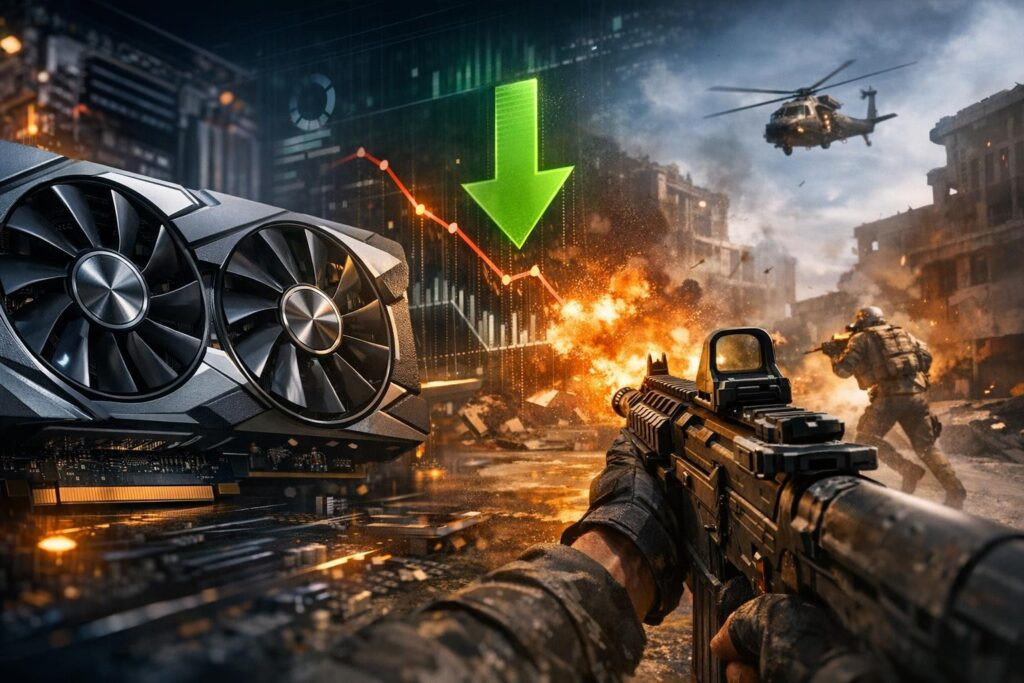

Imagine this: you’ve just updated your graphics card drivers, excited to squeeze every last frame from your gaming rig. But instead of smoother gameplay, you’re facing stuttering, lower FPS, or bizarre visual glitches. Sound familiar? Don’t worry—rolling back your GPU drivers might be exactly what your system needs to get back to peak performance.
Driver rollbacks are one of the most underrated troubleshooting tools in a gamer’s arsenal. Whether you’re running NVIDIA GeForce, AMD Radeon, or Intel Arc graphics, knowing how to reverse a problematic driver update can save hours of frustration and get you back into your favorite games quickly.
Understanding Why GPU Driver Rollbacks Matter
Graphics driver updates aren’t always the performance boost manufacturers promise. Sometimes these updates introduce bugs that weren’t caught during testing, create compatibility issues with specific games, or simply don’t play nice with your particular hardware configuration.
Performance degradation after a driver update can manifest in several ways:
- Noticeable FPS drops in games that previously ran smoothly
- Screen tearing or visual artifacts during gameplay
- Increased GPU temperatures under normal load
- System crashes or black screens when launching games
- Stuttering or microfreezes during intense scenes
The good news? Rolling back to a previous driver version is straightforward on Windows 10 and Windows 11, and it often resolves these issues immediately.
Quick Rollback Using Device Manager
Windows includes a built-in rollback feature that works seamlessly if your system has retained the previous driver files. This method is perfect for GeForce RTX, GTX, AMD Radeon, or Intel Arc users who need a fast solution.
Step-by-Step Process
Right-click your Start button and select Device Manager from the menu. Once the window opens, locate and expand the Display Adapters section. You’ll see your graphics card listed here—something like NVIDIA GeForce RTX 4070 or AMD Radeon RX 7800 XT.
Right-click on your GPU and choose Properties. Navigate to the Driver tab, where you’ll find several options for managing your graphics driver.
Look for the “Roll Back Driver” button. If this button appears grayed out, it means Windows hasn’t stored the previous driver version on your system. However, if it’s clickable, you’re in luck.
Click the button, select a reason for the rollback (this feedback helps Microsoft and driver manufacturers), and confirm your choice. Windows will automatically revert to the previous driver version and restart your display adapter.
This entire process typically takes less than two minutes and doesn’t require a system reboot in most cases.
Manual Driver Selection Method
When the standard rollback option isn’t available, Windows still offers another pathway through manual driver selection. This technique works when your system has multiple driver versions cached but the automatic rollback button is disabled.
Accessing Driver History
Return to Device Manager and follow the same path to your graphics card’s Properties. Instead of selecting Roll Back Driver, click “Update Driver” this time.
Choose “Browse my computer for drivers” followed by “Let me pick from a list of available drivers on my computer.” Windows will display all compatible driver versions currently stored on your system.
You’ll see driver versions listed with their dates and version numbers. Select the older version you want to reinstall and click Next. Windows handles the rest, switching your active driver to the selected version.
Complete Driver Downgrade From Manufacturer Websites
Sometimes you need to go further back than Windows keeps cached, or you’ve performed a clean driver installation that removed previous versions. In these situations, downloading older drivers directly from your GPU manufacturer provides the most reliable solution.
NVIDIA Graphics Cards
Visit the NVIDIA driver download page and use their automatic detection tool or manually select your GPU model, series, and operating system. Instead of downloading the latest version, look for the option to view all available driver releases.
Community forums and gaming subreddits often identify particularly stable driver versions for specific GPU generations. For example, certain RTX 30-series cards perform exceptionally well with specific driver branches.
AMD Radeon Cards
AMD’s driver archive works similarly. Navigate to their support section, select your product family, and access previous driver releases. AMD Adrenalin software includes cleanup utilities that help ensure smooth transitions between driver versions.
Proper Uninstallation Before Downgrading
Before installing an older driver version, removing your current driver completely prevents conflicts. Open Windows Settings, navigate to Apps, and find your graphics driver software. Uninstall it completely, including any companion applications.
For the most thorough cleanup, consider using Display Driver Uninstaller in Safe Mode. This specialized tool removes all traces of graphics drivers, ensuring a clean slate for your downgrade.
Advanced Tips for Gamers
Testing Your Results
After rolling back your GPU drivers, verification is essential. Run benchmark tools like 3DMark, Unigine Heaven, or built-in game benchmarks to quantify performance differences. Compare frame rates, temperatures, and stability between driver versions.
Preventing Automatic Updates
Once you’ve found a stable driver version, prevent Windows from automatically updating it. Disable driver updates through Windows Update settings or your GPU manufacturer’s control panel. NVIDIA GeForce Experience and AMD Adrenalin both allow you to control when drivers update.
Keeping Track of Stable Versions
Document which driver versions work best for your system. Create a simple note with your GPU model and the driver version number that provides optimal performance. Gaming communities often maintain lists of recommended drivers for specific hardware configurations.
Troubleshooting Common Rollback Issues
When Rollback Options Are Unavailable
If Windows shows no previous drivers available, you’ll need to download an older version manually. This situation commonly occurs after major Windows updates or when using clean installation options during driver updates.
Installation Failures
Occasionally, older drivers refuse to install over newer versions. Boot into Safe Mode and use a driver cleanup utility before attempting installation. This resolves most compatibility conflicts between driver versions.
Performance Still Poor After Rollback
If rolling back drivers doesn’t resolve your performance issues, the problem might lie elsewhere. Check your GPU temperatures, verify your power supply is adequate, ensure your RAM is functioning correctly, and scan for malware that could be consuming resources.
Best Practices for Future Driver Updates
Learning from driver update mishaps helps prevent future problems. Before updating drivers, create a system restore point as a safety net. Research community feedback about new driver releases before installing them—waiting a few days lets early adopters identify potential issues.
Avoid using the “clean installation” option unless you’re troubleshooting existing problems. Standard installations preserve previous driver files, enabling quick rollbacks through Device Manager.
Monitor your system’s performance after updates. Keep notes about FPS in specific games, temperatures, and any unusual behavior. This baseline data makes it easier to identify when a driver update causes problems.
Platform-Specific Considerations
Windows 11 Differences
Windows 11 handles driver management slightly differently than Windows 10, though the core rollback process remains identical. The updated Settings interface might make some options harder to find, but Device Manager functions unchanged.
Laptop vs Desktop Graphics
Laptop users with switchable graphics need extra caution. Systems with both integrated and dedicated GPUs require updating or rolling back the correct driver. Always verify you’re modifying the dedicated graphics card driver, not the integrated processor graphics.
When to Skip Driver Updates Entirely
The gaming community’s golden rule applies here: if your system runs perfectly, think twice before updating drivers. Driver updates primarily benefit newly released games or add features you might not need.
Update drivers when:
- A new game you want to play has specific driver optimizations
- You’re experiencing crashes or graphical issues
- Security patches address vulnerabilities
- You’re upgrading to new hardware that requires updated drivers
Stay with your current drivers when everything works smoothly and you’re satisfied with performance in your game library.
FAQ
How long does rolling back GPU drivers take?
The rollback process through Device Manager typically completes in under two minutes. Manual driver downloads and installations might take 5-10 minutes depending on your internet speed and whether you perform a complete driver cleanup first.
Will rolling back drivers delete my game settings or saves?
No, rolling back graphics drivers doesn’t affect game files, saves, or in-game settings. Your games and data remain completely untouched—only the driver software changes.
Can I roll back to any previous driver version?
Through Device Manager, you can only roll back to the immediately previous version Windows has cached. For older versions, you’ll need to download them from your GPU manufacturer’s website and install them manually.
Why is the Roll Back Driver button grayed out?
This happens when Windows hasn’t stored your previous driver version, often after clean installations or major system updates. You’ll need to download an older driver version manually from the manufacturer’s website.
Should I use Display Driver Uninstaller before rolling back?
For simple rollbacks through Device Manager, DDU isn’t necessary. However, when manually installing much older driver versions or troubleshooting persistent issues, using DDU in Safe Mode ensures the cleanest possible installation.
How do I prevent Windows from automatically updating my drivers again?
Disable automatic driver updates through Windows Update settings by selecting “Advanced options” and turning off optional updates. Additionally, disable automatic updates in your GPU manufacturer’s software like GeForce Experience or AMD Adrenalin.

Comments (0)
Sign In / Sign Up
Sign in to leave a comment.
No comments yet
Be the first one to share your thoughts!