

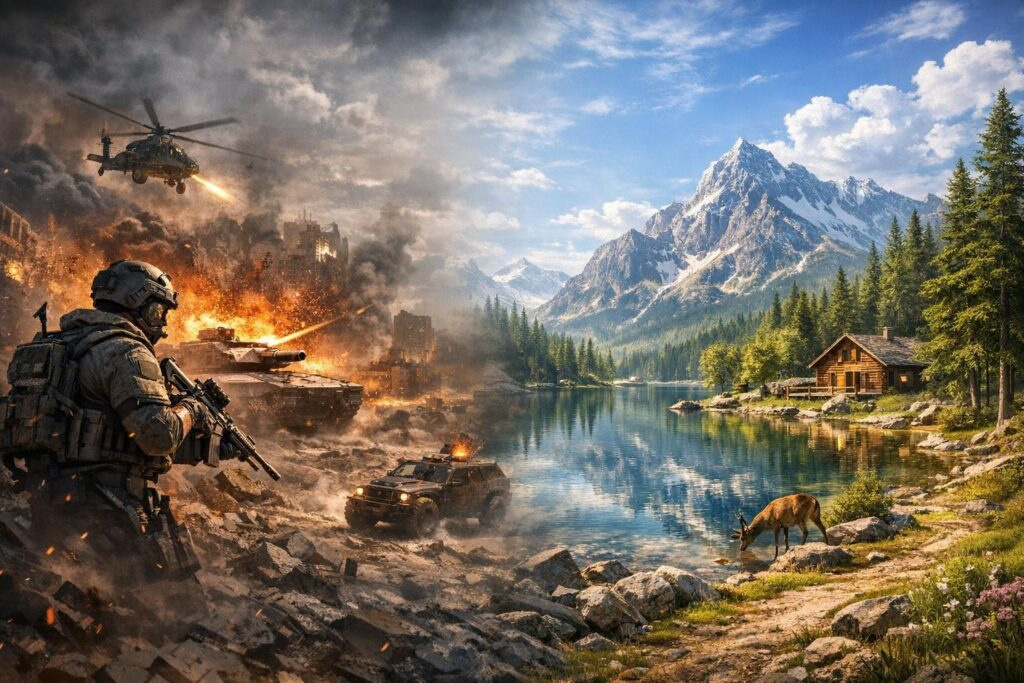

Finding the sweet spot between stunning visuals and smooth gameplay feels like solving a puzzle without all the pieces. You boot up your favorite single-player game, dive into the settings menu, and suddenly face dozens of sliders, checkboxes, and cryptic terms like “ambient occlusion” and “anisotropic filtering.” Should you crank everything to maximum and hope your PC survives? Or should you sacrifice visual quality for better performance? The truth is, achieving optimal graphics settings isn’t about choosing one extreme over the other—it’s about understanding what your system can handle and making smart compromises.
Why Graphics Performance Balance Matters in Gaming
Here’s something most gamers learn the hard way: beautiful graphics mean absolutely nothing when your screen stutters every three seconds. Performance optimization isn’t just technical jargon—it directly impacts how you experience games. When your frame rate drops during crucial moments, immersion shatters. You’re no longer exploring fantasy worlds or fighting epic battles; you’re fighting your hardware instead.
Many players fall into predictable patterns. Some push every setting to ultra and watch their PC struggle. Others accept whatever the auto-detect feature suggests without question. But the real magic happens somewhere between these extremes, where visual fidelity meets playable frame rates. The best part? You don’t need cutting-edge hardware to achieve this balance. You just need to understand how your current setup handles different graphical elements.
Understanding the Trade-Offs: What to Keep and What to Sacrifice
Balancing graphics and performance resembles an art form more than exact science. You want visuals that draw you into the game world, but you also need responsive controls and fluid motion. Push too hard in one direction, and you’ll face stuttering, frame drops, or input lag that ruins critical gameplay moments.
The secret lies in identifying which graphical features you can reduce without destroying your gaming experience. Not all settings impact visual quality equally, and some demand far more resources than others. Learning which settings to adjust gives you tremendous power over performance optimization.
Settings That Eat Resources Without Adding Much Value
Several graphics settings look impressive in screenshots but barely register during actual gameplay. Consider these examples:
- Shadow Quality: Shadows create depth and realism, but during intense action sequences, you barely notice shadow detail. Dropping from ultra to high or medium often delivers significant FPS gains without noticeable visual loss.
- Anti-Aliasing: This feature smooths jagged edges on objects, but the performance cost can be brutal. Lower anti-aliasing settings or switching to less demanding methods like FXAA instead of MSAA can free up valuable resources.
- Post-Processing Effects: Features like depth of field, motion blur, and chromatic aberration actually reduce visual clarity during gameplay. Many competitive players disable these entirely.
- Volumetric Effects: Volumetric fog and lighting look stunning but absolutely devastate frame rates. Medium or low settings usually provide adequate atmosphere without the performance penalty.
Remember this fundamental principle: smooth motion during gameplay always trumps perfect lighting in static scenes. Your eyes naturally fill in missing details when everything moves fluidly.
Getting to Know Your PC’s Strengths and Weaknesses
Every gaming PC has its own personality. Some systems handle high-resolution textures effortlessly but struggle with complex lighting calculations. Others breeze through particle effects but choke when rendering distant scenery. Understanding your specific hardware limitations transforms optimization from guesswork into strategic decision-making.
This explains why copying someone else’s “perfect settings” rarely works. Your CPU might bottleneck certain processes, meaning that reducing CPU-intensive effects delivers better results than lowering resolution. Conversely, if your graphics card struggles, reducing GPU-heavy settings like resolution or texture quality provides immediate improvement.
Testing different configurations teaches you invaluable lessons about your system’s capabilities. Spend time experimenting, and you’ll discover exactly where your hardware excels and where it needs help. This knowledge becomes your foundation for game-specific optimization.
Different Games Need Different Approaches
Here’s what catches many gamers off-guard: optimal settings change dramatically between games, even on identical hardware. Game engines process graphics differently, prioritize different visual elements, and stress various system components in unique ways.
Racing games might hammer your GPU with high-speed texture streaming and motion blur effects. Open-world RPGs could strain your system with weather effects, dense foliage, and complex particle systems for magical abilities. Meanwhile, action-adventure titles might demand balanced performance across multiple graphical categories.
For single-player experiences, you have more flexibility than competitive multiplayer games. You’re not fighting for split-second advantages over other players, so minor frame rate variations matter less. This freedom lets you prioritize atmosphere and visual storytelling without sacrificing too much performance.
Step-by-Step Optimization Strategy for Single-Player Games
Rather than randomly adjusting settings and hoping for improvement, follow this systematic approach to find your ideal balance between graphics quality and performance.
Step One: Establish Your Target Frame Rate
For single-player gaming, sixty frames per second represents the gold standard. This frame rate provides smooth, responsive gameplay without demanding excessive hardware power. If your system delivers higher frame rates, fantastic—but don’t sacrifice visual quality chasing numbers you won’t meaningfully notice. Consistency matters more than peak performance. A stable fifty-five FPS beats constantly fluctuating between forty and seventy.
Step Two: Start With High Settings, Not Ultra
This recommendation surprises many gamers, but ultra settings typically deliver minimal visual improvement while causing massive performance hits. The difference between high and ultra often requires side-by-side comparisons to even notice, yet ultra settings can reduce frame rates by thirty to forty percent. Begin with high or very high presets, which usually offer the best performance-to-quality ratio.
Step Three: Fine-Tune Individual Settings
After establishing baseline performance with a preset, adjust individual settings for optimization. Focus on these key areas:
- Shadow Quality: Medium settings provide the best compromise. Low shadows look flat and unrealistic, while ultra shadows devastate performance for minimal visual gain.
- Texture Quality: Higher texture quality improves visual fidelity significantly but requires adequate VRAM. If you have six GB or more video memory, use high textures. With less VRAM, stick to medium.
- View Distance: This setting controls how far you can see detailed objects. Reduce it slightly if you’re GPU-limited, as it significantly impacts performance in open-world games.
- Effects Quality: This covers particle effects, explosions, and environmental details. Medium to high works well for most systems without causing performance problems.
- Reflections: Screen-space reflections look nice but cost performance. Low settings provide basic reflections with minimal impact, while ultra settings can cut frame rates substantially.
Step Four: Disable Visual Clutter
Several graphics features reduce visual clarity without improving immersion. Consider disabling these settings entirely:
- Depth of Field: This effect blurs background elements to simulate camera focus, but it reduces visual information and hinders situational awareness.
- Motion Blur: Some players enjoy motion blur, but it often makes fast movements harder to track and can cause nausea.
- Chromatic Aberration: This effect simulates lens distortion but just makes everything look slightly blurry around the edges.
- Vignetting: Darkening screen edges serves no gameplay purpose and reduces peripheral vision.
- V-Sync: Vertical sync prevents screen tearing but introduces input lag. For single-player games, the trade-off might be acceptable, but test both configurations.
Step Five: Optimize System-Level Settings
Game settings aren’t the only factor affecting performance. System-level optimization can deliver substantial improvements:
- Update graphics card drivers regularly, as new releases often include game-specific optimizations
- Set Windows power plan to High Performance mode to prevent CPU throttling
- Close unnecessary background applications that consume system resources
- In NVIDIA Control Panel or AMD Radeon Software, set power management to prefer maximum performance
- Ensure your monitor refresh rate matches your target frame rate for optimal smoothness
Monitoring and Adjusting Performance
Optimization isn’t a one-time process. Use built-in FPS counters or tools like MSI Afterburner to monitor frame rates during actual gameplay. Pay attention to when frame drops occur—during busy combat scenes, in specific areas, or when certain effects trigger. This information reveals exactly which settings need adjustment.
Watch for frame time consistency, not just average FPS. Consistent forty-five FPS feels smoother than wildly varying sixty FPS with frequent drops to thirty. If you notice stuttering despite acceptable average frame rates, you might be hitting VRAM limits or experiencing CPU bottlenecks.
Finding Your Perfect Balance
After implementing these optimization strategies, you should reach a comfortable zone where graphics look impressive while frame rates remain stable. The ultimate test? You stop noticing technical aspects and simply enjoy the game. When technology fades into the background and you’re fully immersed in the experience, you’ve achieved optimal balance.
Graphics optimization isn’t about maximizing numbers or bragging about settings. It’s about understanding what matters most in your gaming experience and configuring your system accordingly. Some players prioritize atmospheric lighting and detailed textures. Others value crystal-clear image quality and responsive controls above all else. Neither approach is wrong—what matters is finding settings that align with your preferences and hardware capabilities.
Remember that graphics settings aren’t permanent. As you upgrade components or revisit games after driver updates, optimal configurations may change. Stay flexible, keep experimenting, and don’t be afraid to adjust settings mid-game if something doesn’t feel right. The goal is always the same: creating an experience where technology serves the game, not the other way around.
Frequently Asked Questions
What frame rate should I target for single-player games?
For most single-player games, sixty FPS provides smooth, enjoyable gameplay. If your system can maintain stable performance above sixty FPS without sacrificing visual quality, that’s excellent. However, consistency matters more than peak numbers. A steady fifty-five FPS delivers better experience than constantly fluctuating between forty and seventy FPS.
Should I use ultra graphics settings if my PC can handle them?
Not necessarily. Ultra settings often provide minimal visual improvement over high settings while drastically reducing performance. The difference between high and ultra typically requires careful comparison to notice, yet ultra can reduce frame rates by thirty to forty percent. High or very high settings usually offer the best balance between visual quality and performance.
Which graphics settings impact performance the most?
Shadow quality, anti-aliasing, and resolution have the biggest performance impact in most games. Volumetric effects, ambient occlusion, and screen-space reflections also significantly affect frame rates. Start by adjusting these settings first when optimizing performance, as they deliver the most noticeable improvements without drastically reducing visual quality.
How do I know if my CPU or GPU is bottlenecking performance?
Monitor CPU and GPU usage during gameplay using tools like MSI Afterburner. If your GPU runs at near one hundred percent usage while CPU usage remains lower, you’re GPU-limited. If CPU usage maxes out on one or more cores while GPU usage stays below ninety percent, you’re CPU-limited. This information helps you identify which settings to adjust for better performance.
Do I need to optimize settings differently for every game?
Yes, different games stress hardware in unique ways depending on their engines and design. Racing games might demand different optimizations than open-world RPGs or action-adventure titles. What works perfectly in one game might cause performance issues in another. Take time to configure settings for each game individually for optimal results.
Should I disable V-Sync for single-player games?
This depends on your priorities. V-Sync prevents screen tearing but introduces input lag. For single-player games where precise timing matters less than competitive multiplayer, the trade-off might be acceptable. Test both configurations and choose based on whether screen tearing or input lag bothers you more. Many modern games offer adaptive sync options that provide better alternatives.

Comments (0)
Sign In / Sign Up
Sign in to leave a comment.
No comments yet
Be the first one to share your thoughts!