

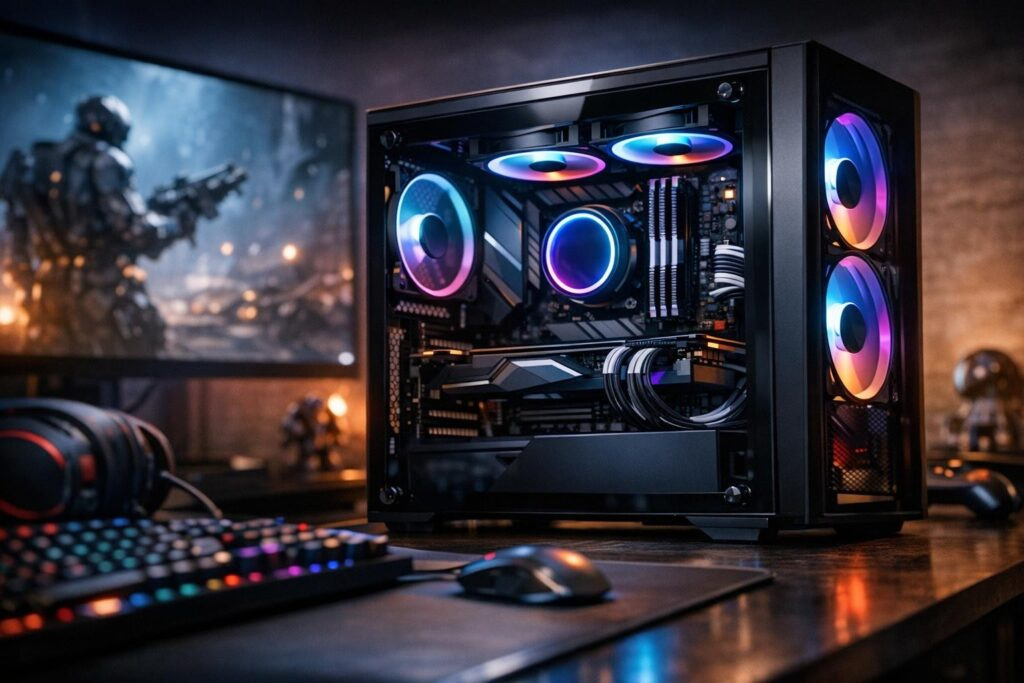

Your gaming rig shouldn’t sound like a jet engine taking off every time you launch your favorite title. If you’re tired of dealing with loud PC fans but worried about overheating your expensive hardware, you’re in the right place. Let’s dive into practical methods to achieve that sweet spot between silence and performance, so you can enjoy marathon gaming sessions without the constant drone drowning out your game audio.
Why Your PC Sounds Like a Tornado (And Why It Matters)
Before we jump into solutions, let’s understand what’s happening inside that case. Your fans are spinning faster than necessary because something’s making your components work overtime. Maybe it’s dust buildup choking airflow, poorly configured fan curves pushing everything to maximum speed, or simply inferior cooling hardware that needs to compensate with raw RPM power. Whatever the cause, excessive fan noise isn’t just annoying—it’s often a symptom of inefficient cooling that could be solved smarter.
The good news? You don’t need to sacrifice thermal performance to get a quiet gaming PC. Modern hardware and smart configuration can give you both whisper-quiet operation and rock-solid temperatures. Let’s break down the step-by-step approach from easiest wins to advanced modifications.
Start With the Basics: Deep Cleaning Your System
This is your lowest-hanging fruit for reducing PC fan noise. Dust accumulation forces your cooling system to work harder, cranking up fan speeds to compensate for blocked airflow. Even if you think your PC looks clean, you’d be surprised what lurks inside those radiator fins and between fan blades.
The Proper Cleaning Method
- Power down completely and unplug your system from the wall
- Take your case outside or to a well-ventilated area
- Use compressed air in short bursts, never spinning fans with your fingers
- Focus on CPU cooler fins, GPU heatsinks, case intake filters, and PSU vents
- Remove and wash mesh filters with water if heavily clogged
After a thorough cleaning session, many users report immediate noise reduction of twenty to thirty percent. Your fans simply don’t need to spin as fast when air can flow freely through the system. Set a reminder to repeat this process monthly if you have pets or live in a dusty environment.
Optimize Your PC Placement
Where you position your gaming PC matters more than you think. Stuffing it inside a closed desk cabinet or pushing it flush against a wall restricts airflow and traps heat. Give your case breathing room—at least three to four inches of clearance on all ventilated sides. Elevate it off carpet if possible, as floor placement sucks in more dust and restricts bottom intake fans.
Software Solutions: Control Without Hardware Changes
Before spending money on new components, extract maximum value from what you already have through intelligent software configuration. These tweaks cost nothing and deliver impressive results for PC noise reduction.
Windows Power Management Tweaks
Your processor’s boost behavior directly impacts cooling requirements. When your CPU constantly turbos to maximum frequencies for minor background tasks, it generates unnecessary heat that forces fans to ramp up. Here’s how to tame it without killing gaming performance:
- Navigate to Control Panel and find Power Options
- Click “Change plan settings” on your active power plan
- Select “Change advanced power settings”
- Expand “Processor power management” section
- Set “Maximum processor state” to 99% instead of 100%
- Change “System cooling policy” to Passive mode
That one percent difference disables aggressive turbo boosting while maintaining excellent performance in actual gaming workloads. You’ll barely notice any FPS difference, but your CPU temperatures will drop noticeably, allowing fans to spin slower and quieter.
BIOS Fan Curve Configuration
Your motherboard BIOS holds the master controls for fan behavior. Default settings often prioritize maximum cooling headroom over acoustic comfort, running fans harder than necessary. Time to take control:
Restart your PC and enter BIOS setup (usually Delete, F2, or F12 during boot). Look for fan control settings—they might be under “Hardware Monitor,” “Advanced,” or “Q-Fan Control” depending on your motherboard manufacturer.
Creating Smart Fan Curves
- Switch all fan headers to PWM mode for better low-speed control
- Set a gentle curve: 30-40% fan speed at idle temperatures
- Allow gradual ramp-up starting around 60°C component temperature
- Match case fan curves to appropriate sensors (intake to GPU, exhaust to CPU)
- Enable hysteresis if available to prevent rapid speed fluctuations
For more granular control beyond BIOS limitations, consider dedicated fan control software like FanControl or SpeedFan. These applications let you create complex curves tied to multiple temperature sensors, with customizable response times and minimum speeds.
Hardware Upgrades for Silent Gaming Performance
When you’ve exhausted software optimization, strategic hardware investments deliver the final push toward truly quiet PC operation. Not all components are created equal when it comes to acoustic performance.
Choosing the Right Fans
Bigger is better in the fan world. Larger diameter fans move equivalent air volumes at lower rotational speeds, dramatically reducing noise generation. A single 140mm fan running at 800 RPM creates less noise than two 120mm fans at 1200 RPM while providing similar airflow.
Look for quality brands known for silent operation—Noctua remains the gold standard despite their infamous color scheme, while Be Quiet and Arctic offer excellent alternatives. Pay attention to specifications:
- Target fans rated below 20 dBA at standard speeds
- Choose PWM models for better speed control range
- Check static pressure ratings if using with radiators or restrictive cases
- Install rubber anti-vibration mounts to prevent resonance transmission
Upgrading CPU and GPU Coolers
Stock coolers do their job but rarely quietly. Aftermarket solutions with larger heatsinks and better fans provide superior thermal headroom, allowing components to run cooler at lower fan speeds. For CPUs, tower-style air coolers from manufacturers like Noctua, Scythe, or Thermalright offer excellent performance. All-in-one liquid coolers work well too, though pump noise can be a consideration.
Graphics cards present more challenges since you can’t easily swap coolers on modern models without voiding warranties. If GPU noise bothers you, research quiet models before purchasing—some manufacturers prioritize acoustics with better cooler designs and more relaxed fan curves. Alternatively, custom waterblocks provide ultimate silence but require significant investment and expertise.
Case Selection and Acoustic Treatment
Your case plays a supporting role in overall system acoustics. Modern silent-oriented cases incorporate sound-dampening materials without suffocating airflow. Look for designs with thick panels, foam insulation, and intelligent ventilation layouts that don’t require excessive fan quantities.
Remember that acoustic foam reduces noise escaping the case but doesn’t magically make loud fans quiet. Proper fan selection and configuration remains your primary tool for noise reduction.
Comparing Noise Reduction Methods
| Method | Noise Reduction | Cost | Difficulty | Overheating Risk |
|---|---|---|---|---|
| Deep cleaning and placement | Moderate to High | Free | Easy | Low |
| Windows power settings | Moderate | Free | Easy | Very Low |
| BIOS fan curves | High | Free | Medium | Low with monitoring |
| Quality fan replacement | Very High | Medium | Medium | None if sized properly |
| Aftermarket coolers | Very High | Medium to High | Medium | None |
| Acoustic case treatment | Moderate | Low to Medium | Easy to Medium | Medium if airflow blocked |
Advanced Tips for Silence Enthusiasts
Once you’ve mastered the fundamentals, these additional strategies can push your gaming PC into whisper-quiet territory without compromising performance.
Strategic Fan Reduction
More fans don’t automatically mean better cooling. Two or three high-quality large fans often outperform six mediocre small ones while generating significantly less noise. Evaluate your actual cooling needs through temperature monitoring rather than assuming maximum fan population improves anything. Many cases ship with more fan mounting points than necessary for typical builds.
Undervolting for Lower Temperatures
Modern CPUs and GPUs often run higher voltages than strictly necessary for stable operation. Undervolting reduces power consumption and heat generation without touching clock speeds. Tools like ThrottleStop for CPUs or MSI Afterburner for graphics cards allow careful voltage reduction. Start conservatively and stress test thoroughly—when done correctly, you maintain full performance while components run significantly cooler and quieter.
Environmental Considerations
Your room setup influences perceived noise levels. Hard surfaces reflect sound while soft materials absorb it. A gaming PC sitting on a bare desk in a room with hardwood floors and minimal furniture will sound louder than the same system in a carpeted room with curtains and upholstered furniture. If noise really bothers you, consider acoustic panels or even relocating your PC under your desk where your body acts as a baffle.
Monitoring and Safety Guidelines
Silent operation means nothing if you cook your components. Always validate your cooling configuration with proper monitoring tools. Install software like HWiNFO, HWMonitor, or your motherboard manufacturer’s utility to track temperatures in real-time.
Safe operating temperatures vary by component, but general guidelines apply:
- CPU: Under 80°C during gaming, spikes to 85°C acceptable
- GPU: Under 83°C sustained, up to 88°C under extreme load
- Motherboard VRM: Under 90°C ideally
- Storage drives: Under 70°C for SSDs, 50°C for HDDs
If temperatures exceed these thresholds after implementing quiet PC modifications, dial back your aggressive fan curves or improve your cooling hardware. Run stress tests with tools like AIDA64, Prime95, or FurMark to verify stability under sustained maximum load before considering your configuration finalized.
Putting It All Together
Building a silent gaming PC doesn’t require choosing between acoustics and performance. Start with free methods—cleaning, optimizing placement, and configuring software settings. These alone often deliver impressive noise reduction without spending a cent. If you need more improvement, strategic hardware upgrades targeting your noisiest components provide the final polish.
Remember that every system is different. Your specific combination of components, case design, and environmental factors means you’ll need to experiment finding your perfect balance. Take notes on what works, monitor your temperatures religiously during the adjustment period, and don’t be afraid to fine-tune fan curves as seasons change and ambient temperatures fluctuate.
The reward for this effort is a gaming setup where you hear your game audio, your teammates on voice chat, and nothing else. No more jet engine takeoffs when launching demanding titles. No more fan whine during late-night sessions when everyone else is asleep. Just smooth, cool, quiet performance that lets you focus on what matters—dominating your opponents and enjoying your games.
Frequently Asked Questions
Will making my PC quieter decrease gaming performance?
Not if done correctly. The methods described here optimize cooling efficiency rather than reducing it. By using smarter fan curves, better airflow, and appropriate hardware, you maintain the same thermal performance at lower noise levels. The key is monitoring temperatures and ensuring they stay within safe ranges. Most gamers find they can significantly reduce noise without any FPS loss by simply configuring their existing hardware more intelligently.
How often should I clean my PC to maintain quiet operation?
For most environments, monthly cleaning prevents significant dust buildup. If you have pets, smoke indoors, or live in a particularly dusty area, increase frequency to every two to three weeks. Set a calendar reminder since dust accumulation happens gradually and you might not notice the slowly increasing fan speeds until your system sounds like a vacuum cleaner. Quick maintenance sessions take only ten minutes but deliver lasting acoustic benefits.
What’s the quietest type of CPU cooler: air or liquid?
Both can be extremely quiet when properly selected. High-end air coolers like the Noctua NH-D15 rival all-in-one liquid coolers in both cooling capacity and noise levels. AIOs eliminate fan noise from the CPU area but introduce pump noise and radiator fan noise elsewhere. The quietest overall solution depends on your specific case, component temperatures, and personal sensitivity to different noise frequencies. Generally, large tower air coolers with quality fans provide the best noise-to-performance ratio for most users.
Can I just set all my fans to minimum speed for maximum silence?
This risks overheating and potential hardware damage. Instead, create intelligent fan curves that run fans at minimum speeds during idle and light tasks, then ramp up proportionally as temperatures increase. Modern motherboards and software allow sophisticated control where fans stay nearly silent during web browsing and office work, only becoming audible during intensive gaming when your audio is turned up anyway. The goal is minimum necessary fan speed for current thermal conditions, not blindly minimizing speed regardless of temperatures.
Are expensive silent fans really worth the premium price?
Quality fans from brands like Noctua, Be Quiet, and Arctic cost more upfront but deliver measurably better acoustic performance and longevity. They use superior bearings that remain quiet longer, better blade designs that move air efficiently at lower speeds, and tighter manufacturing tolerances that eliminate vibration. If noise bothers you enough to read this entire article, investing in two or three premium fans for key positions provides immediate, noticeable improvement. Budget fans work fine if replaced every couple years, but premium models often run silently for five to ten years.
My GPU is the loudest component—what can I do?
Graphics cards present unique challenges since most users can’t easily replace coolers. First, ensure your case has adequate ventilation so your GPU doesn’t need to work overtime. Create a custom fan curve using MSI Afterburner or your manufacturer’s software, allowing higher temperatures before ramping fans aggressively. Many GPUs safely run at 75-80°C with much quieter fan profiles than default settings. If noise remains unacceptable, research quieter GPU models before your next upgrade, or consider aftermarket cooling solutions like Morpheus heatsinks or custom water blocks if you’re comfortable with advanced modifications.

Comments (0)
Sign In / Sign Up
Sign in to leave a comment.
No comments yet
Be the first one to share your thoughts!