

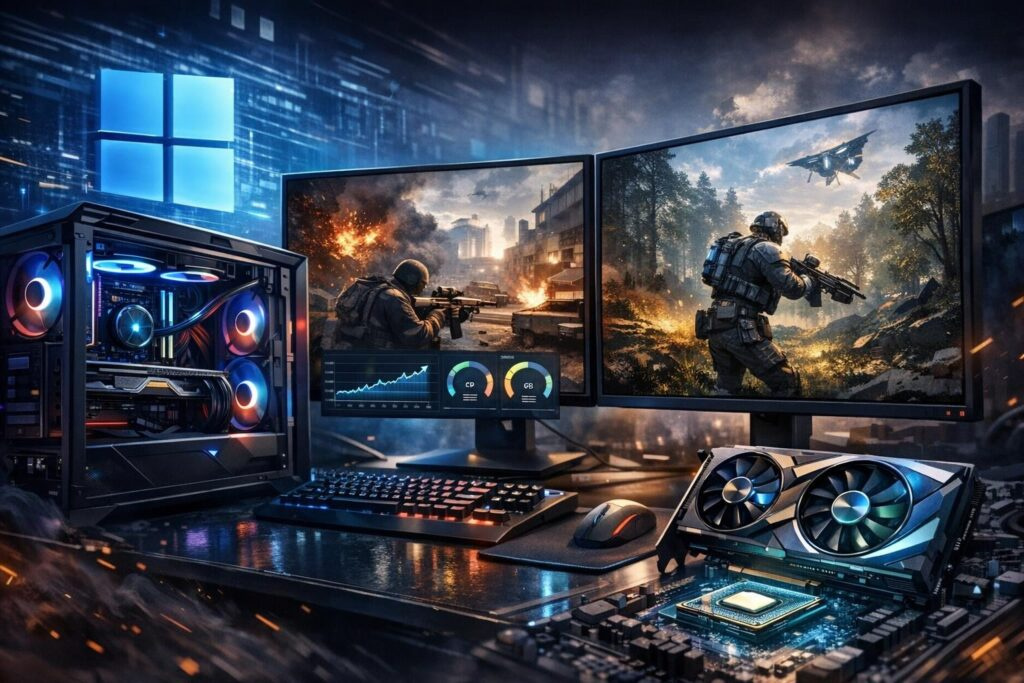

Gaming performance can make or break your experience, especially when you’re deep into an intense match. Nothing frustrates players more than watching their framerate drop during crucial moments. The good news? You don’t need to sacrifice visual quality or spend money on new hardware to see dramatic improvements. With the right combination of system tweaks and smart graphics adjustments, you can easily gain 30-50% more frames per second without turning your favorite games into pixelated messes.
This comprehensive guide brings together proven techniques that work across different games and hardware configurations. Whether you’re running modern titles or competitive shooters, these optimization strategies will help you squeeze every bit of performance from your setup while maintaining eye candy that makes gaming enjoyable.
Understanding What Actually Impacts Your Frame Rate
Before diving into specific tweaks, it’s crucial to understand which components and settings actually affect your gaming performance. Many players waste time adjusting settings that barely move the needle while ignoring the real performance hogs.
Your graphics card handles most visual rendering, but the CPU plays a massive role in physics calculations, AI routines, and draw call management. Memory capacity and speed matter more than most people realize, especially with integrated graphics solutions. Storage speed affects texture streaming and level loading, directly impacting frame consistency during gameplay.
The operating system itself runs background processes that compete for resources with your games. Understanding this ecosystem helps you prioritize which optimizations deliver the biggest gains for your specific hardware configuration.
Windows System Optimization for Maximum Gaming Performance
Your operating system contains numerous settings that can either throttle or unleash your gaming potential. These foundational tweaks create the perfect environment for your games to run smoothly.
Power Management Settings That Actually Matter
Windows power plans directly control how your processor behaves under load. The default balanced mode allows your CPU to downclock during gaming, creating inconsistent frame delivery and annoying stutters.
- Navigate to Control Panel and locate Power Options within the Hardware and Sound section
- Select the High Performance plan to prevent CPU throttling during intense gaming sessions
- Advanced users can unlock the Ultimate Performance plan through Command Prompt for even tighter control
- Check your graphics card control panel for similar power management options that override system defaults
This simple change alone can deliver noticeable improvements in minimum framerates, which determine how smooth your gameplay actually feels during action-packed moments.
Gaming Mode Configuration and Background Process Management
Microsoft built dedicated gaming features into Windows, but they require proper configuration to deliver benefits rather than causing additional overhead.
Access the Gaming section through Windows Settings and enable Game Mode, which prioritizes system resources for your active game. However, disable the recording and broadcasting features unless you specifically need them, as these consume significant processing power and memory bandwidth.
Background applications constantly compete for system resources. Open Task Manager and review the Startup tab, disabling unnecessary programs that launch with Windows. Focus on removing software updaters, cloud sync tools, and utility programs you rarely use.
Graphics Scheduling and Hardware Acceleration
Modern Windows versions include hardware-accelerated GPU scheduling, which reduces latency between your graphics card and processor. This feature moves scheduling responsibilities from the CPU to the GPU, freeing up processor resources and reducing input lag.
Enable this through Settings under System Display Graphics, where you can also assign specific graphics preferences to individual games. Always select the high performance option for your games to ensure they utilize your dedicated graphics card rather than integrated graphics.
Smart Graphics Settings for Performance Without Ugliness
Not all graphics settings impact performance equally, and some create minimal visual differences while destroying your framerate. Understanding which settings to adjust gives you the best balance between beauty and smoothness.
Shadow Quality: The Performance Killer You Can Live Without
Shadow rendering remains one of the most computationally expensive effects in modern games. The difference between ultra and low shadow quality often means rendering shadows at much greater distances with more precise detail that you’ll barely notice during actual gameplay.
Reducing shadow quality from ultra to medium or low typically delivers 25-40% performance gains while maintaining perfectly playable visuals, especially during fast-paced action where you’re focused on targets rather than environmental shadows.
Consider disabling dynamic shadows entirely in competitive games where every frame counts more than atmospheric lighting effects.
Anti-Aliasing Choices That Preserve Clarity
Anti-aliasing smooths jagged edges but comes in many flavors with vastly different performance costs. Temporal Anti-Aliasing often creates a blurry image while consuming significant resources, making it a poor choice for competitive gaming.
Fast Approximate Anti-Aliasing provides decent edge smoothing with minimal performance impact. For maximum framerates, simply disable anti-aliasing entirely, as modern higher-resolution displays make jagged edges far less noticeable than they were on older 1080p monitors.
Post-Processing Effects Worth Sacrificing
Motion blur, depth of field, bloom, and lens flare effects add cinematic flair but rarely improve actual gameplay experience. These post-processing filters strain both your GPU and CPU while often obscuring important visual information.
- Motion blur creates that cinematic camera feel but makes tracking moving targets significantly harder
- Depth of field blurs background elements, reducing your ability to spot distant movement
- Bloom and lens flare add atmospheric lighting but wash out important visual details
- Chromatic aberration simulates camera lens imperfections with zero gameplay benefit
Disabling these effects not only boosts performance but often improves your competitive edge by revealing game information these filters obscure.
Texture Quality and VRAM Considerations
Unlike other settings, texture quality has minimal impact on framerate as long as you stay within your graphics card’s video memory limits. High-resolution textures live in VRAM and get sampled during rendering without requiring intensive calculations.
Keep texture settings at high or ultra if your card has 6GB or more VRAM. Only reduce textures when you notice stuttering caused by memory overflow, where the system swaps textures between VRAM and system RAM.
Graphics Driver Settings for Game-Specific Optimization
Your graphics card control panel contains numerous settings that override in-game options, allowing for fine-tuned performance profiles tailored to specific titles.
NVIDIA Control Panel Optimization
Right-click your desktop and open the NVIDIA Control Panel to access 3D settings. Create custom profiles for individual games rather than applying global changes that might negatively affect other applications.
| Setting | Recommended Value | Impact |
| Power Management Mode | Prefer Maximum Performance | Prevents GPU downclocking |
| Texture Filtering Quality | Performance | Slight visual trade for speed |
| Anisotropic Filtering | 8x | Balanced quality and cost |
| Vertical Sync | Off | Eliminates input lag |
| Low Latency Mode | Ultra | Reduces render queue |
Always update to the latest graphics drivers, as manufacturers regularly optimize performance for new game releases and fix bugs that impact stability.
AMD Radeon Software Configuration
AMD users access similar options through Radeon Software. The Gaming tab allows per-game profiles where you can adjust features like Radeon Anti-Lag, Radeon Boost, and Radeon Image Sharpening.
Radeon Anti-Lag specifically reduces input latency in DirectX games, while Radeon Boost dynamically adjusts resolution during fast motion to maintain higher framerates. These features provide tangible benefits in competitive scenarios where reaction time matters.
Hardware Tweaks Without Opening Your Wallet
Before considering upgrades, several hardware-related optimizations can deliver meaningful performance improvements using your existing components.
Memory Configuration and Speed
Dual-channel memory configuration doubles memory bandwidth compared to single-channel setups. If you have one memory stick, adding a matching module provides substantial performance gains, especially with integrated graphics that share system memory.
Check your BIOS to ensure XMP or DOCP profiles are enabled, allowing your RAM to run at its rated speed rather than default conservative timings. This simple change can improve minimum framerates by 10-15% in CPU-limited scenarios.
Storage Solutions for Smoother Gaming
Solid state drives eliminate the stuttering and hitching caused by slow hard drives struggling to stream textures and assets during gameplay. If you’re still running games from mechanical drives, migrating to even a basic SATA SSD transforms the experience.
NVMe drives offer even better performance for open-world games with massive streaming requirements. The consistent frame pacing from fast storage matters more than average framerate numbers for perceived smoothness.
Monitor Settings and Refresh Rate Optimization
Verify that Windows actually outputs at your monitor’s maximum refresh rate. Many users unknowingly run high refresh rate displays at 60Hz because Windows defaults to conservative settings.
Access Display Settings and confirm the refresh rate matches your monitor’s specifications. Some monitors support overclocking beyond their rated refresh rate, though stability varies by model and should be tested thoroughly.
Game-Specific Optimization Strategies
Different game engines and titles respond differently to various optimization techniques. Tailoring your approach to specific games maximizes results.
Competitive Multiplayer Games
First-person shooters and battle royale titles prioritize framerate and input responsiveness over visual fidelity. Disable fullscreen optimizations by right-clicking the game executable, accessing Properties, and checking the compatibility tab.
Set these games to fullscreen exclusive mode rather than borderless windowed, as exclusive mode gives the game direct access to your graphics hardware without Windows composition overhead.
Open-World and Story-Driven Games
Single-player experiences benefit from balanced settings that maintain visual quality while ensuring smooth performance during exploration and combat. Focus on maintaining consistent 60 FPS minimums rather than chasing higher averages that fluctuate wildly.
View distance settings dramatically impact CPU load in open-world games. Reducing distant object rendering by one or two levels maintains immersion while significantly reducing processor overhead during complex scenes.
Monitoring and Testing Your Results
Proper testing ensures your optimizations actually improve performance rather than creating new problems. Use reliable monitoring tools to track metrics before and after changes.
On-screen overlays display real-time framerate, frame time graphs, CPU and GPU usage, temperatures, and memory consumption. Focus on minimum framerates and frame time consistency rather than just average FPS, as these metrics determine how smooth gameplay actually feels.
Test in demanding scenarios that typically cause performance problems rather than empty areas that run well regardless of settings. Record your baseline performance, make one change at a time, and verify improvements before proceeding to the next optimization.
Creating System Restore Points
Before making registry edits or system-level changes, create a restore point that allows you to roll back if something goes wrong. Some tweaks can cause stability issues or unexpected behavior, making recovery essential.
Access System Properties through Control Panel, select System Protection, and create a restore point with a descriptive name indicating it was made before gaming optimizations.
Advanced Techniques for Experienced Users
Once you’ve exhausted basic optimizations, several advanced techniques can squeeze additional performance from your hardware, though they carry some risk and require technical knowledge.
Graphics Card Overclocking Basics
Modern graphics cards include significant performance headroom through overclocking. Third-party utilities allow you to increase core clocks, memory speeds, and power limits to extract additional frames.
Start conservatively with small increments, testing stability after each change. Monitor temperatures carefully, keeping GPU temperatures below 80 degrees Celsius under sustained load. Instability manifests as artifacts, crashes, or unexpected performance decreases indicating you’ve pushed too far.
CPU Optimization and Process Affinity
Some games perform better when restricted to specific CPU cores, avoiding scheduling overhead from constantly migrating between cores. Process Lasso or similar utilities can automate core affinity and priority adjustments.
Disable unnecessary Windows services that consume CPU cycles in the background. Services related to search indexing, telemetry, and Windows updates can be safely disabled during gaming sessions and re-enabled afterward.
Maintaining Your Optimized System
Performance optimization isn’t a one-time task but an ongoing process as games update, drivers change, and systems accumulate digital clutter over time.
Regularly clean temporary files, clear shader caches, and verify game file integrity through your gaming platform. Driver updates should be installed promptly, as they often include performance improvements and bug fixes for recent game releases.
Monitor your system for background applications that creep back into startup over time. Software updates frequently re-enable auto-start features you previously disabled, requiring periodic cleanup to maintain optimal gaming performance.
Physical maintenance matters too. Dust accumulation reduces cooling efficiency, causing thermal throttling that degrades performance. Clean your system every few months, ensuring fans spin freely and heatsinks remain unobstructed.
Frequently Asked Questions
Will these optimizations work on laptops or just desktop computers?
These techniques work on both laptops and desktops, though laptops may see smaller gains due to thermal constraints and power-saving features. Focus especially on power management settings and graphics driver configurations on laptops. Some BIOS-level tweaks may not be available on laptop systems, but the Windows and in-game optimizations deliver benefits across all hardware types.
How much performance improvement should I realistically expect?
Performance gains vary based on your starting point and hardware configuration. Systems with older drivers, default Windows settings, and unoptimized in-game graphics typically see 30-50% framerate improvements. Already optimized systems might gain 10-15%. The biggest improvements come from addressing the most severe bottlenecks first, whether that’s CPU scheduling, graphics settings, or background processes.
Can I damage my hardware by following these optimization steps?
The basic optimizations involving Windows settings, driver configurations, and in-game graphics adjustments carry zero risk of hardware damage. Overclocking graphics cards or processors does carry some risk if pushed too aggressively, which is why it’s recommended only for experienced users who monitor temperatures and test stability thoroughly. Always start with conservative settings and increase gradually while watching for instability.
Should I use game optimization software that promises automatic performance boosts?
Most automatic game optimization tools provide minimal benefits compared to manual configuration and often install unwanted bloatware or change settings in ways that hurt rather than help performance. The techniques described in this guide give you direct control over what changes and why, ensuring optimizations align with your specific hardware and gaming preferences. Manual optimization takes slightly more time but delivers superior results.
How often should I update my graphics drivers for gaming?
Update graphics drivers whenever you start playing a new major game release, as manufacturers typically optimize drivers for high-profile launches. For games you play regularly, updating drivers every one to two months strikes a good balance between getting performance improvements and avoiding the rare driver bugs that occasionally appear. Always create a system restore point before driver updates to enable easy rollback if problems occur.
What’s the single most impactful optimization I can make right now?
For most users, reducing shadow quality in-game provides the largest immediate performance boost with the smallest visual sacrifice. Shadows consume enormous processing resources while providing minimal gameplay benefit, especially in competitive scenarios. After adjusting shadows, setting your Windows power plan to High Performance delivers the next biggest impact by preventing CPU throttling during gaming sessions.

Comments (0)
Sign In / Sign Up
Sign in to leave a comment.
No comments yet
Be the first one to share your thoughts!