

 fatheryarik
When you’re deep into competitive gaming, every millisecond counts. You’ve probably heard players throwing around terms like DPI and sensitivity, but here’s the thing: most gamers don’t actually understand the real difference between these two critical settings. Let’s break down what separates mouse DPI from in-game sensitivity and why getting this right could be the difference between clutching that round or watching your cursor fly past your target.
Understanding Mouse DPI: The Hardware Foundation
DPI stands for dots per inch, and it’s a pure hardware specification built into your gaming mouse. Think of it as the sensor’s raw reading ability. When you slide your mouse exactly one inch across your mousepad, a 400 DPI mouse registers 400 individual points of movement. Bump that up to 1600 DPI, and suddenly that same one-inch movement translates to 1600 points.
Here’s where it gets interesting for competitive players. Your mouse’s optical or laser sensor physically determines how many data points it captures as you move. Higher DPI means more information, more precision tracking, and theoretically smoother cursor movement. But before you crank everything to maximum, understand that pro gamers often stick with surprisingly low DPI settings.
Why Professional Players Prefer Lower DPI Settings
Walk into any esports tournament and you’ll notice something fascinating: most top-tier FPS players use DPI settings between 400 and 800. This isn’t accidental. Lower DPI gaming provides several advantages:
- More stable aim tracking when following enemy movements
- Reduced hand tremor impact on crosshair placement
- Better muscle memory development for consistent flick shots
- Decreased input lag during slow, precise movements
The trade-off? You need serious mousepad real estate. Low DPI gaming means larger arm movements to achieve the same screen distance, which is why you’ll see professional setups with massive desk space dedicated to mouse movement.
Sensitivity: The Software Multiplier
While DPI is hardware-based, sensitivity is purely software. This setting lives in your game options or Windows settings and acts as a multiplier for your mouse’s DPI output. When we talk about mouse sensitivity vs DPI, we’re really discussing the relationship between your hardware capability and software adjustment.
Your in-game sensitivity takes the raw DPI input and scales it up or down. Set your game sensitivity to 2.0 with 400 DPI, and you’re effectively doubling that 400 DPI input. Drop it to 0.5 with 1600 DPI, and you’re cutting that higher DPI in half. Both approaches can land you at similar effective sensitivity, but they feel different.
The Magic Formula: Effective DPI (eDPI)
Smart gamers use a unified measurement called effective DPI or eDPI. This simple calculation removes all confusion:
eDPI = Mouse DPI × In-Game Sensitivity
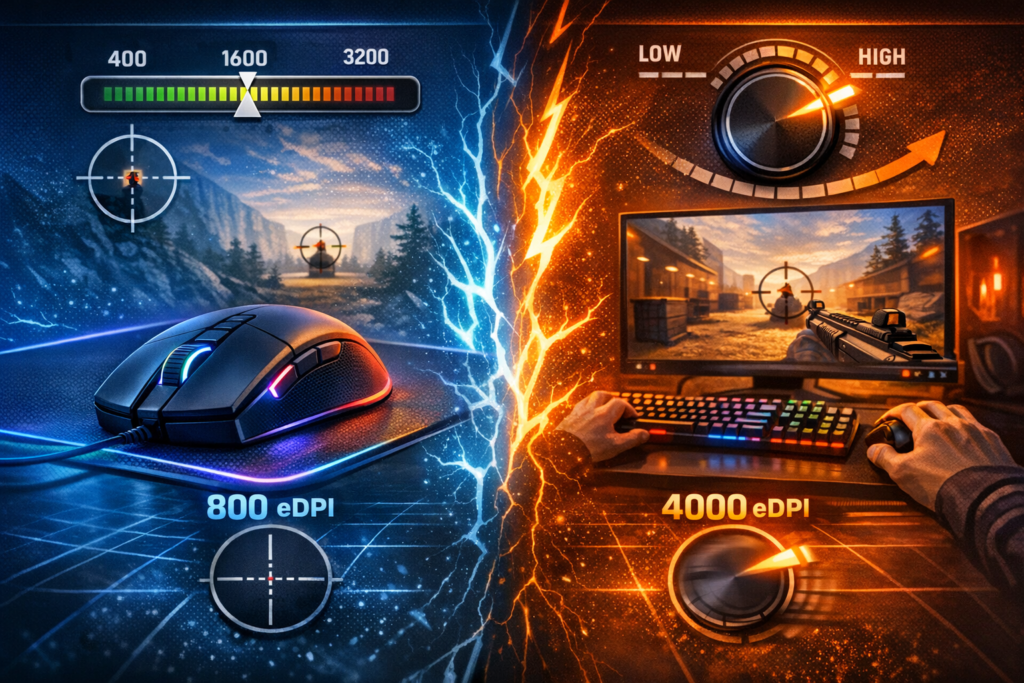
This number tells you your actual aiming speed regardless of how you split the settings. A player running 400 DPI with 2.0 sensitivity has an eDPI of 800. Another player with 800 DPI and 1.0 sensitivity? Also 800 eDPI. Same effective speed, different approaches.
Practical Gaming DPI Settings Breakdown
Let’s cut through the theory and look at real-world settings that actually work in competitive gaming. Different game genres and playstyles demand different approaches to DPI and sensitivity configuration.
| DPI Setting | Game Sensitivity | eDPI Result | Best For | Approx cm/360° |
|---|---|---|---|---|
| 400 | 2.0 | 800 | Tactical shooters, sniping | 48 cm |
| 800 | 1.5 | 1200 | Balanced FPS gameplay | 32 cm |
| 1600 | 1.0 | 1600 | Fast-paced arena shooters | 24 cm |
| 3200 | 0.5 | 1600 | High DPI preference | 24 cm |
| 1200 | 2.5 | 3000 | MOBA, RTS games | 13 cm |
Notice how the last two rows produce identical eDPI through different combinations. This demonstrates a crucial point: you can achieve the same effective sensitivity through multiple paths, but the journey matters.
High DPI vs Low DPI: The Technical Truth
There’s a persistent myth that high DPI causes input lag or reduces accuracy. Modern gaming mice have demolished this misconception. High DPI sensors actually provide smoother pixel-to-pixel movement, especially noticeable on high-resolution monitors. The catch is that extremely high DPI settings (above 3200) offer diminishing returns for most gaming scenarios.
The best mouse DPI for gaming typically falls between 400 and 1600 for FPS titles. This range provides optimal sensor performance while maintaining the control most competitive players demand. Running 800 DPI has become the sweet spot for many professional gamers because it balances precision with modern sensor capabilities.
DPI vs Polling Rate: Another Critical Factor
Don’t confuse DPI with polling rate, another specification you’ll find on gaming mice. Polling rate measures how frequently your mouse reports its position to your computer, expressed in Hertz. A 1000 Hz polling rate means your mouse updates its position 1000 times per second, or every millisecond.
Here’s the distinction that matters:
- DPI affects how far your cursor moves for physical mouse movement
- Polling rate affects how quickly those movements register on screen
Most competitive gamers run 1000 Hz polling rate as standard. Higher rates like 2000 or 8000 Hz exist but offer marginal improvements that most players can’t perceive. Stick with 1000 Hz unless you’re chasing every possible advantage at the highest competitive levels.
Optimizing Your Personal Gaming Mouse Settings
Theory means nothing without application. Let’s walk through the practical steps to find your optimal DPI and sensitivity combination that’ll improve your gameplay immediately.
Step One: Determine Your Current DPI
Check your mouse manufacturer’s software. Razer Synapse, Logitech G Hub, SteelSeries Engine, and similar programs display your current DPI setting. Many gaming mice also feature dedicated DPI buttons that cycle through preset values. Write down your current setting before making changes.
Step Two: Measure Your Centimeters Per 360
This metric tells you how much physical mouse movement creates a complete 360-degree turn in your game. Load into a private match, place a ruler next to your mousepad, and measure how far you move your mouse to complete one full rotation. Most competitive FPS players aim for 20 to 50 centimeters per 360 degrees.
Step Three: Calculate Your eDPI
Multiply your mouse DPI by your in-game sensitivity. This gives you a portable number you can use across different games and setups. Professional FPS players typically run eDPI values between 200 and 800 for tactical shooters, while arena shooter players might push 1200 to 2000 eDPI.
Step Four: Consider Your Monitor Resolution
Running a 4K monitor changes the equation. You’re pushing four times the pixels of a 1080p display, which means you need higher DPI to move across screen efficiently. Bump your DPI by 20 to 50 percent when gaming at 4K resolution to avoid excessive physical mouse movement.
Game-Specific DPI and Sensitivity Recommendations
Different gaming genres demand radically different mouse settings. What works perfectly in Counter-Strike will feel terrible in League of Legends. Let’s break down optimal ranges by game type.
Tactical Shooters (CS:GO, Valorant, Rainbow Six Siege)
These precision-focused games reward pixel-perfect crosshair placement. Professional players overwhelmingly choose low DPI gaming setups:
- DPI: 400 to 800
- In-game sensitivity: 1.0 to 3.0
- Target eDPI: 200 to 800
- cm/360: 35 to 50 centimeters
The slower aim speed gives you surgical precision for holding angles and tapping heads. You’ll need a large mousepad and plenty of desk space.
Battle Royale Games (Apex Legends, Fortnite, Warzone)
These games require more versatility. You need precision for mid-range fights but also quick turns for close combat:
- DPI: 800 to 1600
- In-game sensitivity: 1.5 to 2.5
- Target eDPI: 1200 to 2000
- cm/360: 20 to 35 centimeters
MOBA and Strategy Games (League of Legends, Dota 2, Starcraft)
These genres prioritize screen coverage over aiming precision. Higher DPI makes sense:
- DPI: 1600 to 3200
- In-game sensitivity: System default or slightly elevated
- Target eDPI: 2000 to 4000
You’re clicking map positions and menu items rather than tracking moving targets, so the higher speed improves efficiency without sacrificing meaningful accuracy.
Advanced Tips From Professional Gamers
Let’s look at some insider knowledge that separates good settings from great ones. These refinements can provide that extra edge in competitive matches.
The Sniper Button Advantage
Many premium gaming mice include a sniper button that temporarily drops your DPI while held. This feature shines when you’re scoped in, providing ultra-precise adjustments for long-range shots. Configure your sniper button to reduce DPI by 50 to 75 percent for maximum control during critical moments.
Mouse Acceleration: Just Say No
Disable mouse acceleration in Windows and in-game settings. This feature adjusts cursor speed based on how quickly you move your mouse, creating inconsistent muscle memory. Competitive gaming demands predictable, repeatable movements. Turn off “enhance pointer precision” in Windows mouse settings immediately.
Training Your New Settings
When you change DPI or sensitivity, your muscle memory becomes your enemy. Spend at least two weeks with new settings before judging them. Use aim training software like Kovaak’s or Aim Lab to rebuild your muscle memory faster. Focus on these drills:
- Static dot clicking for flick accuracy
- Tracking scenarios for smooth following
- Target switching for rapid adjustments
- Vertical recoil control patterns
The Mousepad Factor
Your mousepad surface dramatically affects how DPI settings perform. Hard surfaces provide faster, smoother glide suited for higher DPI. Cloth surfaces offer more control and friction, complementing lower DPI settings. Match your mousepad to your preferred DPI range for optimal results.
Common DPI and Sensitivity Mistakes
Even experienced gamers fall into these traps. Avoid these mistakes to optimize your gaming mouse performance immediately.
Copying pro player settings without considering your own playstyle and physical setup is the fastest way to tank your performance.
Professional players have thousands of hours building muscle memory with specific settings. Their choices reflect personal preference, not universal truth. Use pro settings as starting points, not gospel.
Another common error is constantly changing settings. Pick a DPI and sensitivity combination, then commit to it for at least two weeks. Constantly tweaking prevents muscle memory development and ensures you’ll never reach your potential.
Finally, don’t assume higher DPI automatically means better. Modern sensors handle high DPI well, but going above 3200 DPI rarely provides practical benefits in gaming. The best mouse DPI for gaming is the one that feels natural after building muscle memory.
Testing and Refining Your Perfect Settings
Finding your optimal configuration requires methodical testing. Here’s a systematic approach that removes guesswork.
Start with 800 DPI and 1.5 in-game sensitivity. This middle-ground combination works across most gaming scenarios. Play five competitive matches without changing anything. Track your performance metrics: accuracy percentage, kills per death, and how often you over or undershoot targets.
If you’re consistently overshooting targets, reduce sensitivity by 0.1 increments. If you can’t turn fast enough or track mobile enemies, increase by 0.1. Make small adjustments and test thoroughly between changes. Dramatic swings make it impossible to determine what actually helps.
Document everything. Create a simple spreadsheet tracking DPI, sensitivity, eDPI, and your performance stats. After a month of testing, patterns emerge showing your optimal range. Most players discover they perform best within a narrow 200-point eDPI band.
Hardware Considerations for Optimal Performance
Your mouse sensor type affects how DPI settings translate to real performance. Optical sensors excel on cloth mousepads, providing consistent tracking without acceleration. They handle low to medium DPI ranges (400 to 3200) exceptionally well.
Laser sensors can push higher DPI numbers, sometimes reaching 16,000 or beyond. However, they’re more prone to acceleration issues and perform inconsistently on certain mousepad surfaces. For competitive gaming, optical sensors remain the gold standard.
Sensor position also matters. Center-mounted sensors provide balanced tracking, while forward-mounted sensors favor fingertip grippers. Rear-mounted sensors work better for palm grip styles. Match your grip style to sensor position for best results.
Future-Proofing Your Settings
As you upgrade monitors, mice, or even switch games, maintaining consistency becomes valuable. Use eDPI as your anchor point. When you get a new mouse, calculate your old eDPI and replicate it with your new hardware.
Many games include sensitivity converters that translate settings between titles. These tools maintain your muscle memory across different game engines. Input your source game, sensitivity, and target game to receive equivalent settings.
Cloud-based mouse software now stores your settings online. Configure your perfect setup once, then access those settings from any computer. This feature proves invaluable for tournament players and LAN events where you’re using unfamiliar systems.
Making the Final Decision
Understanding mouse DPI versus sensitivity gives you control over one of gaming’s most critical interfaces. DPI represents your hardware foundation, the raw tracking capability of your sensor. Sensitivity acts as your software modifier, fine-tuning that hardware input to match your preferences.
Together, they create your effective DPI, the actual measurement that determines your aiming speed and precision. Low DPI gaming offers stability and precision for tactical shooters. Higher DPI provides speed and screen coverage for fast-paced titles and MOBA games.
The best approach combines modest DPI (800 to 1600) with adjusted in-game sensitivity to achieve your target eDPI. This balance provides sensor accuracy while maintaining the control competitive gaming demands. Test methodically, build muscle memory consistently, and resist the urge to constantly tweak settings.
Your optimal configuration exists somewhere in that testing process. The difference between good and great settings often comes down to dozens of hours building muscle memory, not finding some magical number. Start with proven baselines, adjust incrementally, and commit to your choices long enough for real improvement to emerge.
What DPI do most professional gamers use?
Most professional FPS players use between 400 and 800 DPI. This range provides exceptional precision for tactical shooters while minimizing the impact of minor hand movements. Some professionals have started adopting 1600 DPI with proportionally lower in-game sensitivity to achieve similar effective sensitivity with potentially smoother tracking on high-refresh monitors.
Is higher DPI always better for gaming?
No, higher DPI is not universally better. While modern sensors handle high DPI well, extremely high settings above 3200 DPI offer diminishing returns for most gaming scenarios. The best mouse DPI for gaming depends on your game genre, monitor resolution, available desk space, and personal preference. Many competitive players prefer lower DPI for improved stability and precision.
How do I calculate my effective DPI?
Calculate eDPI by multiplying your mouse DPI by your in-game sensitivity. For example, 800 DPI multiplied by 1.5 sensitivity equals 1200 eDPI. This unified number lets you compare settings across different games and hardware configurations, making it easier to maintain consistent aim when switching setups.
Should I use different DPI for different games?
Yes, different game genres benefit from different DPI settings. Tactical shooters perform better with lower DPI (400-800) for precision, while MOBA games and strategy titles work well with higher DPI (1600-3200) for faster screen coverage. However, maintaining similar eDPI across FPS titles helps preserve muscle memory for aiming mechanics.
Does DPI affect input lag?
Modern gaming mice have minimal input lag regardless of DPI setting. Older studies showed slight delays at extremely low DPI (under 400), but current sensors perform consistently across their entire DPI range. Polling rate has more impact on input responsiveness than DPI. Keep your polling rate at 1000 Hz for optimal performance.
What is a good cm/360 for FPS games?
Most competitive FPS players use between 25 and 45 centimeters per 360-degree turn. Tactical shooter specialists often go higher (40-50 cm) for maximum precision, while battle royale players might prefer faster settings (20-35 cm) for versatility. Your ideal cm/360 depends on your mousepad size, arm versus wrist aiming style, and game requirements.
Can I use the same sensitivity across all games?
You can maintain similar effective sensitivity across games using eDPI calculations and sensitivity converters. However, different game engines and field of view settings affect how sensitivity feels. Many players adjust slightly between games while keeping eDPI within a narrow range to preserve general muscle memory while accounting for game-specific differences.
Comments (0)
Sign In / Sign Up
Sign in with your Google account to leave a comment. It's fast, easy, and secure.
No comments yet
Be the first one to share your thoughts!