

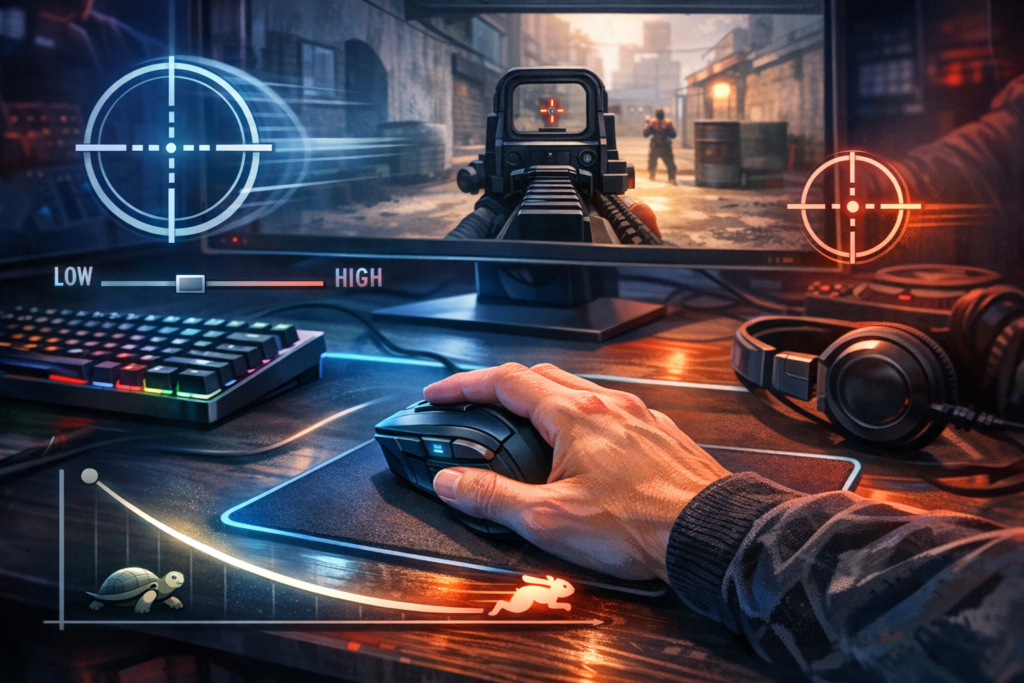

Finding the sweet spot for your mouse sensitivity can feel like searching for a needle in a haystack, right? You’re either overshooting targets in Valorant or spinning like a turtle in CS:GO. The truth is, dialing in your perfect gaming mouse sensitivity isn’t about copying some pro player’s settings – it’s about discovering what makes YOUR aim sing. This comprehensive guide will walk you through proven methods to find that magical sensitivity number that transforms your gameplay from mediocre to magnificent.
Understanding Mouse Sensitivity Fundamentals for FPS Games
Before we dive into the testing phase, let’s break down what mouse sensitivity actually means in gaming terms. Your sensitivity determines how far your crosshair moves when you physically move your mouse. It’s the connection between your hand movements and what happens on screen.
Two main factors control this relationship: DPI (dots per inch) and in-game sensitivity. Think of DPI as your mouse’s hardware setting – it measures how many pixels your cursor travels for every inch you move the mouse. In-game sensitivity then multiplies or divides that movement within your specific game.
Why Your Current Sensitivity Might Be Sabotaging Your Aim
Most gamers make a critical mistake when starting out. They either crank their sensitivity sky-high thinking faster equals better, or they copy settings from their favorite streamer without considering their own playstyle. Neither approach works because your ideal sensitivity depends on multiple personal factors including arm strength, desk space, mouse pad size, and whether you’re a wrist aimer or arm aimer.
High sensitivity gives you lightning-fast 360-degree turns but sacrifices pixel-perfect precision. Low sensitivity delivers surgical accuracy but requires more physical space and stamina. The goal? Finding that beautiful middle ground where speed meets precision.
Step-by-Step Method to Discover Your Perfect Gaming Sensitivity
Now let’s get practical. This testing method takes about thirty minutes but will save you hundreds of hours of frustration. Grab your favorite energy drink and let’s optimize your settings.
Initial Setup and DPI Configuration
Start by checking your mouse DPI through its companion software. Popular gaming mice from brands like Logitech, Razer, or SteelSeries usually come with dedicated programs where you can adjust this setting. If you’re unsure, most gaming mice default to 800 or 1600 DPI.
Here’s a practical starting point based on gaming style:
- Tactical shooters (CS:GO, Valorant): 400-800 DPI
- Battle royales (Apex Legends, Warzone): 800-1600 DPI
- Fast-paced arena shooters (Overwatch, Quake): 1600-3200 DPI
Set your mouse to 800 DPI as a baseline. This number works beautifully across most games and gives you room to adjust in either direction. Make sure to disable mouse acceleration in both Windows settings and your game – this feature creates inconsistent aim patterns that will destroy your muscle memory.
The Doubling Method for Finding Your Sensitivity Range
Jump into your game’s practice range or a deathmatch server. We’re going to use a technique that quickly narrows down your ideal sensitivity window. This method works because it forces your brain to experience extreme ends of the sensitivity spectrum.
Take your current in-game sensitivity and double it. Yes, literally multiply it by two. Play for five minutes doing flick shots – quickly snapping your crosshair to targets at various distances. Pay attention to whether you’re consistently overshooting (moving past the target) or undershooting (not reaching it fast enough).
If you’re overshooting constantly, your ideal sensitivity sits below your original number. If the doubled sensitivity still feels sluggish, you need something higher than your starting point. This immediately cuts your testing range in half.
Fine-Tuning Through Incremental Adjustments
Once you’ve identified your general range, start making smaller adjustments. Reduce or increase sensitivity by ten percent increments. After each change, spend ten minutes performing these drills:
- Flick shots to stationary targets
- Tracking moving targets smoothly
- Quick 180-degree turns to check behind you
- Micro-adjustments for headshot precision
The sensitivity that lets you perform all these tasks competently without major weaknesses? That’s your winner.
Critical Factors That Influence Your Optimal Sensitivity
Your perfect sensitivity doesn’t exist in a vacuum. Several environmental and personal factors dramatically affect what works best for you.
Mouse Pad Size and Available Desk Space
Physical space limitations matter more than most gamers realize. If you’re working with a tiny mouse pad or cramped desk, low sensitivity becomes impractical because you’ll constantly run out of room mid-fight. Measure your available space and consider this guideline:
For a full 360-degree turn, professional players typically use between 20 to 40 centimeters of mouse movement. If your mouse pad is smaller than 40 centimeters, you’ll need slightly higher sensitivity to compensate.
Aiming Style: Wrist Versus Arm Movements
Watch how you naturally aim. Do you pivot from your wrist while keeping your forearm stationary? Or do you sweep your entire arm across the desk? This fundamental difference should guide your sensitivity choice.
Wrist aimers benefit from higher sensitivity because they’re working with limited range of motion. Arm aimers can handle lower sensitivity since they’re using larger muscles with greater movement potential. Neither style is superior – top-tier players exist in both camps.
Monitor Resolution and Field of View Settings
Playing on a 1080p monitor versus a 4K display changes how sensitivity feels. Higher resolutions contain more pixels, so identical DPI settings will feel relatively slower. Similarly, wider field of view settings in games make the world appear to move faster around you, which might require sensitivity adjustments.
Don’t obsess over these factors, but keep them in mind if something feels off after changing your setup.
Advanced Sensitivity Optimization Techniques
Once you’ve nailed down your baseline sensitivity, these advanced strategies will help you squeeze out every last drop of performance.
Separate Sensitivities for Hipfire and Aiming Down Sights
Many modern shooters let you set different sensitivity multipliers for hipfire and ADS (aiming down sights). This feature is absolutely worth using. When you’re zoomed in with a scope or aiming down sights, you typically want lower sensitivity for precise adjustments. Your hipfire sensitivity can stay higher for quick reactions and movement.
A common ratio is setting ADS sensitivity to about seventy to eighty percent of your hipfire sensitivity. Test different ratios to find what feels natural when transitioning between the two states.
Converting Sensitivity Between Different Games
Found your perfect sensitivity in one game and want to replicate it elsewhere? Don’t just copy the numbers directly. Different games calculate sensitivity differently, and field of view variations mean identical settings won’t feel the same.
The most reliable approach uses centimeters per 360-degree turn as your baseline metric. Calculate how many centimeters of mouse movement it takes to complete a full rotation in your first game, then adjust settings in the new game until you match that distance. Several online calculators automate this process by accounting for different game engines and FOV settings.
Building Muscle Memory Through Consistent Practice
Here’s something crucial that trips up tons of players: changing your sensitivity too frequently destroys muscle memory. Once you’ve found settings that feel good, commit to them for at least two weeks before making any changes. Your brain needs time to develop automatic responses at that sensitivity.
During this adaptation period, your aim might actually get worse before it gets better. This temporary dip is normal and doesn’t mean your sensitivity is wrong. Push through the awkward phase and let your nervous system adapt.
Common Sensitivity Mistakes That Kill Your Performance
Even experienced players fall into these traps. Avoid them and you’ll progress faster than ninety percent of the competition.
Chasing Pro Player Settings
Watching your favorite streamer dominate with 400 DPI and 1.5 sensitivity doesn’t mean those settings will work for you. Professional gamers have thousands of hours developing muscle memory at their specific settings, plus setups optimized down to the gram of mouse weight. They also might have completely different physical attributes, desk setups, and aiming styles than you.
Use pro settings as reference points, not gospel. The best sensitivity for you is the one you discover through personal testing.
Making Changes During Losing Streaks
You’re having a rough night, missing shots you normally hit, so you blame your sensitivity and start tweaking. Stop right there. Bad performance usually comes from fatigue, tilt, or opponents simply playing better – not your settings.
Constantly adjusting sensitivity during emotional moments creates a vicious cycle where you never build consistent muscle memory. Set your sensitivity during calm, analytical testing sessions, then leave it alone during competitive play.
Ignoring Peripheral Quality
Perfect sensitivity means nothing if your mouse has sensor issues or your mouse pad has uneven surfaces. Budget mice with inferior sensors can’t track movements accurately at high speeds, creating inconsistency that no sensitivity adjustment can fix.
You don’t need the most expensive gear, but investing in a reliable gaming mouse with a quality sensor pays massive dividends. Look for mice with optical sensors rated for at least 12,000 DPI (even if you won’t use that high) as these typically have better tracking at normal gaming DPI levels.
Practical Sensitivity Recommendations by Game Genre
While individual testing trumps generic recommendations, these starting points will get you in the ballpark faster.
Tactical Shooters (CS:GO, Valorant)
These games reward pixel-perfect precision over rapid movement. Most successful players use lower sensitivities requiring 30-50 centimeters for a complete 360-degree turn. Start with 800 DPI and in-game sensitivity around 0.8-1.2. These games have smaller maps and less vertical movement, making lower sensitivity more practical.
Battle Royale Games (Apex Legends, Warzone)
The chaos of battle royales demands faster reactions and frequent 180-degree turns when third-partied. Medium sensitivity works best here – aim for 20-35 centimeters per 360. Try 800 DPI with 2.0-3.5 in-game sensitivity as a starting range. You need enough speed to track fast-moving targets while maintaining reasonable accuracy.
Arena Shooters (Overwatch, Quake Champions)
Fast-paced arena combat with vertical movement favors higher sensitivity. Characters zoom around at high speeds and threats come from all directions. Consider 15-25 centimeters per 360 as your target range. Start testing around 1600 DPI with 3.0-5.0 in-game sensitivity depending on the specific game and character.
Tools and Resources for Sensitivity Testing
Several free tools make the sensitivity optimization process more scientific and repeatable.
Aim Training Software
Dedicated aim trainers like KovaaK’s or Aim Lab provide controlled environments for testing sensitivity changes. These programs offer specific scenarios targeting different aiming skills – tracking, flicking, switching between targets, and precision clicking. Use them to benchmark your performance at different sensitivities with objective data rather than feel alone.
Create a simple routine testing the same three scenarios at each sensitivity level. Record your scores. The sensitivity that produces the highest average score across all scenarios probably suits your natural aiming style best.
Sensitivity Calculators and Converters
Online sensitivity calculators help you maintain consistent aim feel across multiple games. Input your settings from one game along with both games’ field of view values, and these tools calculate equivalent settings for your new game. While not perfect due to engine differences, they provide much better starting points than guessing.
The PSA (Perfect Sensitivity Approximation) method uses these calculators combined with systematic testing to dial in ideal settings faster than trial and error alone.
Maintaining Consistency Across Your Gaming Setup
Finding your perfect sensitivity is only half the battle. Maintaining consistency ensures you’re always performing at your peak.
Creating Sensitivity Profiles
Most gaming mice software allows saving multiple profiles. Create separate profiles for different game genres rather than constantly adjusting settings manually. Your tactical shooter profile might use 800 DPI, while your battle royale profile runs 1200 DPI. Switch between them with a button press instead of diving into menus.
Document your settings in a simple text file as backup. Include DPI, in-game sensitivity for each game, ADS multipliers, and the date you settled on these numbers. If you accidentally reset settings or switch computers, you can restore your perfect setup instantly.
Environmental Consistency
Your sensitivity will feel different if your mouse pad shifts position, your chair height changes, or you play with your keyboard at different angles. Establish consistent positioning for all your peripherals. Some competitive players even mark optimal positions with tape to ensure perfect setup every session.
Keep your mouse pad clean too. Dirt, oil, and debris create friction variations that make your sensitivity feel inconsistent even when settings haven’t changed.
When and How to Adjust Your Sensitivity Over Time
Your perfect sensitivity today might not stay perfect forever. Certain situations justify revisiting your settings.
Major hardware changes like a new mouse, mouse pad, or monitor warrant sensitivity reevaluation. Different mouse shapes affect grip style, which changes how you aim. New mouse pads have different friction characteristics. Larger monitors or resolution upgrades alter your visual field.
Physical changes matter too. If you start strength training and build forearm muscle, you might find lower sensitivity more comfortable. Injuries or repetitive strain might require temporary sensitivity increases to reduce physical stress during recovery.
The key is making changes deliberately after thoughtful consideration, not impulsively during frustrating matches. Schedule a formal sensitivity re-evaluation session every three to six months where you go through the entire testing process fresh. You might discover your preferences have evolved with experience.
Taking Your Aim to the Next Level
Perfect sensitivity unlocks your potential, but reaching elite aim requires more than just settings.
Combine your optimized sensitivity with deliberate practice routines. Spend fifteen minutes before competitive sessions doing aim drills. Focus on your weaknesses – if tracking moving targets is your problem area, dedicate time specifically to tracking exercises.
Pay attention to your physical state. Proper posture reduces fatigue and improves consistency. Keep your wrist and arm relaxed rather than tense – tension creates micro-movements that throw off precision. Stay hydrated and take breaks during long sessions to maintain peak performance.
Most importantly, trust your settings once you’ve found them. Confidence in your sensitivity lets you focus mental energy on game sense, positioning, and strategy rather than constantly second-guessing your aim mechanics.
Your perfect gaming mouse sensitivity is personal, discoverable through systematic testing, and powerful once mastered. Invest the time to find it properly, commit to building muscle memory, and watch your performance soar across every shooter you play. The difference between good aim and great aim often comes down to this single factor – so get it right and dominate your competition.
Frequently Asked Questions About Gaming Mouse Sensitivity
What DPI should I use for gaming?
Most competitive gamers use between 400-1600 DPI, with 800 DPI being the most popular sweet spot. This range provides excellent sensor accuracy while allowing fine control. Higher DPI isn’t automatically better – what matters is finding the combination of DPI and in-game sensitivity that gives you consistent, comfortable aim.
How long does it take to adjust to new sensitivity?
Expect a minimum adjustment period of one to two weeks when changing sensitivity significantly. Your brain needs time to develop new muscle memory patterns. Minor adjustments might feel natural within a few days, but major changes require patience. Resist the urge to switch back during the awkward adaptation phase.
Should I use the same sensitivity across all games?
Not necessarily. Different game genres have different aiming requirements. Tactical shooters benefit from lower sensitivity for precision, while fast-paced arena shooters work better with higher sensitivity for rapid target switching. However, keeping sensitivity similar across games in the same genre helps maintain consistent muscle memory.
Is arm aiming or wrist aiming better?
Neither is objectively superior – professional players succeed with both styles. Arm aiming typically pairs with lower sensitivity and provides better precision for large movements. Wrist aiming works with higher sensitivity and reduces physical fatigue. Choose based on your comfort, desk space, and natural movement patterns rather than trying to force an unnatural style.
Why does my aim feel inconsistent even with the same settings?
Inconsistent aim with unchanged settings usually stems from external factors: dirty mouse pad causing variable friction, fatigue affecting your physical control, mouse sensor issues, or performance anxiety during competitive matches. Check your equipment condition first, ensure adequate practice and warm-up before serious games, and maintain consistent physical positioning at your desk.
Can mouse acceleration help my aim?
Generally no, for competitive gaming. Mouse acceleration makes your cursor move different distances based on movement speed rather than just distance moved. This inconsistency makes building reliable muscle memory nearly impossible. Nearly all professional players disable mouse acceleration completely in both Windows settings and in-game options for predictable, repeatable aim movements.

Comments (0)
Sign In / Sign Up
Sign in to leave a comment.
No comments yet
Be the first one to share your thoughts!