

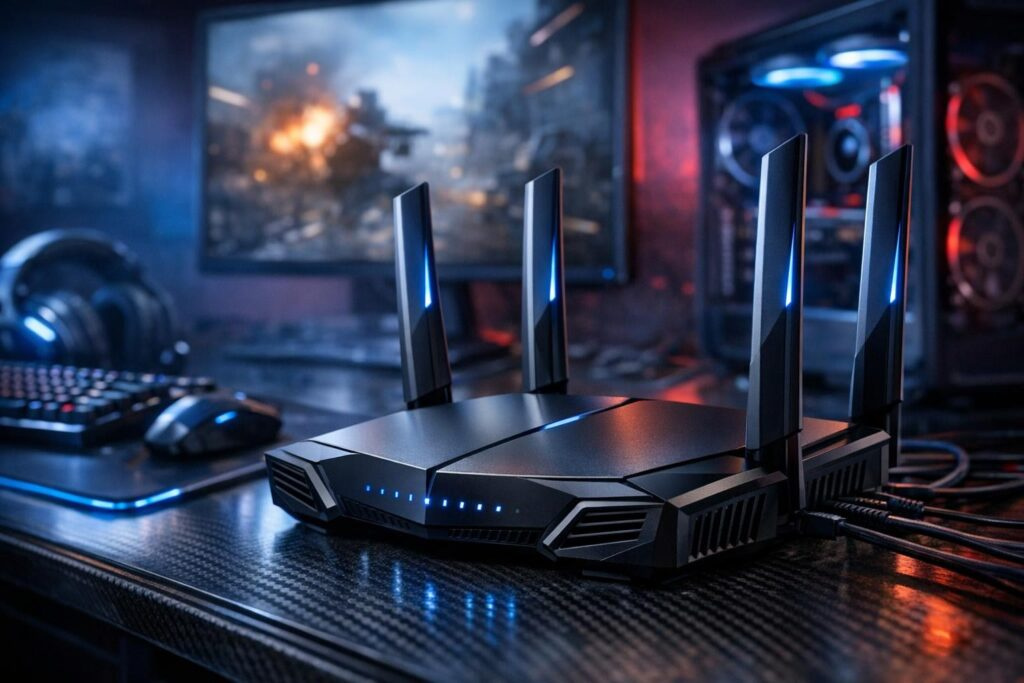

Want to dominate online matches without lag ruining your perfect headshot? Your router holds the key to smoother gameplay, and tweaking it doesn’t require a computer science degree. Just a few smart adjustments can transform your connection from frustrating to flawless. Let’s dive into the settings that actually matter for competitive gaming.
Quality of Service: Your Secret Weapon Against Lag
Think of Quality of Service (QoS) as the VIP pass for your gaming traffic. While your roommate streams movies and downloads files, QoS tells your router to prioritize your game data above everything else. This single setting can dramatically reduce those infuriating moments when your character freezes mid-battle.
Setting it up is straightforward. Log into your router’s admin panel, locate the QoS section, and assign highest priority to your gaming device. Modern gaming routers often feature dedicated gaming ports that automatically prioritize anything plugged into them. Connect your console or PC to these special ports, and you’re instantly ahead of the curve.
Fair warning: enabling QoS might slightly reduce your overall network speed because your router’s processor works harder managing traffic. But that trade-off is absolutely worth it when you need consistent, low-latency performance during critical gaming sessions.
Wired Connections Beat Wireless Every Time
Serious about competitive gaming? An Ethernet cable should be your best friend. Wi-Fi signals bounce off walls, compete with interference, and generally behave unpredictably. Wired connections eliminate this chaos entirely.
Benefits of Going Wired
- Consistently lower ping times
- Zero packet loss during intense moments
- Reliable bandwidth without fluctuations
- No interference from neighboring networks
Premium routers offer multiple gigabit Ethernet ports, sometimes even 10GbE options for future-proofing. Plug your gaming rig into these ports and configure them as priority devices in your QoS settings for maximum performance.
Wi-Fi 6 Should Be Your Minimum Standard
If wireless gaming is unavoidable, forget about older Wi-Fi 5 routers. Wi-Fi 6 represents the baseline for decent gaming performance today, with Wi-Fi 6E and Wi-Fi 7 offering even better results.
These newer standards deliver reduced latency, better handling of multiple connected devices, and significantly faster data transmission. Tri-band routers broadcasting on 2.4GHz, 5GHz, and 6GHz frequencies reduce network congestion by spreading devices across separate channels. Your gaming device gets its own highway while everything else uses different routes.
Why Upgrading Your Wi-Fi Standard Matters
Modern Wi-Fi protocols incorporate advanced technologies specifically designed to minimize the delays that plague online gaming. Features like OFDMA allow routers to communicate with multiple devices simultaneously rather than taking turns, which directly translates to lower latency for your gaming sessions.
Router Placement Impacts Performance More Than You Think
This simple trick gets overlooked constantly, yet it makes a genuine difference. Where you place your router affects signal strength throughout your space.
Optimal Router Positioning Guidelines
- Position centrally within your home or apartment
- Elevate on shelves or mount on walls rather than floor placement
- Keep away from thick walls and metal objects
- Maintain distance from microwaves and other electronic interference sources
- Avoid hiding behind furniture or in closed cabinets
Wi-Fi signals spread more effectively through open spaces. Tucking your router behind a radiator or in a closet guarantees weaker performance before you even launch a game.
Channel Selection: Fighting Neighborhood Interference
Living in apartments or densely populated areas means your router competes with dozens of neighboring networks for airspace. This congestion creates interference that increases your ping and causes instability.
Download a free Wi-Fi analyzer app for your smartphone and scan your environment. These tools reveal which channels are overcrowded and which remain relatively clear. Once you identify less congested channels, manually set them in your router’s admin panel for both 2.4GHz and 5GHz bands.
Pro Tip for 6GHz Capable Routers
If your router supports 160MHz channels on the 6GHz band, enabling this feature provides substantial improvements in both speed and stability. The 6GHz spectrum remains far less crowded than older frequencies, giving you cleaner airwaves for gaming traffic.
Beamforming Technology Focuses Signal Where It Counts
Rather than broadcasting Wi-Fi signals equally in all directions, beamforming technology concentrates the signal toward your specific devices. This targeted approach strengthens your connection and reduces interference from other sources.
Check your router specifications for beamforming support and enable it in the settings. Some routers with adjustable antennas allow physical experimentation too. Try positioning antennas vertically, horizontally, or at angles while monitoring signal strength on your gaming device to find the optimal configuration.
Mesh Systems: Understanding the Hop Problem
Mesh Wi-Fi systems solve coverage issues in larger homes by using multiple nodes throughout your space. However, they introduce a potential gaming problem: every wireless hop between nodes adds latency.
Best Practices for Gaming with Mesh Networks
- Connect gaming devices directly to the main router via Ethernet whenever possible
- Use wired backhaul between mesh nodes instead of wireless connections
- Avoid daisy-chain configurations that multiply hops
- Position your gaming setup near the primary mesh unit
If you must use mesh wireless connections for gaming, ensure your device connects to the closest node with the strongest signal to minimize latency.
Port Forwarding for Peer-to-Peer Gaming
Hosting your own server or playing games using peer-to-peer connections? Port forwarding can reduce latency by directing incoming traffic straight to your device without unnecessary routing.
Access your router’s admin panel, find the port forwarding section, then enter your device’s IP address along with the specific ports your game requires. Most game developers list these port numbers on their support websites or community forums. This configuration ensures smoother connections when hosting or joining player-created lobbies.
Choosing the Right Gaming Router
Ready to upgrade your hardware? The router market offers plenty of options optimized specifically for gaming performance.
Top Picks Across Different Budgets
| Category | Features to Consider |
| Premium Options | Wi-Fi 7 support, multiple 10GbE ports, dedicated gaming ports with auto-prioritization |
| Mid-Range Choices | Wi-Fi 6E, robust QoS controls, tri-band broadcasting |
| Budget-Friendly | Wi-Fi 6 minimum, at least one gigabit Ethernet port, basic QoS functionality |
Look for routers advertising gaming-specific features like automatic traffic prioritization, customizable QoS profiles, and low-latency modes. These aren’t just marketing buzzwords—they represent real optimizations that benefit gaming performance.
Pre-Game Optimization Checklist
Before jumping into competitive matches, run through this quick verification list to ensure optimal performance.
- Verify QoS is enabled with your gaming device set as highest priority
- Confirm wired connection for critical gaming sessions
- Check you’re using the least congested Wi-Fi channels if wireless
- Ensure router placement follows optimal positioning guidelines
- Confirm your router uses Wi-Fi 6 or newer standards
- Disconnect unnecessary devices from the network during important matches
- Restart your router if it’s been running for several days without reboot
Advanced Tweaks for Enthusiasts
Once you’ve mastered the basics, these additional optimizations can squeeze out extra performance.
Firmware Updates Matter
Router manufacturers regularly release firmware updates that improve performance and fix bugs. Check your router’s admin panel monthly for available updates. These updates sometimes include optimizations specifically targeting gaming performance or fixing latency issues.
DNS Configuration Changes
Switching from your ISP’s default DNS servers to faster alternatives can reduce the time needed to resolve game server addresses. Popular options include Google DNS, Cloudflare DNS, or gaming-optimized DNS services. This change won’t affect in-game ping, but it speeds up the initial connection process.
Bandwidth Limiting for Other Devices
Many routers allow you to set bandwidth caps on individual devices. Limit streaming devices or computers performing downloads to prevent them from consuming all available bandwidth during your gaming sessions. This works alongside QoS to maintain consistent performance.
The difference between a properly configured gaming router and a default setup can mean the difference between ranking up and rage quitting. These optimizations transform your network from a potential liability into a competitive advantage.
Monitoring and Troubleshooting Performance
After implementing these optimizations, monitor your results to verify improvements. Most gaming routers include built-in diagnostic tools showing real-time network performance, connected devices, and bandwidth usage.
Run speed tests before and after making changes to document improvements. Pay attention to ping times specifically—this metric matters more for gaming than raw download speeds. Consistent ping below 50ms generally provides excellent gaming performance, while anything under 20ms is exceptional.
Common Issues and Quick Fixes
- Sudden lag spikes: Check for bandwidth-heavy background processes on all network devices
- Inconsistent ping: Verify your gaming device maintains connection to the closest access point
- Packet loss: Test with wired connection to isolate wireless interference issues
- High latency despite optimization: Contact your ISP to rule out connection problems outside your control
These router optimizations deliver noticeable results within minutes of implementation. You’ll experience more stable ping, eliminated packet loss, and responsive gameplay that accurately reflects your skill rather than your network limitations. With these settings dialed in, you can focus on what matters: winning matches and climbing leaderboards.
Frequently Asked Questions
Will enabling QoS slow down my internet speed?
QoS can slightly reduce overall network throughput because your router’s processor works harder managing traffic priorities. However, this minor speed reduction is offset by dramatically improved gaming performance. Your game traffic gets consistent low latency, which matters far more than raw download speeds for competitive gaming.
How much better is wired connection compared to Wi-Fi for gaming?
Wired connections typically provide 20-50% lower latency compared to Wi-Fi, along with zero packet loss and completely stable bandwidth. Even premium Wi-Fi 6E cannot match the consistency of Ethernet cables. For competitive gaming where milliseconds matter, wired connections provide a measurable advantage.
Do I need an expensive gaming router or will any modern router work?
Any router with Wi-Fi 6, QoS support, and gigabit Ethernet ports can deliver solid gaming performance. Gaming-branded routers offer convenience through automatic optimizations and gaming-specific features, but you can achieve similar results with budget routers by manually configuring the settings described in this guide.
How often should I restart my router for optimal gaming performance?
Restarting your router once weekly helps clear memory leaks and refresh connections. If you notice gradual performance degradation during extended gaming sessions, your router might benefit from more frequent restarts. Some routers offer scheduled reboot features that automatically restart during off-peak hours.
Can changing Wi-Fi channels really improve my gaming experience?
Absolutely. In congested wireless environments, switching to less crowded channels can reduce interference by 30-60%, resulting in lower ping times and fewer connection drops. This optimization costs nothing and takes just minutes to implement, making it one of the easiest performance improvements available.

Comments (0)
Sign In / Sign Up
Sign in to leave a comment.
No comments yet
Be the first one to share your thoughts!