

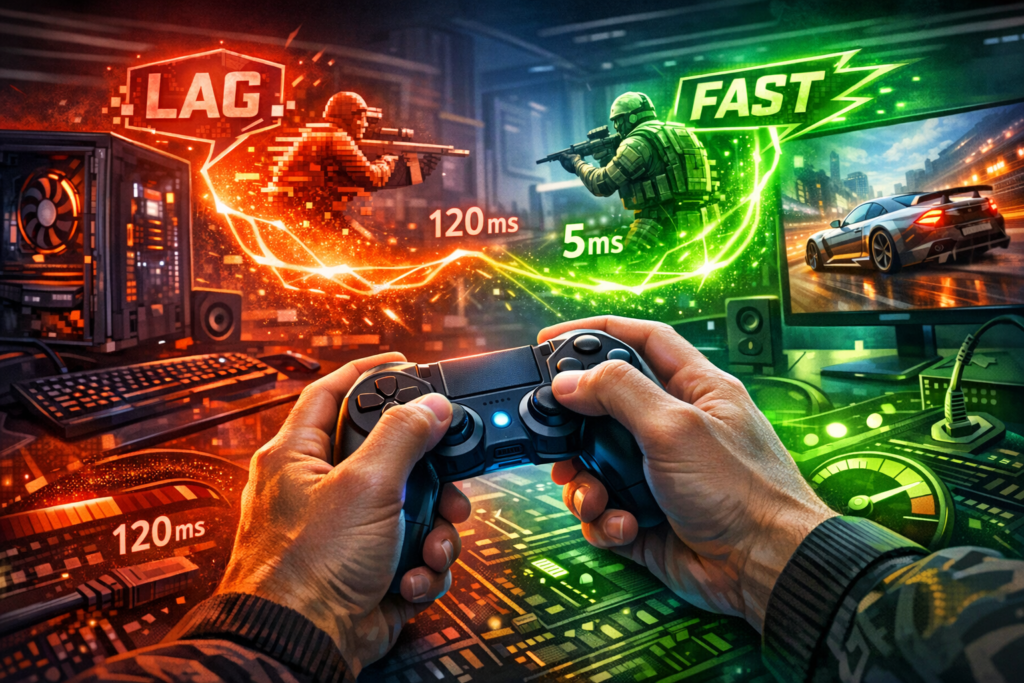

Ever pressed a button in a game and felt like your character responded just a fraction too late? That frustrating delay has a name: input lag. It’s one of the biggest enemies of competitive gamers and anyone who wants smooth, responsive gameplay. Understanding what causes this delay and how to eliminate it can transform your gaming experience from frustrating to phenomenal.
Understanding Input Lag: Breaking Down the Basics
Input lag refers to the time gap between the moment you press a button on your keyboard, mouse, or controller and when that action actually appears on your screen. Sounds straightforward, right? But this seemingly simple concept has massive implications for your gaming performance.
Picture this scenario: you’re playing a competitive shooter, spot an enemy, and click to fire. Instead of an instant response, there’s a tiny delay before your gun fires on screen. Those milliseconds might seem insignificant, but in fast-paced competitive gaming, they’re the difference between victory and defeat.
Here’s something important to understand: every gaming setup has some degree of input lag. It’s not a bug or a malfunction—it’s a natural characteristic of electronic systems. Even the most expensive, cutting-edge gaming rigs experience input lag, though they measure it in single-digit milliseconds rather than double or triple digits.
Measuring Input Lag: What Numbers Actually Mean
Input lag is measured in milliseconds (ms), and understanding these numbers helps you identify whether your setup needs improvement. Let’s break down what different measurements mean for your gaming experience:
- 0-25 ms — Excellent territory for esports professionals and competitive players
- 25-50 ms — Solid performance for both casual and competitive gaming
- 50-75 ms — Acceptable for most players, though competitive gamers might notice slight delays
- 75-100 ms — Noticeable lag that affects fast-paced games
- Over 100 ms — Significant delay that seriously impacts gameplay quality
Most gaming experts consider anything under 75 milliseconds acceptable, but serious competitive players aim for the 10-30 ms range. That’s where you get truly responsive, instantaneous feedback from your actions.
The Anatomy of Input Lag: Where Delays Come From
Input lag isn’t a single delay—it’s actually the sum of multiple components working together. Understanding each piece helps you identify where improvements can make the biggest impact.
Peripheral Device Processing
Your mouse, keyboard, or controller needs time to register your input and send the signal to your computer. Mechanical keyboards typically respond faster than membrane ones, while wired devices generally outperform wireless alternatives. This stage can add anywhere from 1 to 15 milliseconds depending on your equipment quality.
Computer and Operating System Processing
Once your PC receives the signal, it must decode and process the information. This typically takes 5-20 milliseconds, depending on your system’s specifications and how many background processes are running.
Game Engine Rendering
The game needs to understand your command, update the game state, and render a new frame. This stage varies significantly based on graphics complexity and GPU performance, typically adding 15-50 milliseconds to the total delay.
Video Signal Transmission
The signal travels from your computer to your monitor through a cable. HDMI connections typically add 4-10 milliseconds of latency, while DisplayPort can be slightly faster.
Monitor Display Processing
Finally, your monitor receives the signal, processes it, and updates the pixels. This adds another 2-5 milliseconds for processing plus the panel’s response time. Gaming monitors minimize this delay, while TVs often have significant processing that increases lag.
When you add everything together, typical input lag ranges from 25 to 100 milliseconds, with each component contributing its share to the total delay.
Common Causes of High Input Lag
Identifying what’s causing excessive input lag is the first step toward fixing it. Let’s explore the most common culprits that might be sabotaging your gaming performance.
Outdated or Low-Quality Hardware
Using an old membrane keyboard, a wireless mouse with low polling rate, or a 60Hz monitor automatically puts you at a disadvantage. These older peripherals simply can’t compete with modern gaming equipment designed for minimal latency. Upgrading to a mechanical keyboard, wired gaming mouse, and high-refresh-rate monitor can dramatically reduce input lag.
Poor Graphics Settings and Performance
Here’s a counterintuitive problem: maxing out graphics settings when your GPU can’t handle them creates massive input lag. If your system struggles to maintain 60 FPS and drops to 30-40 FPS, you’ll experience significant delays. Reducing graphics quality and optimizing settings often provides smoother, more responsive gameplay.
V-Sync and Graphics Card Misconfiguration
Vertical Sync (V-Sync) prevents screen tearing by synchronizing your FPS with your monitor’s refresh rate. Sounds great, right? The problem is V-Sync forces your game to wait for the monitor to be ready for the next frame, adding noticeable input lag. For competitive gaming, disabling V-Sync and using alternatives like G-Sync or FreeSync provides better results.
Background Applications Hogging Resources
Running multiple browser tabs, Discord, streaming software, and various other applications simultaneously steals processing power from your game. Each background process competes for CPU and RAM resources, directly impacting your system’s ability to respond quickly to inputs.
Outdated Drivers and Software
Old or corrupted drivers for your graphics card, mouse, keyboard, or motherboard can introduce unexpected delays. Manufacturers regularly update drivers to improve performance and reduce latency, so keeping everything current is essential.
Network Latency in Online Games
While technically different from input lag, network latency (ping) compounds the problem in online games. High ping adds delay between your actions and the server’s response, making even perfect input lag feel sluggish. The two types of lag work together to create the overall responsiveness you experience.
Proven Methods to Reduce Input Lag
Now for the solutions—practical steps you can take right now to minimize input lag and improve your gaming performance. These methods range from simple tweaks to more advanced optimizations.
Optimize Your Monitor Settings
Start by ensuring your monitor runs at its maximum refresh rate. Many gamers unknowingly run their 144Hz or 240Hz monitors at 60Hz because Windows defaulted to that setting. Check your display settings and manually set the highest available refresh rate.
Higher refresh rates dramatically reduce visual latency because information updates more frequently. Upgrading from 60Hz to 240Hz can reduce input lag by approximately 12.5 milliseconds—a significant improvement that competitive players immediately notice.
Also, enable any “Game Mode” or “Low Latency Mode” settings your monitor offers. These features disable image processing that adds delay, prioritizing speed over visual enhancements.
Configure V-Sync and Synchronization Technologies
If you’re experiencing noticeable input lag, try disabling V-Sync as your first troubleshooting step. While this might introduce screen tearing, it eliminates the frame-pacing delays V-Sync creates.
Better alternatives include:
- G-Sync (NVIDIA) — Dynamically adjusts your monitor’s refresh rate to match your GPU’s frame output, eliminating tearing without adding lag
- FreeSync (AMD) — AMD’s equivalent technology offering similar benefits
- NVIDIA Reflex — A newer technology specifically designed to reduce input lag by 30-50% in supported games
Professional gamers often recommend combining G-Sync with NVIDIA Reflex for the best balance of low latency and smooth visuals.
Manage Your Frame Rate Strategically
Two approaches work depending on your hardware capabilities:
Frame Rate Limiting: Cap your FPS at one frame below your monitor’s refresh rate (59 FPS for a 60Hz monitor). This prevents desynchronization and can reduce input lag while maintaining smooth visuals.
Uncapped Frame Rate: Let your game run at the highest possible FPS, even exceeding your monitor’s refresh rate. While your monitor can’t display every frame, the system processes inputs faster, resulting in lower perceived latency.
Upgrade and Optimize Your Peripherals
Your mouse’s polling rate significantly impacts input lag. Standard mice poll at 125Hz (8ms delay), while gaming mice operate at 1000Hz (1ms delay). That 7-millisecond difference is substantial in competitive scenarios.
Additionally, adjusting your mouse DPI can affect latency. Higher DPI settings (within reason) can reduce processing delays by several milliseconds. Experiment with settings between 800 and 3200 DPI to find your sweet spot.
Always choose wired peripherals over wireless when possible. Even modern wireless technology introduces 1-5 milliseconds of additional latency compared to wired connections.
Clean Up Your System
Before gaming sessions, close unnecessary applications:
- Web browsers with multiple tabs
- Communication apps like Discord (or at least disable notifications)
- File-sharing programs and cloud sync services
- Background software you’re not actively using
Use Task Manager to identify resource-hungry processes and terminate them. Every bit of freed processing power helps reduce system response time.
Update All Drivers Regularly
Keep these drivers current:
- Graphics card (NVIDIA or AMD)
- Motherboard chipset
- Peripheral devices (mouse and keyboard)
- Monitor firmware (less common but sometimes available)
Manufacturers regularly optimize drivers for better performance and lower latency, so regular updates can provide noticeable improvements.
Optimize Windows Settings
Several hidden Windows settings affect input lag:
- Disable power-saving features — Power management modes reduce performance to save energy
- Use High Performance power plan — Ensures your hardware runs at full capacity
- Disable Xbox Game Bar and DVR — These features add background processing overhead
- Turn off fullscreen optimizations — Allows games to communicate directly with hardware
Optimize Physical Setup
Physical factors matter more than you’d think:
- Use shorter, high-quality cables instead of long, cheap ones
- Keep wireless routers and other electromagnetic devices away from your mouse
- Ensure proper ventilation to prevent thermal throttling
- Position your monitor at eye level, 50-70 cm from your eyes
Consider Hardware Upgrades
If you’ve exhausted all software optimizations and still experience unacceptable input lag, hardware upgrades might be necessary:
| Component | Impact on Input Lag | Recommended Upgrade |
| Monitor | Very High | 144Hz+ gaming monitor |
| Graphics Card | High | GPU capable of high, stable FPS |
| Mouse | Medium-High | 1000Hz polling rate gaming mouse |
| Keyboard | Medium | Mechanical gaming keyboard |
| RAM | Medium | 16GB+ with fast speeds |
Input Lag Across Different Gaming Genres
Not all games suffer equally from input lag. Understanding how delay affects different genres helps you prioritize your optimization efforts.
Critical Importance
First-Person Shooters (CS:GO, Valorant, Call of Duty) — Even 10ms of additional lag can cost you matches. Precise aim and split-second reactions define success in these games.
Fighting Games (Street Fighter, Tekken, Mortal Kombat) — Frame-perfect inputs and combo execution require absolute minimal latency. Professional fighting game players are extremely sensitive to any input delay.
Rhythm Games (Beat Saber, osu!, Guitar Hero) — Timing is literally everything. Input lag directly disrupts the synchronization between audio, visual cues, and your inputs.
Moderate Importance
MOBA Games (League of Legends, Dota 2) — Input lag affects gameplay but isn’t as critical as in shooters. Strategic decision-making matters more than millisecond-perfect reactions.
Real-Time Strategy (StarCraft, Age of Empires) — Noticeable lag frustrates players, but the genre’s nature allows some adaptation.
Minimal Importance
Turn-Based Games (Civilization, XCOM) — Input lag barely matters when you’re not racing against time.
Story-Driven Single-Player — While noticeable lag remains annoying, it doesn’t significantly impact the experience.
Input Lag vs Network Lag: Understanding the Difference
Many gamers confuse these two types of latency, but they’re fundamentally different:
Input Lag: The delay between pressing a button and seeing the result on your screen. This is entirely local to your hardware and system configuration.
Network Lag (Ping): The time it takes for data to travel between your computer and the game server. This depends on your internet connection, distance to the server, and network infrastructure.
In online games, both delays combine to create your overall perceived responsiveness. You might have perfect 10ms input lag, but if your ping is 150ms, the game will still feel sluggish. Ideally, aim for ping below 50ms for competitive online gaming.
The best gaming experience comes from minimizing both input lag and network latency. Focus on what you can control—your hardware and settings—while choosing servers closest to your location for better ping.
Advanced Optimization Techniques
For gamers serious about squeezing out every millisecond of performance, these advanced techniques can provide additional improvements.
NVIDIA Reflex Technology
If you own an NVIDIA graphics card, Reflex technology deserves special attention. It works by optimizing the entire rendering pipeline to reduce latency between GPU and display. In supported games, Reflex can reduce system latency by 30-50%, providing a substantial competitive advantage.
Enable Reflex in your game’s settings (when available) and set it to “Reflex + Boost” mode for maximum latency reduction.
Custom Resolution and Refresh Rates
Some monitors support custom refresh rates beyond their advertised specifications. Tools like Custom Resolution Utility (CRU) allow you to create custom display modes. Many 144Hz monitors can be overclocked to 165Hz or higher, further reducing frame time and input lag.
Be cautious with this approach—pushing hardware beyond specifications can cause instability or damage. Research your specific monitor model before attempting overclocking.
BIOS Optimizations
Advanced users can tweak BIOS settings for better performance:
- Enable XMP/DOCP profiles for RAM to run at rated speeds
- Disable unnecessary integrated peripherals
- Set PCIe to Gen 3 or Gen 4 (depending on your hardware)
- Disable power-saving features like C-States
Only attempt BIOS modifications if you’re comfortable with these settings, as incorrect changes can prevent your system from booting.
Testing and Measuring Your Input Lag
How do you know if your optimizations are working? Testing input lag helps you understand your baseline performance and measure improvements.
Software Testing Tools
Several programs help measure input lag:
- NVIDIA Reflex Latency Analyzer — Requires compatible hardware but provides accurate measurements
- LDAT (Latency Display Analysis Tool) — Professional-grade testing equipment used by reviewers
- In-game latency stats — Many modern games display system latency metrics
Manual Testing Method
You can perform basic testing using your smartphone:
- Set your phone to slow-motion video mode (240fps or higher)
- Frame both your mouse/keyboard and monitor in the shot
- Perform an action in-game (like firing a weapon)
- Review the slow-motion footage frame by frame
- Count frames between button press and screen response
- Calculate latency based on your recording frame rate
While not scientifically precise, this method gives you a rough baseline to compare before and after optimization.
Common Myths About Input Lag
Let’s debunk some misconceptions that circulate in gaming communities:
Myth: Expensive equipment eliminates input lag entirely
Reality: All systems have some latency. Premium equipment minimizes it but can’t eliminate it completely.
Myth: You need to be a professional to notice input lag
Reality: Most people can perceive delays above 50ms, and many notice differences around 30-40ms.
Myth: Wireless peripherals are always inferior
Reality: Modern high-end wireless mice and keyboards can match or approach wired latency, though wired still has a slight edge.
Myth: Higher DPI always means lower latency
Reality: Extremely high DPI can introduce processing delays. There’s a sweet spot, typically between 800-3200 DPI.
Myth: Input lag only matters in competitive gaming
Reality: While less critical in casual gaming, reducing input lag improves the experience in all genres.
The Future of Input Lag Reduction
Gaming technology continues evolving, with manufacturers focusing increasingly on latency reduction. Future developments to watch include:
Higher Refresh Rate Displays: 360Hz monitors are becoming more common, with 480Hz and 500Hz displays entering the market. Each increase reduces frame time and perceived latency.
Advanced Synchronization Technologies: Next-generation versions of G-Sync and FreeSync promise even lower latency while maintaining smooth visuals.
AI-Powered Optimization: Machine learning algorithms may soon predict player inputs and pre-render frames, effectively reducing perceived latency.
Direct-to-Display Technologies: Future systems might bypass traditional rendering pipelines, sending input data more directly to display panels.
Final Thoughts: Your Path to Responsive Gaming
Input lag isn’t an imaginary problem—it’s a measurable, real phenomenon that affects your gaming performance. The good news? You have significant control over most factors contributing to input delay.
Start with simple optimizations: verify your monitor’s refresh rate, disable V-Sync, close background applications. If problems persist, move to more advanced configurations. When software optimizations reach their limits, strategic hardware upgrades provide the next performance leap.
Remember that in competitive gaming, milliseconds matter. Every optimization compounds to create a more responsive, enjoyable experience. Whether you’re climbing ranked ladders or enjoying casual sessions, reducing input lag enhances your gaming experience.
The journey to minimal input lag requires patience and experimentation. Test different settings, measure results, and find what works best for your specific setup. Your investment in optimization directly translates to better performance and more satisfying gameplay.
Now that you understand input lag from causes to solutions, you’re equipped to eliminate this invisible enemy and unlock your true gaming potential. Start optimizing today, and experience the difference that responsive, lag-free gaming makes.
Frequently Asked Questions
What’s the difference between input lag and response time?
Input lag measures the total delay from button press to screen display, while response time specifically refers to how quickly monitor pixels change colors. Response time is just one component of overall input lag. A monitor might have a fast 1ms response time but still have 20-30ms of total input lag due to processing delays.
Can input lag be completely eliminated?
No, input lag cannot be completely eliminated because every electronic component requires processing time. However, you can reduce it to imperceptible levels (under 10-15ms) with optimal hardware and settings. At these levels, the delay becomes effectively unnoticeable even to professional gamers.
Is 60Hz monitor good enough for competitive gaming?
While 60Hz monitors work for casual gaming, they’re at a disadvantage for competitive play. The 16.67ms frame time of 60Hz displays adds significant input lag compared to 144Hz (6.94ms) or 240Hz (4.17ms) monitors. Serious competitive players should invest in at least a 144Hz display for noticeably better responsiveness.
Does increasing FPS reduce input lag even if my monitor can’t display all frames?
Yes, running games at higher FPS than your monitor’s refresh rate can reduce input lag. The system processes inputs more frequently, and even though not every frame displays, you’re seeing more recent information. Running at 200 FPS on a 144Hz monitor feels more responsive than capping at 144 FPS.
Should I disable V-Sync for competitive gaming?
Generally yes, disabling V-Sync reduces input lag for competitive gaming. While this may cause screen tearing, the improved responsiveness outweighs the visual artifact for most competitive players. Alternatively, use G-Sync or FreeSync which provide tear-free visuals with minimal added latency.
How much does wireless mouse lag affect gaming?
Budget wireless mice can add 10-20ms of lag, but high-end wireless gaming mice now achieve latency nearly identical to wired connections (1-2ms difference). If you own a quality wireless mouse from reputable gaming brands, the latency difference is negligible. However, wired mice still have a slight edge and never require battery charging.
Will upgrading my graphics card reduce input lag?
Yes, if your current GPU struggles to maintain high frame rates. A more powerful graphics card can render frames faster, reducing the time between input and display. However, if you’re already achieving high, stable FPS, upgrading your GPU won’t significantly impact input lag—focus on monitor and peripheral upgrades instead.
What’s the ideal mouse polling rate for gaming?
1000Hz is currently the standard for gaming mice, providing 1ms reporting intervals. Some newer mice offer 2000Hz or even 4000Hz polling rates, but the practical benefit beyond 1000Hz is minimal for most players. Ensure your mouse is set to at least 500Hz (2ms) for competitive gaming, avoiding the standard 125Hz (8ms) setting.

Comments (0)
Sign In / Sign Up
Sign in to leave a comment.
No comments yet
Be the first one to share your thoughts!