

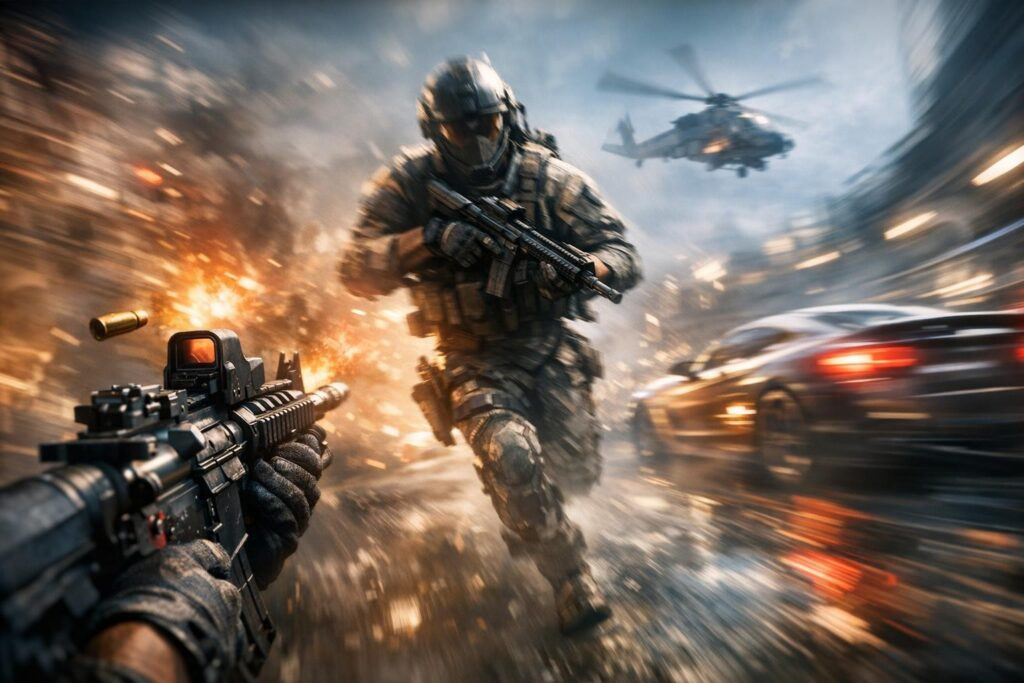

Gaming graphics have evolved tremendously over the past decade, yet one visual effect continues to spark heated debates among players worldwide. Motion blur remains one of the most controversial post-processing techniques in modern video games, with passionate advocates on both sides of the discussion. Understanding what motion blur actually does, why developers include it, and when you should consider disabling it can significantly impact your gaming experience and performance.
This comprehensive guide explores the technical foundations of motion blur, its practical applications in gaming, and provides actionable recommendations for optimizing your visual settings. Whether you’re a competitive player seeking every possible advantage or a casual gamer looking for the smoothest experience, this article will help you make informed decisions about this divisive graphical feature.
Understanding Motion Blur Technology in Video Games
Motion blur simulates the natural phenomenon that occurs when your eyes perceive rapid movement in the real world. When objects move quickly across your field of vision, your brain processes these movements by blending multiple visual frames together, creating a natural streaking effect. Game developers attempt to replicate this biological response through sophisticated rendering techniques that artificially blur moving objects and camera movements.
Modern gaming engines like Unreal Engine and Unity implement motion blur as a post-processing effect applied after the main rendering pass. The technology works by analyzing the velocity of objects and camera movements between frames, then applying directional blur along the movement vector. This computational approach creates the illusion of smooth motion even when frame rates might otherwise appear choppy or stuttered.
The Technical Foundation Behind Motion Blur
Game engines calculate motion blur using velocity buffers that track pixel movement between consecutive frames. The rendering pipeline captures this movement data and applies blur samples along the direction of motion. Several factors influence the intensity and quality of motion blur effects:
- Object velocity relative to camera position and viewing angle
- Distance between moving objects and the virtual camera
- Camera rotation speed and acceleration patterns
- Frame rate consistency and frame time variance
- Quality settings and computational budget allocated to the effect
Different games implement motion blur with varying levels of sophistication. Some titles apply blanket blur to the entire screen during camera movement, while advanced implementations selectively blur individual objects based on their specific motion vectors. High-quality motion blur techniques can distinguish between camera movement and object movement, applying appropriate blur only where needed.
Cinematic Origins and Gaming Applications
The concept of motion blur in interactive entertainment stems directly from traditional filmmaking. Movies shot at standard 24 frames per second exhibit natural motion blur due to camera shutter speeds and exposure times. This blur helps create smooth motion perception despite the relatively low frame rate compared to real-time vision. Film directors and cinematographers have long understood that motion blur contributes significantly to the cinematic feel audiences expect from visual storytelling.
Game developers borrowed this technique to enhance visual realism and create more cinematic experiences. Console games running at 30 or 60 frames per second particularly benefit from motion blur, as it helps mask the perceptual stuttering that occurs at lower frame rates. The effect essentially fills in the gaps between frames, creating an illusion of smoother animation even when the underlying frame rate remains modest.
Why Developers Include Motion Blur by Default
Understanding developer motivations for implementing motion blur provides valuable context for deciding whether to keep it enabled. Game creators don’t include resource-intensive effects without legitimate reasons, and motion blur serves multiple purposes beyond simple visual flair.
Masking Performance Limitations
One primary reason developers embrace motion blur involves concealing frame rate inconsistencies and performance limitations. Games targeting console hardware often struggle to maintain consistent 60 frames per second, particularly during graphically intensive sequences. Motion blur helps smooth out these performance dips by reducing the perceived jerkiness when frame times fluctuate.
This masking effect proves especially valuable for open-world games and graphically demanding titles where maintaining locked frame rates presents significant technical challenges. Rather than exposing every performance hiccup to players, motion blur creates a buffer that makes frame rate variations less noticeable during normal gameplay.
Creating Cinematic Atmosphere
Story-driven games with strong narrative focus frequently leverage motion blur to enhance their cinematic presentation. Action-adventure titles, narrative experiences, and single-player campaigns benefit from the film-like quality motion blur provides. The effect helps these games feel more like interactive movies, strengthening emotional engagement and atmospheric immersion.
Racing games and high-speed action titles use motion blur to convey velocity and excitement. When implemented thoughtfully, the effect amplifies the sensation of speed, making chase sequences feel more thrilling and racing gameplay more visceral. The blur reinforces the sense of momentum and kinetic energy that these genres strive to communicate.
Addressing Temporal Aliasing Issues
Motion blur serves a technical function in reducing temporal aliasing, a visual artifact that occurs when fast-moving objects appear to jump or stutter across the screen. This aliasing becomes particularly noticeable with thin objects like fences, power lines, or foliage when they move rapidly across the viewport. Motion blur softens these artifacts by blending frames together, creating smoother apparent motion.
Modern anti-aliasing techniques like temporal anti-aliasing often work in conjunction with motion blur to provide cleaner overall image quality. The two technologies complement each other, with motion blur handling movement-based artifacts while temporal anti-aliasing addresses spatial edge aliasing.
The Case Against Motion Blur in Competitive Gaming
Despite its benefits for cinematic presentation and performance masking, motion blur faces fierce opposition from competitive gaming communities. Professional players and serious enthusiasts nearly universally disable motion blur, and understanding their reasoning reveals important considerations for all gamers.
Visual Clarity and Competitive Advantage
Competitive gaming demands absolute visual clarity. Every pixel matters when you’re tracking opponents, landing precise shots, or reacting to split-second movements. Motion blur fundamentally works against this requirement by intentionally obscuring visual information during movement. When you’re quickly scanning for enemies or tracking targets, motion blur transforms crucial visual details into indistinct smears.
First-person shooters exemplify this problem most dramatically. Games like Counter-Strike, Valorant, Call of Duty, and Apex Legends require players to maintain perfect awareness of enemy positions while executing rapid camera movements. Motion blur during these quick turns and flick shots reduces the brief windows where players can acquire visual information about their surroundings. Professional players optimize every aspect of their setup for maximum clarity, and motion blur directly conflicts with this goal.
Performance Impact and Frame Rate Optimization
Motion blur requires computational resources to calculate velocity buffers and apply blur samples across the frame. While modern GPUs handle these calculations efficiently, every processing cycle dedicated to motion blur represents resources unavailable for other tasks. Disabling motion blur typically yields measurable performance improvements, particularly on mid-range hardware or when pushing for maximum frame rates.
Frame rate gains from disabling motion blur vary by game and implementation quality, but improvements typically range from 5 to 15 frames per second. For players targeting specific frame rate thresholds like 144 or 240 FPS to match high refresh rate monitors, these gains can make the difference between smooth performance and occasional stuttering.
Physical Discomfort and Motion Sickness
A significant portion of gamers experience physical discomfort when playing with motion blur enabled. The artificial blurring conflicts with natural visual processing, potentially triggering symptoms ranging from mild eye strain to severe motion sickness. Extended gaming sessions with motion blur can cause headaches, nausea, and visual fatigue.
Individual sensitivity to motion blur varies considerably, with some players experiencing no issues while others find it immediately uncomfortable. Factors like screen size, viewing distance, and personal susceptibility to motion sickness all influence how players respond to motion blur effects. The discomfort often intensifies during rapid camera movements or when playing on larger displays.
When to Keep Motion Blur Enabled
Despite the arguments against motion blur, certain gaming scenarios genuinely benefit from keeping this effect active. Understanding when motion blur enhances rather than detracts from your experience helps you make nuanced decisions rather than blindly following dogmatic recommendations.
Single-Player Narrative Experiences
Story-focused games with cinematic aspirations often look and feel better with tasteful motion blur implementation. Titles like The Last of Us, God of War, Horizon Forbidden West, and similar narrative adventures use motion blur to enhance their film-like presentation. These games prioritize atmosphere and immersion over competitive precision, making motion blur a legitimate artistic choice rather than a hindrance.
When you’re exploring beautifully crafted worlds without time pressure or competitive stakes, motion blur contributes to the overall aesthetic experience. The effect helps these games achieve their artistic vision and creates the emotional tone developers intended. Many players find that motion blur in these contexts feels natural and enhances their enjoyment.
Racing and High-Speed Action Games
Racing simulators and arcade racing games represent motion blur’s strongest use case. The effect authentically replicates how peripheral vision blurs during high-speed driving. Games like Forza Motorsport, Gran Turismo, Need for Speed, and similar racing titles benefit significantly from per-object motion blur that selectively blurs wheels, backgrounds, and environmental details while keeping the focused road ahead relatively sharp.
Flight simulators similarly benefit from motion blur during high-speed maneuvers and rapid orientation changes. The effect helps convey the sensation of velocity and acceleration that these simulation-focused titles strive to recreate. Well-implemented motion blur in racing and flying games enhances the visceral feeling of speed without compromising your ability to navigate effectively.
Lower Frame Rate Gaming on Consoles
Console players running games at 30 or 60 frames per second often find motion blur helpful for creating smoother perceived motion. At these frame rates, the gaps between individual frames become noticeable during rapid movement. Motion blur fills these gaps, reducing the stuttering effect that makes lower frame rates feel choppy.
This benefit becomes less relevant as frame rates increase. Once you exceed 90-100 frames per second on appropriate displays, natural persistence of vision handles motion smoothing without artificial assistance. High refresh rate gaming at 120, 144, or 240 FPS renders motion blur largely unnecessary from a smoothness perspective.
Game Genre Breakdown: Motion Blur Recommendations
Different game genres present unique considerations for motion blur settings. This breakdown provides genre-specific guidance to help optimize your experience across various gaming styles.
| Game Genre | Recommendation | Reasoning |
|---|---|---|
| Competitive Shooters | Disable | Maximum clarity for target tracking and quick reactions |
| Battle Royale Games | Disable | Visual clarity crucial for spotting distant enemies |
| Racing Simulators | Enable | Enhances speed sensation and feels more realistic |
| Story-Driven Adventures | Personal Preference | Test both settings to determine what feels more immersive |
| Fighting Games | Disable | Frame-perfect timing requires clear visual feedback |
| Open World RPGs | Personal Preference | Depends on whether you prioritize atmosphere or clarity |
| Strategy Games | Disable | Precision cursor control and UI clarity matter most |
| Horror Games | Enable | Can enhance disorientation and atmospheric tension |
| Sports Games | Personal Preference | Some benefit from motion blur during replays and action |
| VR Experiences | Disable | Artificial blur conflicts with natural head movement |
First-Person Shooters: The Clear Choice
First-person shooters represent the clearest case for disabling motion blur. Games like Counter-Strike 2, Valorant, Rainbow Six Siege, and Escape from Tarkov demand pixel-perfect aim and instant target recognition. Motion blur directly interferes with these requirements by obscuring enemy players during the rapid camera movements that define shooter gameplay.
Even in more casual shooters like Call of Duty or Battlefield, disabling motion blur provides tangible advantages. You’ll track moving targets more easily, spot enemies during quick turns, and maintain better situational awareness during chaotic firefights. Professional players universally disable motion blur, and competitive-minded players should follow suit.
Role-Playing Games: Context Matters
RPGs present a more nuanced scenario where motion blur recommendations depend on gameplay style. Action RPGs with real-time combat like Elden Ring, Monster Hunter, or Dark Souls benefit from disabled motion blur, as precise timing and clear visual feedback prove crucial for success. The fast-paced nature of these combat systems aligns more closely with shooter requirements than traditional RPG experiences.
Conversely, slower-paced RPGs focused on exploration, storytelling, and strategic turn-based combat may benefit from motion blur’s atmospheric contributions. Games like The Witcher 3, Final Fantasy titles, or Baldur’s Gate 3 emphasize world immersion over twitch reflexes, making motion blur a viable option for players who prefer cinematic presentation.
Step-by-Step Guide to Disabling Motion Blur
Disabling motion blur varies slightly depending on your gaming platform and specific titles, but the general process remains straightforward across most games.
In-Game Settings Method
Most modern games include motion blur toggles within their graphics or video settings menus. Follow these general steps:
- Open the game’s main menu or pause menu during gameplay
- Navigate to Settings, Options, or Preferences
- Select Graphics, Video, or Display settings
- Look for Motion Blur, Camera Blur, or similar terminology
- Set the slider to zero or toggle the option to Off/Disabled
- Apply changes and restart the game if required
Some games separate motion blur into multiple categories like Object Motion Blur and Camera Motion Blur. You can experiment with disabling one while keeping the other enabled, though most competitive players disable both variants completely.
Configuration File Editing
Games lacking in-game motion blur controls sometimes allow configuration file adjustments. This advanced method requires locating the game’s configuration files, typically stored in your user documents folder or the game’s installation directory. Look for files with extensions like .ini, .cfg, or .config.
Search these files for motion blur-related variables and change their values to 0 or false. Common variable names include MotionBlur, bMotionBlur, or similar variations. Always create backup copies of configuration files before editing them, as incorrect changes can cause games to malfunction or reset your settings.
Console Commands for Specific Engines
Games built on Unreal Engine often support console commands for quickly toggling motion blur. Access the developer console by pressing the tilde key during gameplay, then enter relevant commands:
- r.MotionBlurQuality 0 (disables motion blur)
- r.MotionBlur.Max 0 (sets maximum blur intensity to zero)
- r.DefaultFeature.MotionBlur 0 (disables default motion blur)
These commands provide immediate results without restarting the game, making them ideal for testing whether disabling motion blur improves your experience. Keep in mind that console commands may reset when closing the game unless you add them to startup configuration files.
Alternative Solutions for Smooth Motion
Disabling motion blur doesn’t mean sacrificing smooth motion perception. Several alternative approaches provide fluid gameplay without artificial blur effects.
High Refresh Rate Displays
Upgrading to a high refresh rate monitor represents the single most effective solution for smooth motion without motion blur. Displays running at 144Hz, 165Hz, or 240Hz refresh rates update their image far more frequently than standard 60Hz screens. This increased refresh rate creates naturally smooth motion that your eyes perceive without requiring artificial blur effects.
The improvement feels dramatic when you first experience high refresh rate gaming. Camera movements appear fluid and responsive, fast-moving objects remain clear and distinct, and overall gameplay feels more immediate and connected. Combined with sufficient frame rate to match your display’s refresh capabilities, high refresh rate monitors eliminate the primary justification for motion blur in games.
Frame Rate Optimization
Maximizing your frame rate produces similar benefits to high refresh rate displays. Games running at 100+ frames per second exhibit smooth motion without assistance from post-processing effects. Focus on optimizing your graphics settings to maintain high frame rates rather than relying on motion blur to mask lower frame rate limitations.
Reduce demanding graphics settings like shadows, ambient occlusion, and volumetric effects before touching motion blur. These settings typically impact performance more significantly while providing less noticeable visual improvements during actual gameplay. Reserve motion blur adjustment for after you’ve optimized other settings.
Adaptive Sync Technologies
Variable refresh rate technologies like NVIDIA G-SYNC and AMD FreeSync eliminate screen tearing and stuttering without introducing input lag or requiring motion blur. These technologies synchronize your monitor’s refresh rate with your graphics card’s output, creating smooth motion even when frame rates fluctuate.
Enabling adaptive sync alongside disabling motion blur provides optimal visual clarity and smooth motion perception. The combination eliminates both the blurriness of motion blur and the stuttering of mismatched refresh rates, creating the cleanest possible gaming experience.
Testing Motion Blur Impact on Your System
Rather than blindly following recommendations, conduct your own testing to determine motion blur’s impact on your specific hardware and gaming preferences.
Performance Benchmarking
Run benchmark tests with motion blur enabled and disabled to measure concrete performance differences. Many games include built-in benchmark modes that provide consistent testing scenarios. Record your average frame rate, minimum frame rate, and frame time consistency for both configurations.
Compare results to determine whether disabling motion blur provides meaningful performance improvements on your system. If you gain 10-15 frames per second, the performance benefit clearly justifies disabling the effect. Smaller gains of 2-3 frames may not matter if you already exceed your target frame rate comfortably.
Subjective Comfort Assessment
Spend extended gaming sessions with motion blur both enabled and disabled, paying attention to physical comfort and visual fatigue. Notice whether you develop headaches, eye strain, or disorientation during longer play sessions with motion blur active. Some players immediately notice discomfort, while others never experience issues regardless of motion blur settings.
Trust your personal experience over general recommendations. If motion blur genuinely enhances your immersion without causing discomfort or hindering performance, keeping it enabled represents a perfectly valid choice. Gaming should feel comfortable and enjoyable, and settings that accomplish this goal matter more than following arbitrary rules.
Advanced Motion Blur Considerations
Beyond basic enable-disable decisions, understanding advanced motion blur concepts helps optimize your configuration for specific scenarios.
Per-Object vs Camera-Based Motion Blur
Modern games often implement two distinct motion blur types serving different purposes. Camera-based motion blur applies blur across the entire screen during camera movement, while per-object motion blur selectively blurs individual moving objects regardless of camera position.
Per-object motion blur generally proves less intrusive than camera-based blur. It maintains screen clarity during camera movements while applying realistic blur to fast-moving objects like vehicles, projectiles, or animated characters. Some games allow you to disable camera blur while retaining object blur, providing a compromise between complete clarity and selective motion effects.
Motion Blur Quality Settings
Games with motion blur quality sliders let you balance visual quality against performance impact. Lower quality settings reduce sample count and computational complexity, improving performance while potentially introducing visual artifacts in the blur effect. Higher quality settings produce smoother, more cinematic blur at increased computational cost.
If you decide to keep motion blur enabled, experiment with quality settings to find your optimal balance. Medium quality often provides acceptable results with modest performance impact, while maximum quality settings primarily benefit screenshot enthusiasts and video creators rather than improving real-time gameplay experience.
Temporal Effects Interaction
Motion blur interacts with other temporal effects like temporal anti-aliasing and temporal upscaling technologies. Some games combine these effects in ways that make complete separation impossible through standard settings. Understanding these interactions helps explain why disabling motion blur sometimes fails to eliminate all blur effects.
Temporal anti-aliasing techniques inherently introduce subtle motion blur as part of their edge-smoothing algorithms. If you remain sensitive to blur after disabling motion blur settings, experiment with different anti-aliasing methods. Switching from temporal anti-aliasing to spatial anti-aliasing like MSAA or SMAA eliminates temporal blur components while potentially impacting performance differently.
Platform-Specific Motion Blur Differences
Motion blur implementation and control options vary across gaming platforms, with each presenting unique considerations.
PC Gaming Flexibility
PC gaming offers maximum control over motion blur settings. Nearly all PC releases include motion blur toggles, and advanced users can access configuration files and console commands for fine-tuned control. PC players also benefit from hardware capable of higher frame rates that reduce motion blur’s usefulness for smoothing motion.
Graphics card control panels provide additional options for forcing motion blur settings across multiple games. NVIDIA Control Panel and AMD Software allow global overrides that can disable motion blur even in games lacking built-in controls, though these overrides don’t work universally.
Console Gaming Limitations
Console players face more limited motion blur control. While many modern console games include motion blur toggles, some titles lock motion blur settings without providing player control. Console hardware targeting 30 or 60 FPS makes motion blur more relevant for smoothing motion, explaining why some developers resist providing disable options.
Performance and quality modes on current-generation consoles sometimes differ in their motion blur implementation. Performance modes targeting higher frame rates occasionally reduce or disable motion blur automatically, while quality modes emphasizing visual fidelity may apply more aggressive blur to mask lower frame rates. Experimenting with these preset modes may provide motion blur control even when explicit settings don’t exist.
VR Gaming Special Considerations
Virtual reality gaming presents unique motion blur challenges. Artificial motion blur in VR often conflicts with natural head movement and vestibular system expectations, potentially increasing motion sickness risk. Most VR developers avoid aggressive motion blur implementation for this reason, but some titles still apply subtle effects during rapid movements.
VR players should prioritize disabling motion blur whenever possible. The medium’s immersive nature makes visual clarity and motion comfort paramount, and artificial blur undermines both goals. High frame rate requirements in VR also reduce motion blur’s utility for smoothing motion perception.
Future of Motion Blur Technology
Motion blur technology continues evolving alongside advances in rendering techniques and display technology. Understanding emerging trends helps anticipate how motion blur implementations may change in coming years.
Machine Learning Enhanced Motion Blur
Artificial intelligence and machine learning techniques promise more sophisticated motion blur implementations that adapt to content and viewing conditions. These systems could potentially distinguish between scenarios where blur enhances immersion versus situations requiring maximum clarity, automatically adjusting intensity accordingly.
Neural network approaches might also reduce the performance cost of high-quality motion blur, making the effect more accessible without significant frame rate penalties. Whether these advances convince competitive players to embrace motion blur remains uncertain, but they may expand the scenarios where blur provides genuine value.
Higher Refresh Rate Displays Reducing Blur Necessity
As high refresh rate displays become standard rather than premium features, motion blur’s relevance for smoothing motion continues declining. Gaming at 144Hz or higher creates naturally smooth motion that eliminates the primary justification for artificial blur effects. Market trends suggest displays with 120Hz+ refresh rates will become mainstream across all price points within coming years.
This transition may eventually push motion blur into purely artistic territory rather than technical necessity. Future games might reserve motion blur for specific cinematic moments or as optional stylistic choices rather than default settings meant to compensate for technical limitations.
Motion blur represents a crossroads between cinematic presentation and competitive clarity. Your optimal settings depend entirely on your gaming priorities, hardware capabilities, and personal preferences. Don’t let dogmatic recommendations override your own experience and comfort.
Making Your Final Decision on Motion Blur
After exploring motion blur from multiple angles, you’re equipped to make informed decisions about this controversial effect. Rather than blindly following recommendations, consider your specific gaming context, hardware capabilities, and personal preferences.
Competitive players focused on performance should disable motion blur without hesitation. The clarity advantages and performance gains justify abandoning any atmospheric benefits blur might provide. Your reaction times and target tracking will improve measurably with crisp, blur-free visuals.
Casual and single-player focused gamers should experiment with both configurations before settling on permanent settings. Some of you will appreciate motion blur’s cinematic qualities and find it enhances immersion without causing discomfort. Others will immediately notice the clarity improvement when disabling blur and never look back.
Remember that motion blur settings aren’t permanent commitments. Feel free to adjust settings per game or even per gaming session based on your current priorities. Racing games might benefit from blur while shooters demand clarity, and there’s nothing wrong with maintaining different configurations for different genres.
Most importantly, trust your own experience over any external recommendations. If motion blur genuinely improves your gaming enjoyment without causing problems, keeping it enabled represents a perfectly valid choice. Gaming exists for your entertainment, and settings that maximize your personal enjoyment always trump theoretical optimization.

Comments (0)
Sign In / Sign Up
Sign in to leave a comment.
No comments yet
Be the first one to share your thoughts!